---
title: How to Add, Create and Edit Forms
description: How to add and edit forms in Populate
---

[Skip to content](https://knowledge.populateemr.com/how-to-create-forms#main-content)

English

Show submenu for translations

[More support](https://knowledge.populateemr.com/kb-tickets/new?hsLang=en) [Customer portal](https://support.populateemr.com/tickets?hsLang=en)

![](https://knowledge.populateemr.com/hs-fs/hubfs/Full%20Logo%20-%20Black-1.png?width=250&height=67&name=Full%20Logo%20-%20Black-1.png)

Open main navigation

Close main navigation

- English
  
  Show submenu for translations
- [More support](https://knowledge.populateemr.com/kb-tickets/new)
- [Customer portal](https://support.populateemr.com/tickets)
- [Contact us](mailto:support@populate.com)

[Contact us](mailto:support@populate.com)

 How can we help you?

- There are no suggestions because the search field is empty.

1. [Populate Help Desk](https://knowledge.populateemr.com/?hsLang=en)
2. [Settings](https://knowledge.populateemr.com/settings?hsLang=en)

September 8, 2026

# How to Add, Create and Edit Forms

## Forms are a helpful tool for sending out documents that pull in information like patient name, DOB, etc. automatically without having to go looking.   From Settings \> Forms you can upload a document (PDF preferred) or edit any existing forms.

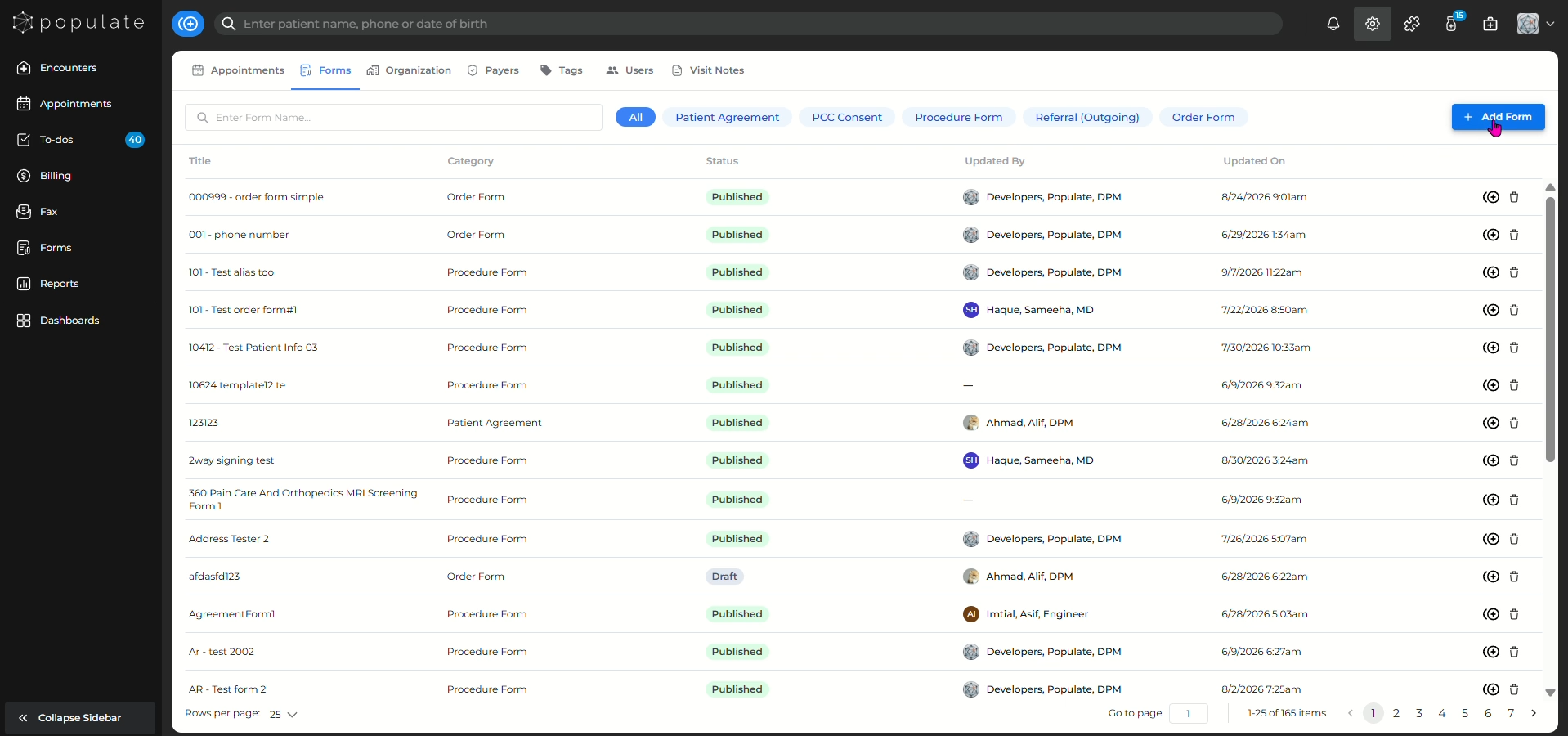
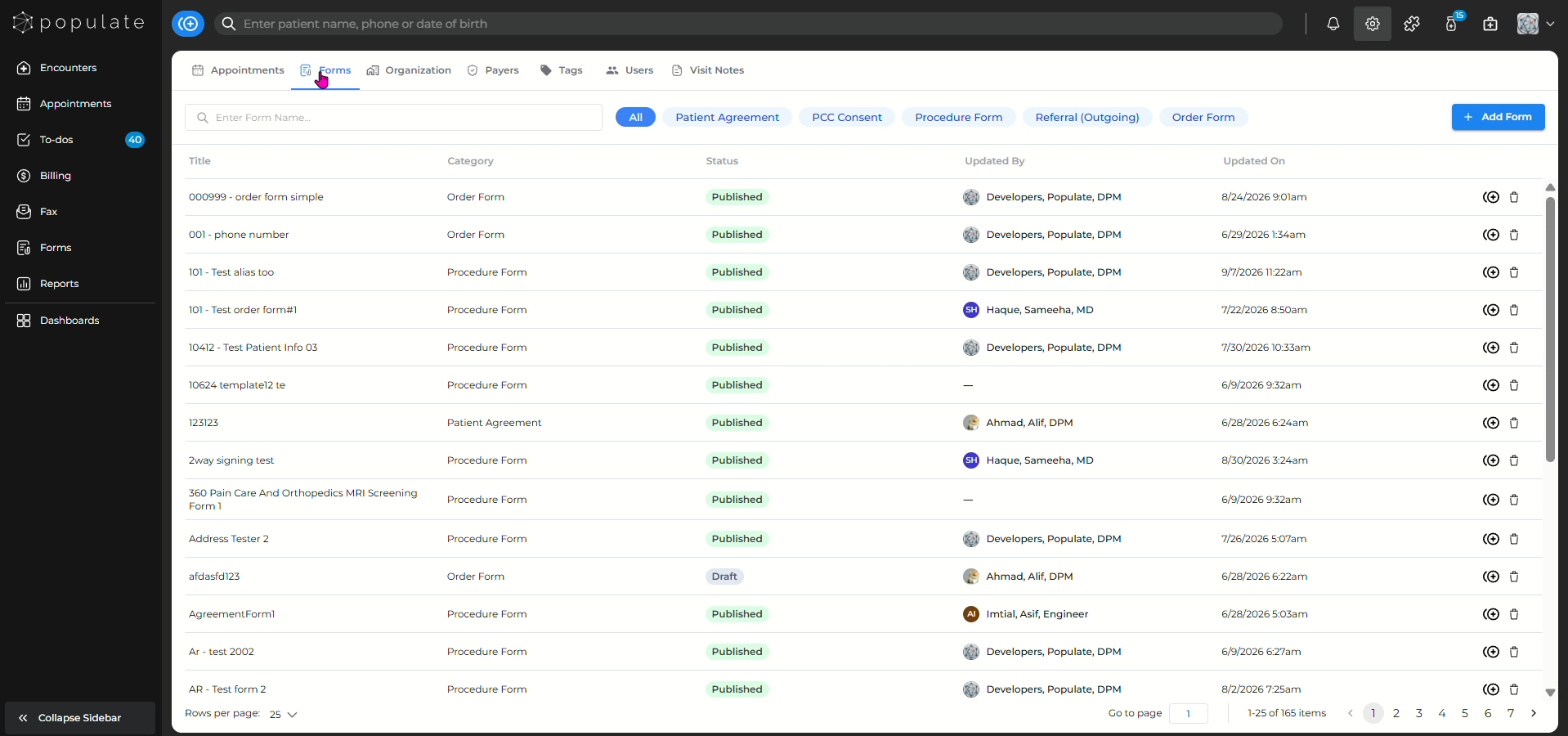
Navigate to the "**Forms**" tab from Settings.
![](https://usercontent.us.prod.clueso.io/0ee74cae-77f1-4ef9-a322-2a7d9ec1a279/08dedc75-165d-4750-beab-156b0938f6b5/53eff2ef-e14b-4320-bd56-ca5536d0ee76/images/016e408c-5607-4cda-9fee-1e751c9bf53a.png)

Click "**Add Form**"

![](https://usercontent.us.prod.clueso.io/0ee74cae-77f1-4ef9-a322-2a7d9ec1a279/08dedc75-165d-4750-beab-156b0938f6b5/53eff2ef-e14b-4320-bd56-ca5536d0ee76/images/429d10b8-1343-4d31-aadf-877173c56418.png)

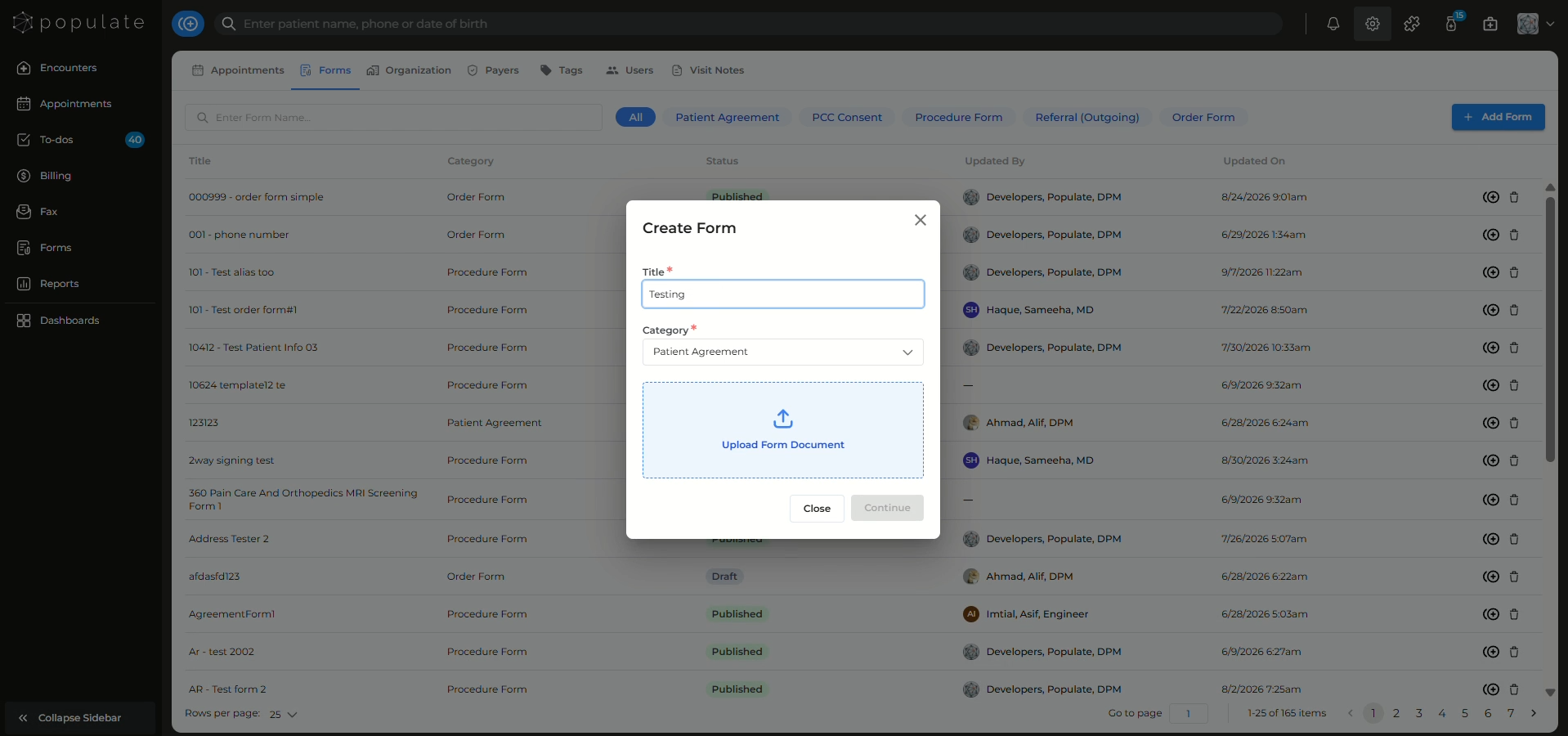
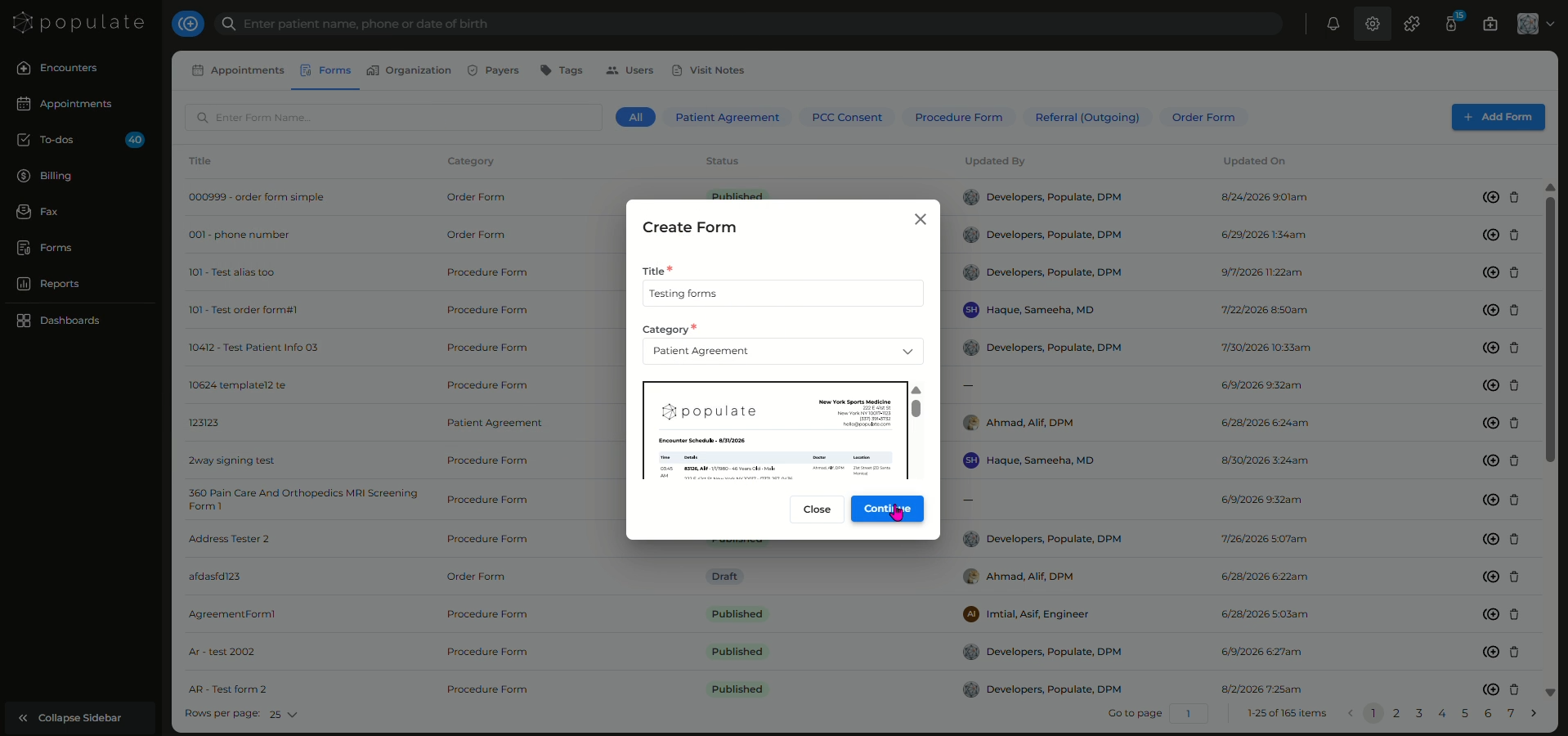
Add a form title

![](https://usercontent.us.prod.clueso.io/0ee74cae-77f1-4ef9-a322-2a7d9ec1a279/08dedc75-165d-4750-beab-156b0938f6b5/53eff2ef-e14b-4320-bd56-ca5536d0ee76/images/de7ba6cb-ee48-49cb-bc02-7a940f303868.png)

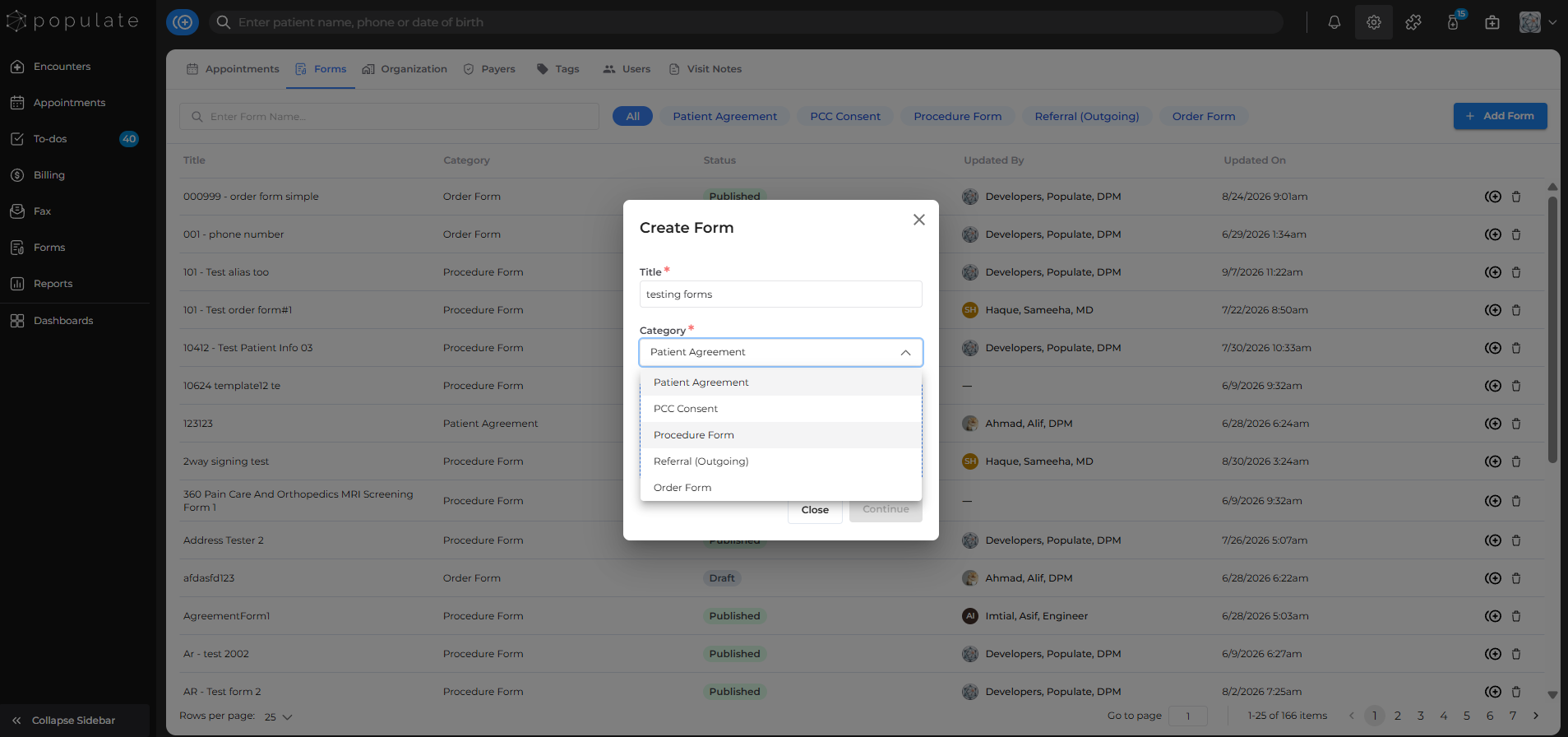
Select the form category

![](https://usercontent.us.prod.clueso.io/0ee74cae-77f1-4ef9-a322-2a7d9ec1a279/08dedc75-165d-4750-beab-156b0938f6b5/53eff2ef-e14b-4320-bd56-ca5536d0ee76/images/710edcef-b8f6-4a2f-964b-6e48e73adcad.png)

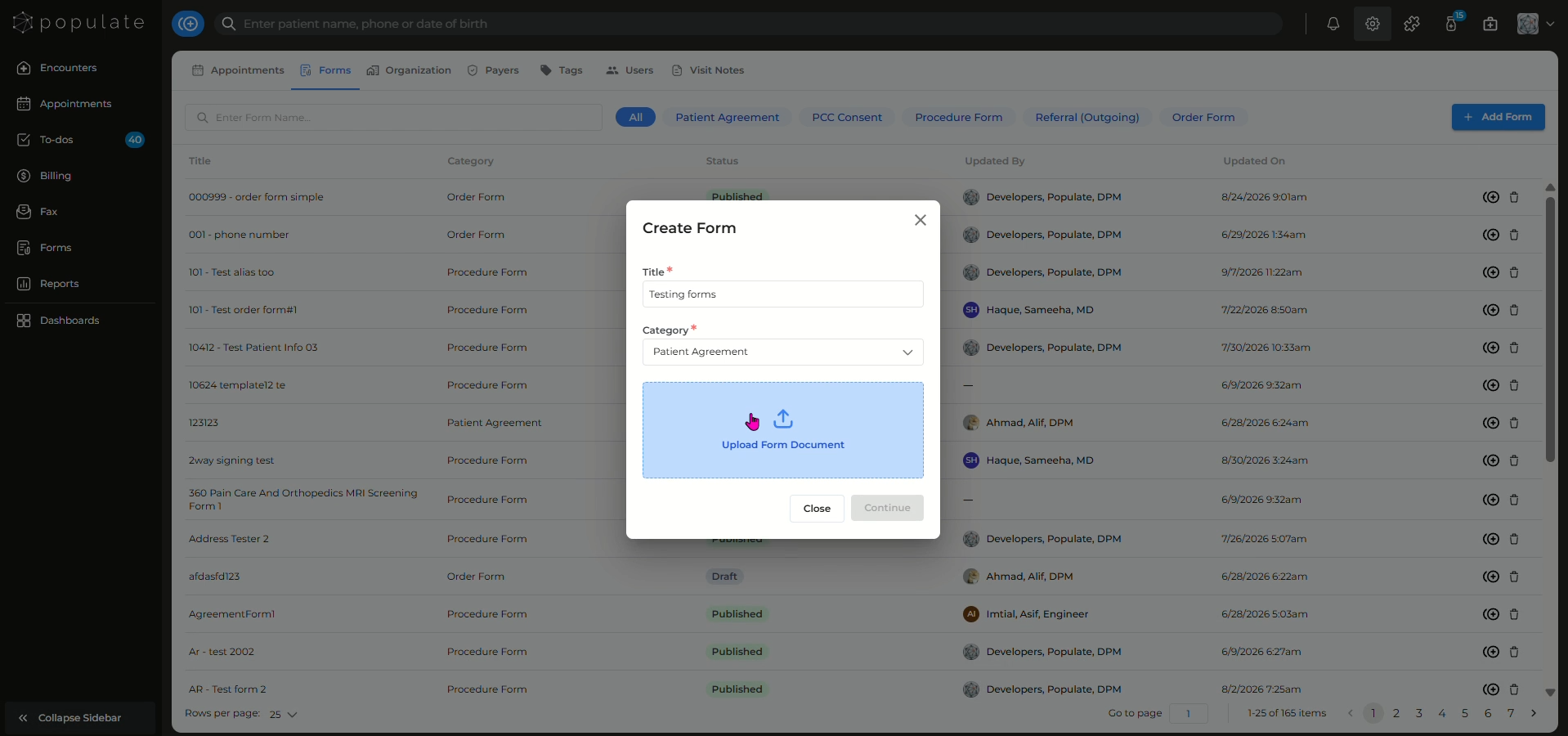
Upload the form PDF

![](https://usercontent.us.prod.clueso.io/0ee74cae-77f1-4ef9-a322-2a7d9ec1a279/08dedc75-165d-4750-beab-156b0938f6b5/53eff2ef-e14b-4320-bd56-ca5536d0ee76/images/3fe61788-add2-446a-8af4-37c400768e71.png)

Once the upload is complete, click "**Continue"**
![](https://usercontent.us.prod.clueso.io/0ee74cae-77f1-4ef9-a322-2a7d9ec1a279/08dedc75-165d-4750-beab-156b0938f6b5/53eff2ef-e14b-4320-bd56-ca5536d0ee76/images/c12cc446-e481-42d2-9607-0fa16239c89d.png)

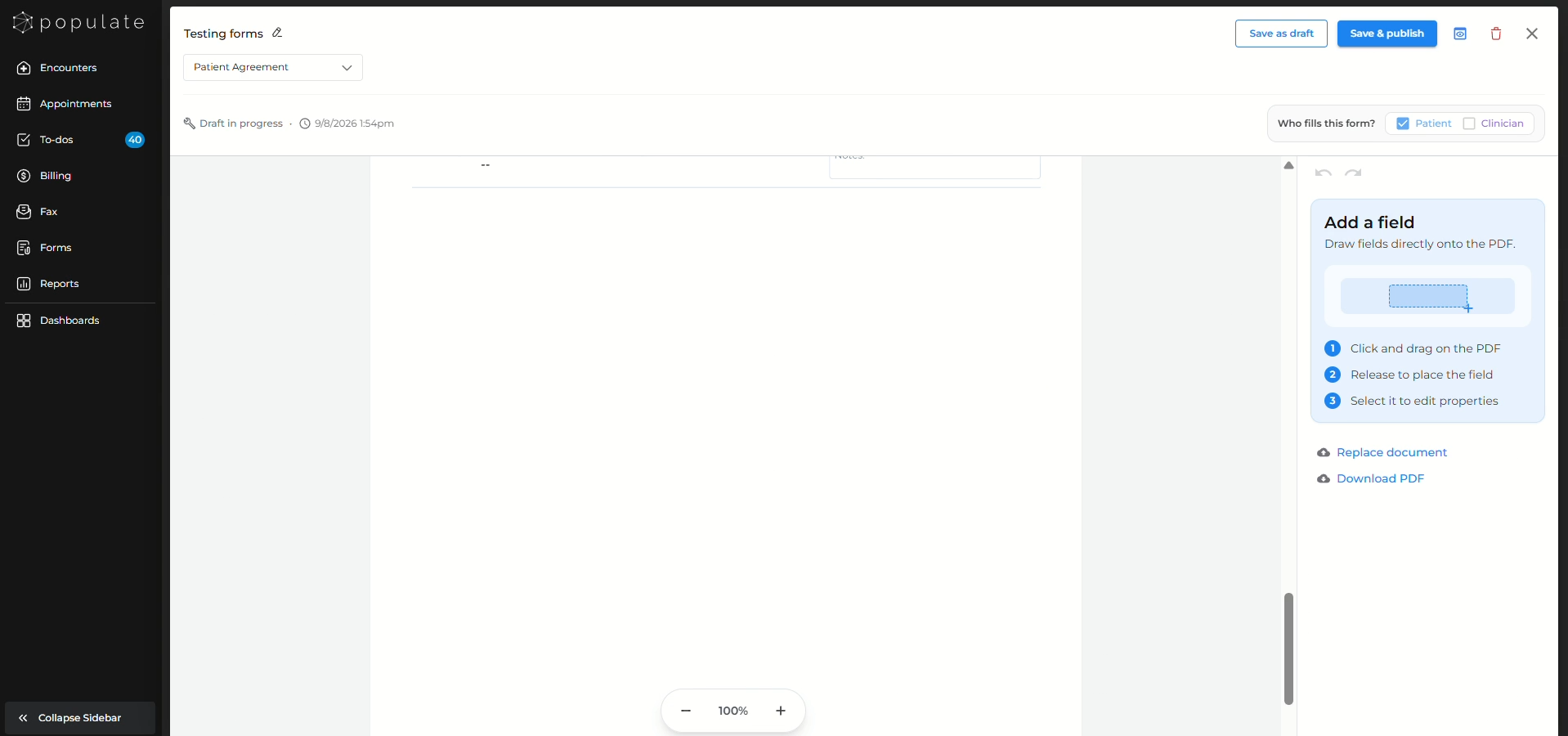
A new panel containing the form will open where you'll be able to edit the form

![](https://usercontent.us.prod.clueso.io/0ee74cae-77f1-4ef9-a322-2a7d9ec1a279/08dedc75-165d-4750-beab-156b0938f6b5/53eff2ef-e14b-4320-bd56-ca5536d0ee76/images/f3f99af0-9fb4-4ea5-80f4-51aa3e05db86)

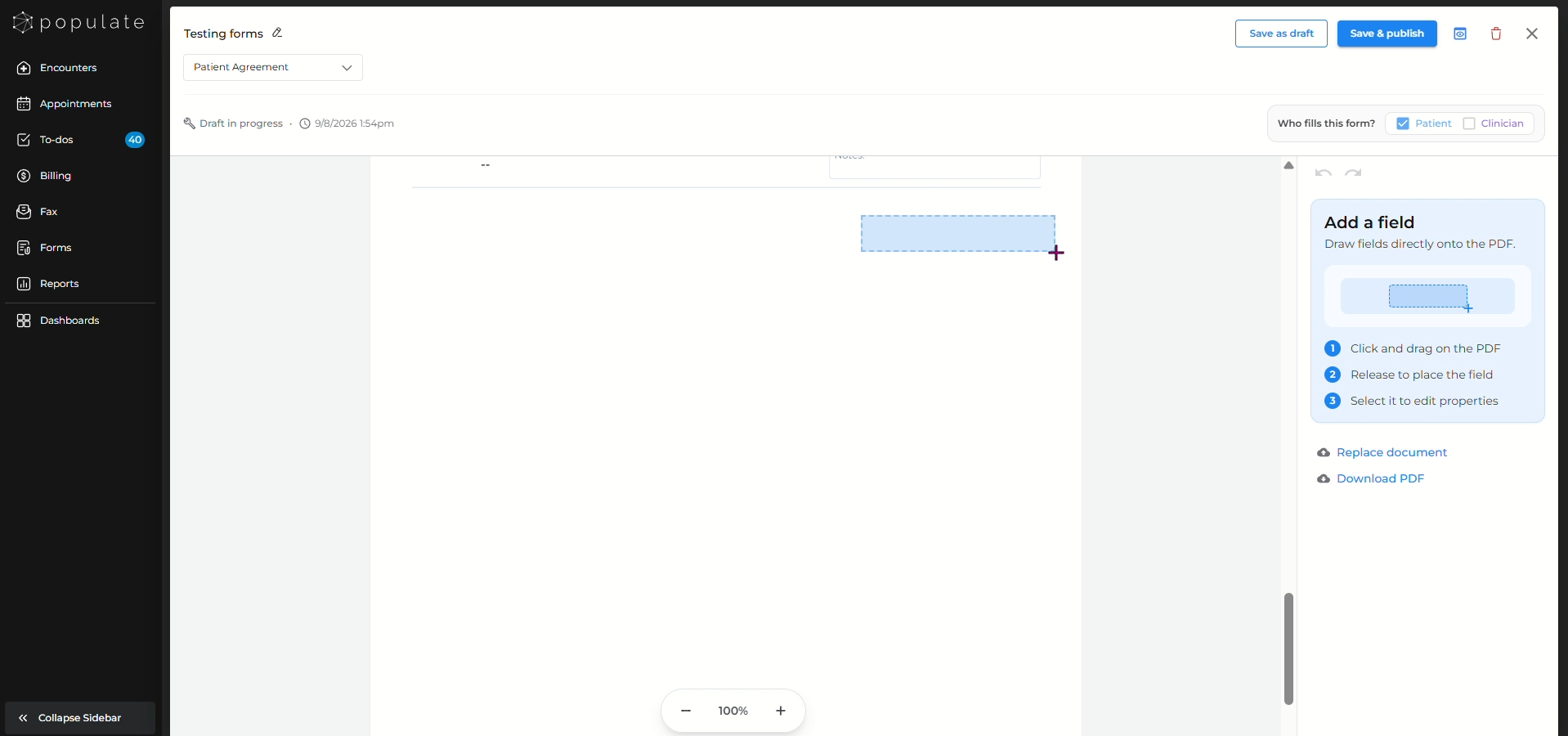
Navigate to the area of the form where you would like to add a fillable field. Click and drag the field onto the appropriate location on the form.
![](https://usercontent.us.prod.clueso.io/0ee74cae-77f1-4ef9-a322-2a7d9ec1a279/08dedc75-165d-4750-beab-156b0938f6b5/53eff2ef-e14b-4320-bd56-ca5536d0ee76/images/b9096130-147a-4896-830e-49e12f766703.png)

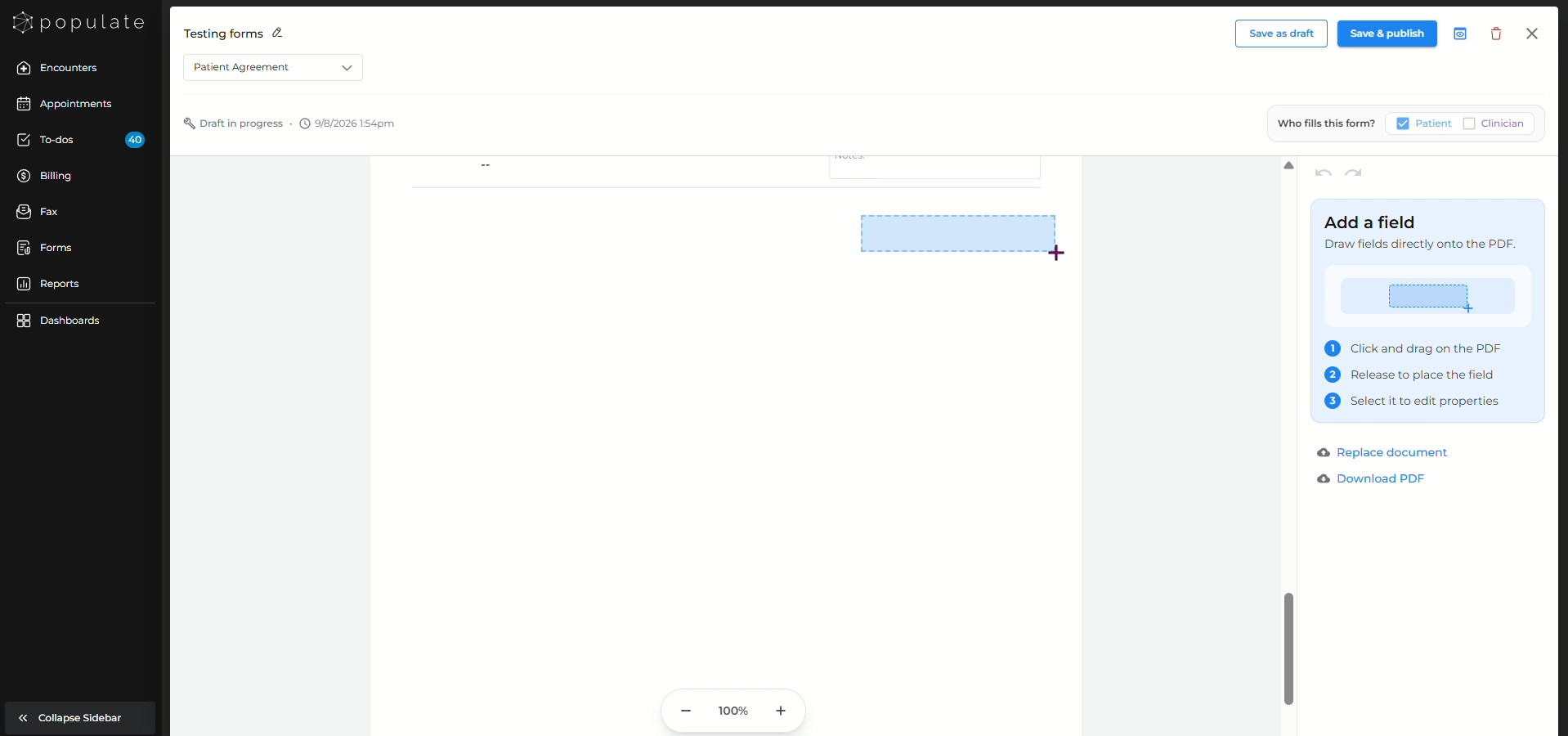
Click and drag the field onto the appropriate location on the form. Release the field once it is positioned where you want it to appear.
![](https://usercontent.us.prod.clueso.io/0ee74cae-77f1-4ef9-a322-2a7d9ec1a279/08dedc75-165d-4750-beab-156b0938f6b5/53eff2ef-e14b-4320-bd56-ca5536d0ee76/images/6f8021b1-724b-4275-876c-56e944d54666.png)

Under **Field type**, select the type of information you would like the field to collect. Available options include fields such as **Short Text, Long Text, Date, Full Name, Email, Phone**, and other patient information fields.
![](https://usercontent.us.prod.clueso.io/0ee74cae-77f1-4ef9-a322-2a7d9ec1a279/08dedc75-165d-4750-beab-156b0938f6b5/53eff2ef-e14b-4320-bd56-ca5536d0ee76/images/c2f33488-223a-4cfa-90e1-fbc5cca2853f.png)

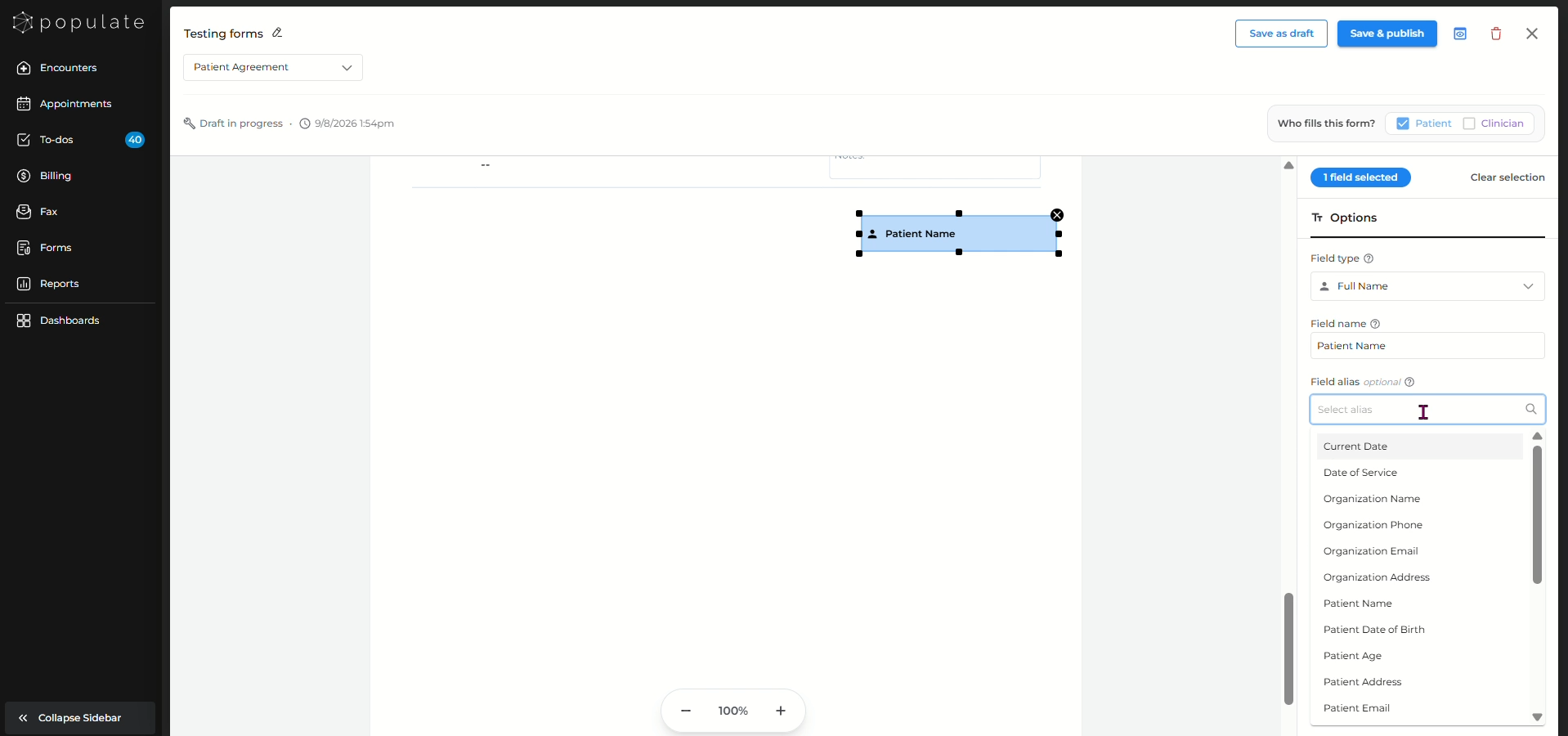
Repeat the same process for each area of the document that needs to be completed.

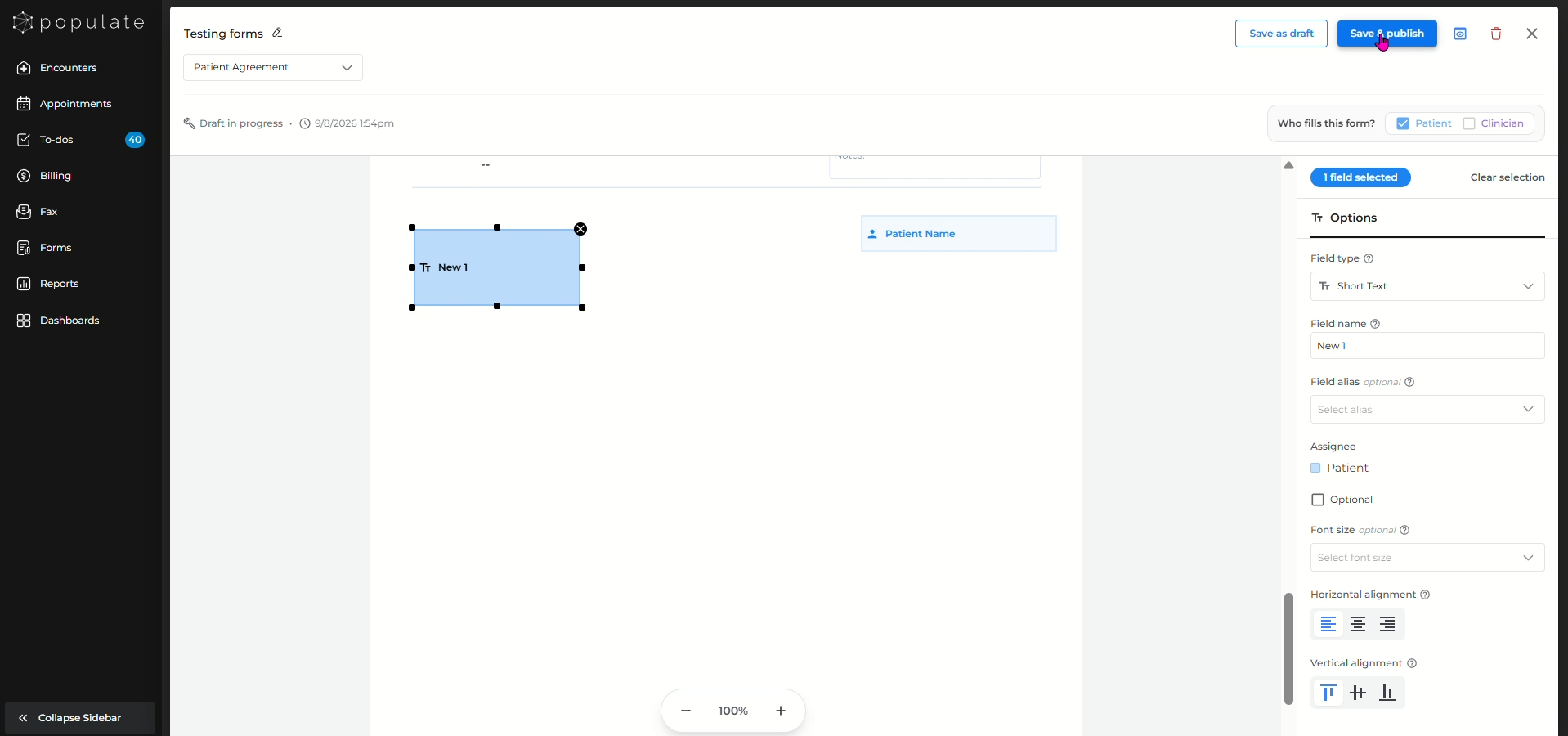
Drag each additional field onto the appropriate section of the form and configure its **Field type, Field name, alias, and assignee**. You can also move the field by dragging it across the form.
![](https://usercontent.us.prod.clueso.io/0ee74cae-77f1-4ef9-a322-2a7d9ec1a279/08dedc75-165d-4750-beab-156b0938f6b5/53eff2ef-e14b-4320-bd56-ca5536d0ee76/images/550299a5-47fd-42d9-8b6a-07dc0d2cb00f.png)

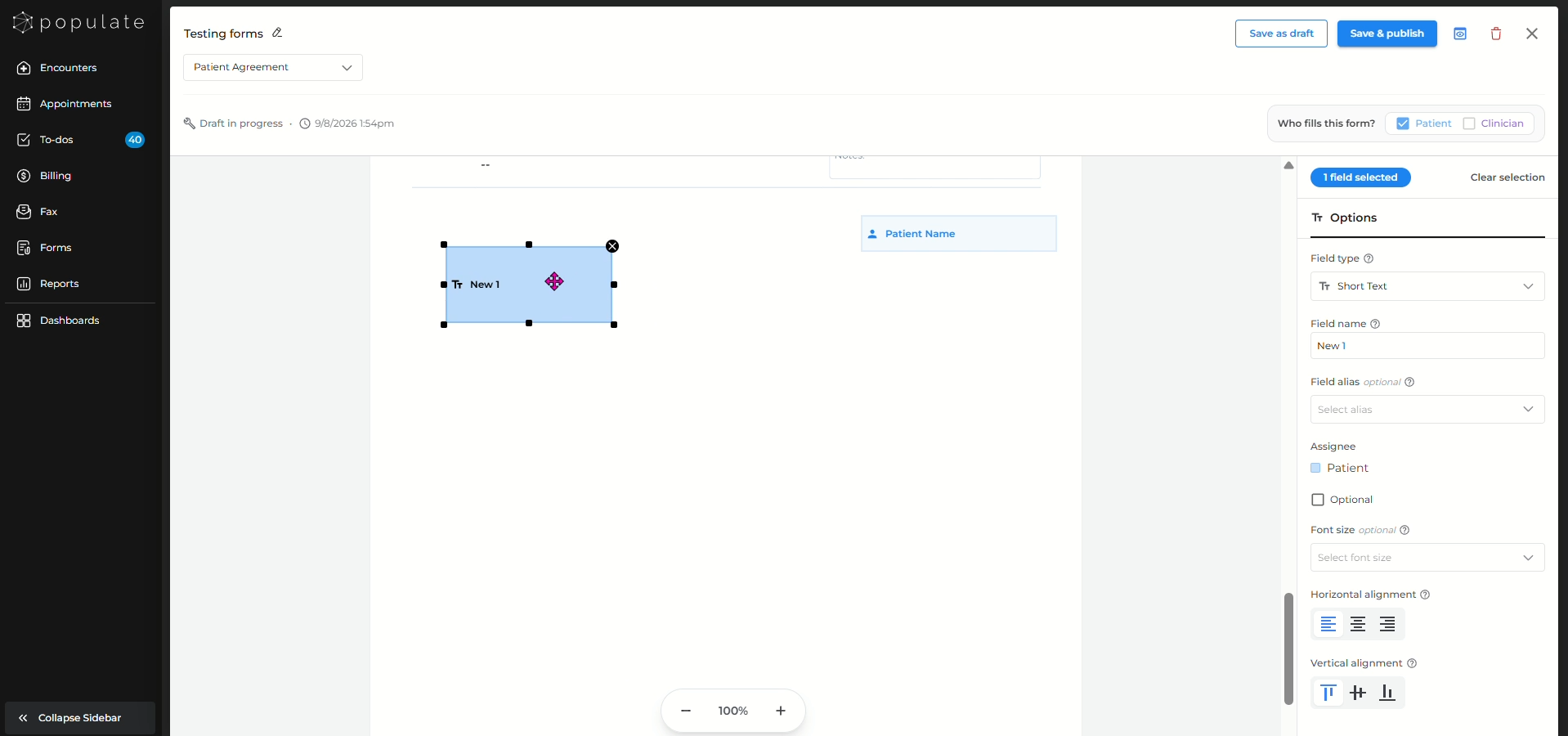
At the top-right of the builder, you can also specify **Who fills this form?** by selecting **Patient**, **Clinician**, or both, depending on the form.
![](https://usercontent.us.prod.clueso.io/0ee74cae-77f1-4ef9-a322-2a7d9ec1a279/08dedc75-165d-4750-beab-156b0938f6b5/53eff2ef-e14b-4320-bd56-ca5536d0ee76/images/a630e5d5-9944-4dc7-abd6-71acd4f786ae.png)

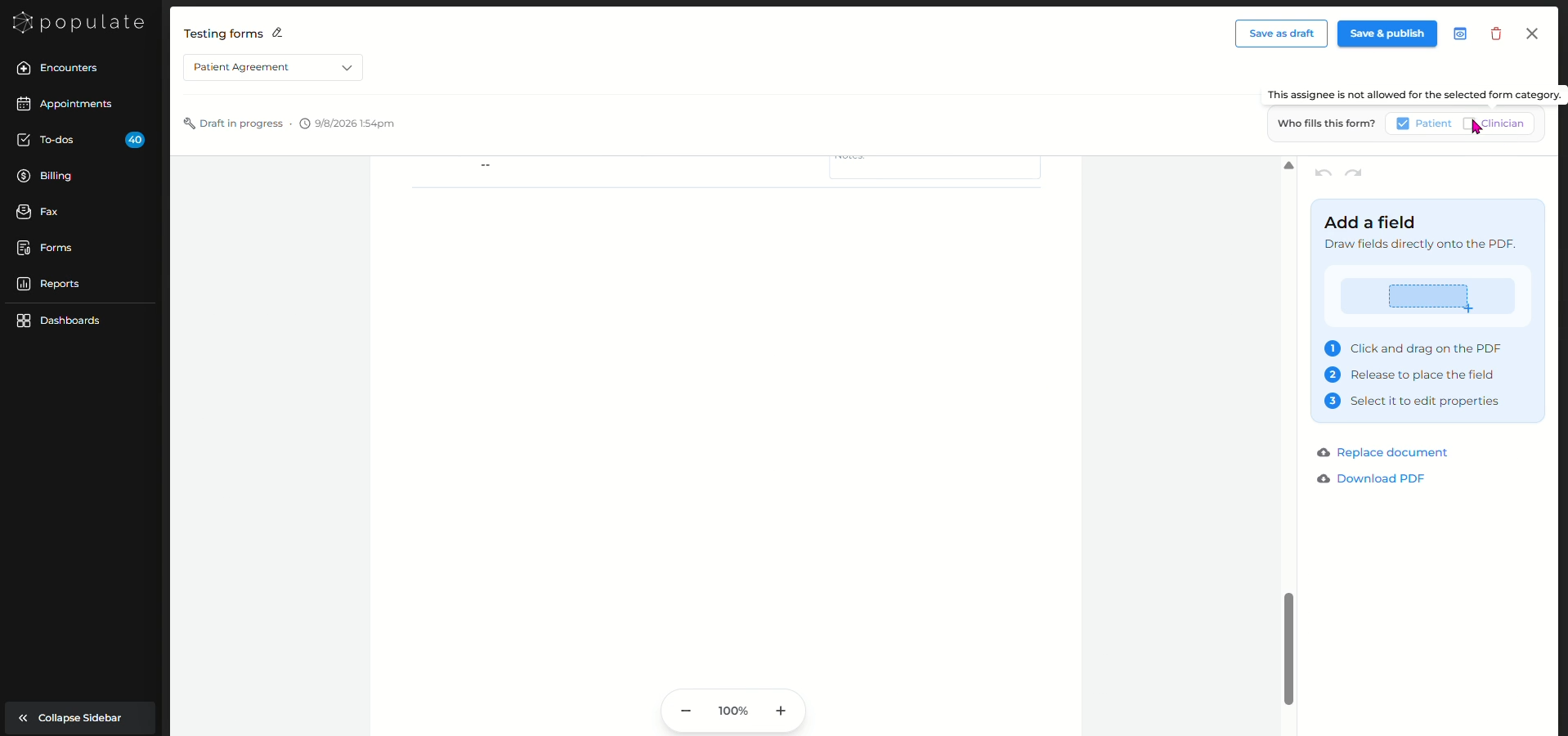
When the form is ready to use, click **Save & publish**.
![](https://usercontent.us.prod.clueso.io/0ee74cae-77f1-4ef9-a322-2a7d9ec1a279/08dedc75-165d-4750-beab-156b0938f6b5/53eff2ef-e14b-4320-bd56-ca5536d0ee76/images/8a87c2a6-9a3b-417f-af73-833fe3ff7c75.png)

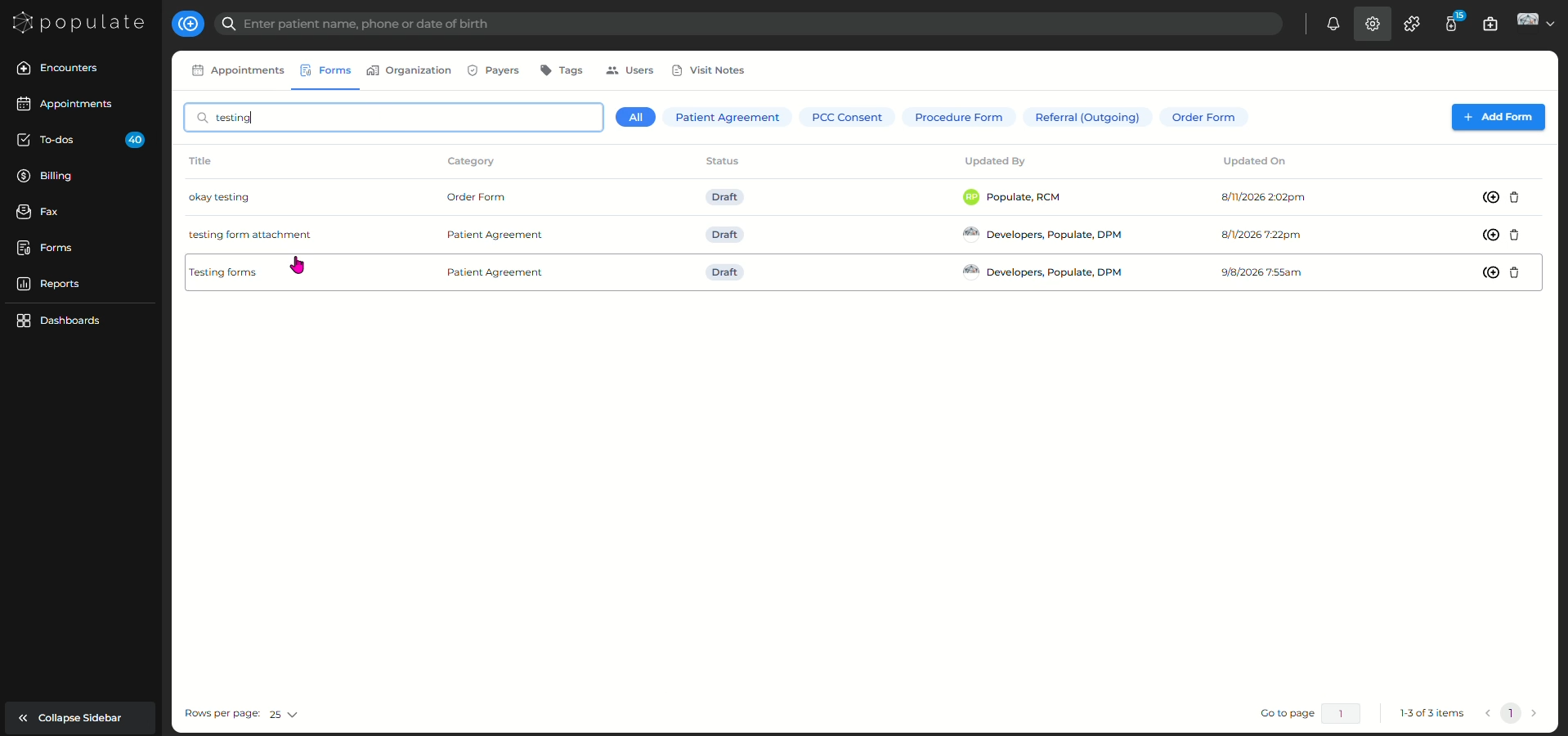
Once saved, you will be returned to the **Forms** page, where the newly created form will appear in the forms list. You can click on the desired form to edit it.
![](https://usercontent.us.prod.clueso.io/0ee74cae-77f1-4ef9-a322-2a7d9ec1a279/08dedc75-165d-4750-beab-156b0938f6b5/53eff2ef-e14b-4320-bd56-ca5536d0ee76/images/4f728d2b-a334-4f4f-ac3c-b841d8d25995.png)

You can also **Duplicate** a form by clicking on the right hand button.
![](https://usercontent.us.prod.clueso.io/0ee74cae-77f1-4ef9-a322-2a7d9ec1a279/08dedc75-165d-4750-beab-156b0938f6b5/53eff2ef-e14b-4320-bd56-ca5536d0ee76/images/88510275-f097-43e2-836c-5f741d13f682.png)

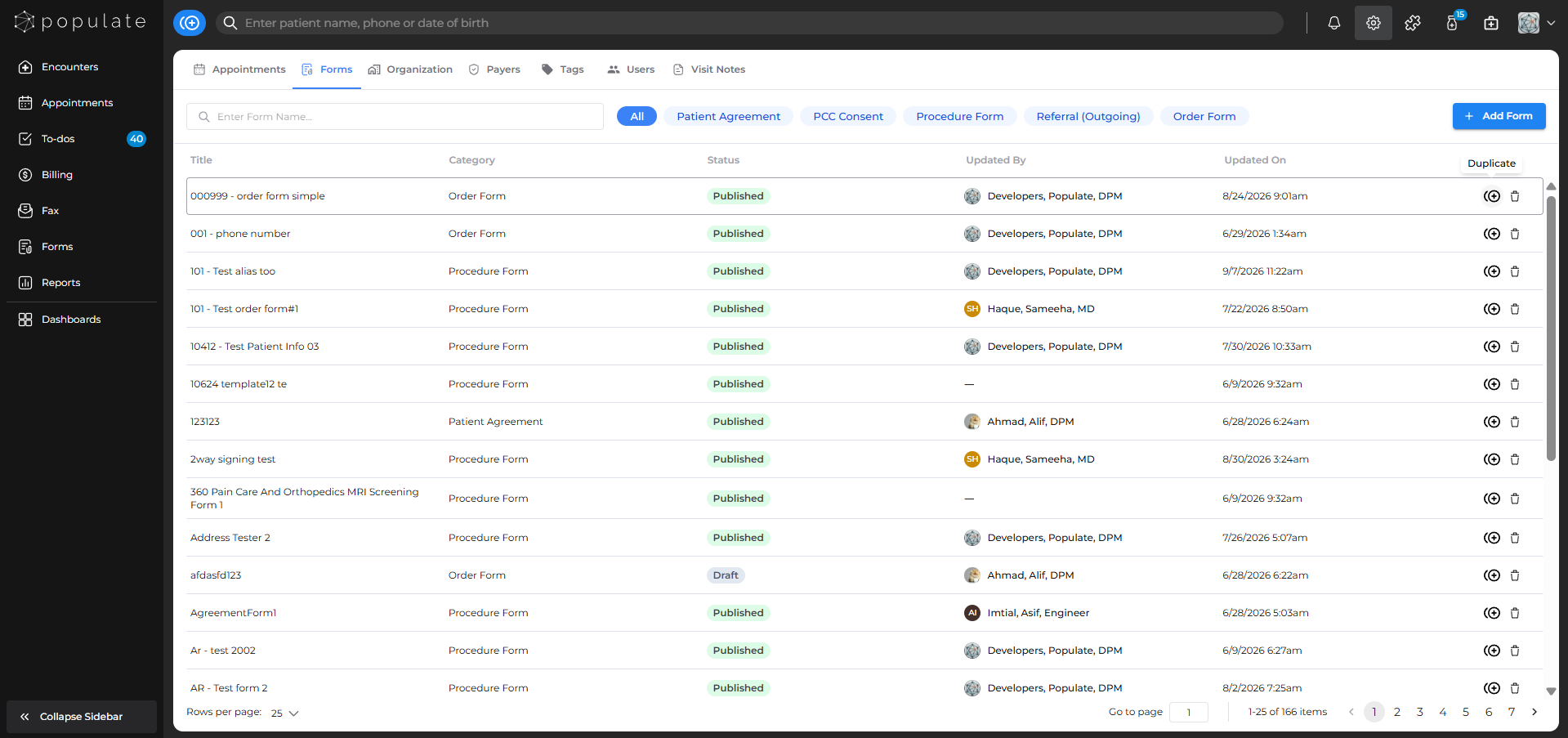
Change the title and category as you please and click **Copy**
![](https://usercontent.us.prod.clueso.io/0ee74cae-77f1-4ef9-a322-2a7d9ec1a279/08dedc75-165d-4750-beab-156b0938f6b5/53eff2ef-e14b-4320-bd56-ca5536d0ee76/images/fd17c54a-819e-43fd-b9ea-cb1f0992dfd4.png)

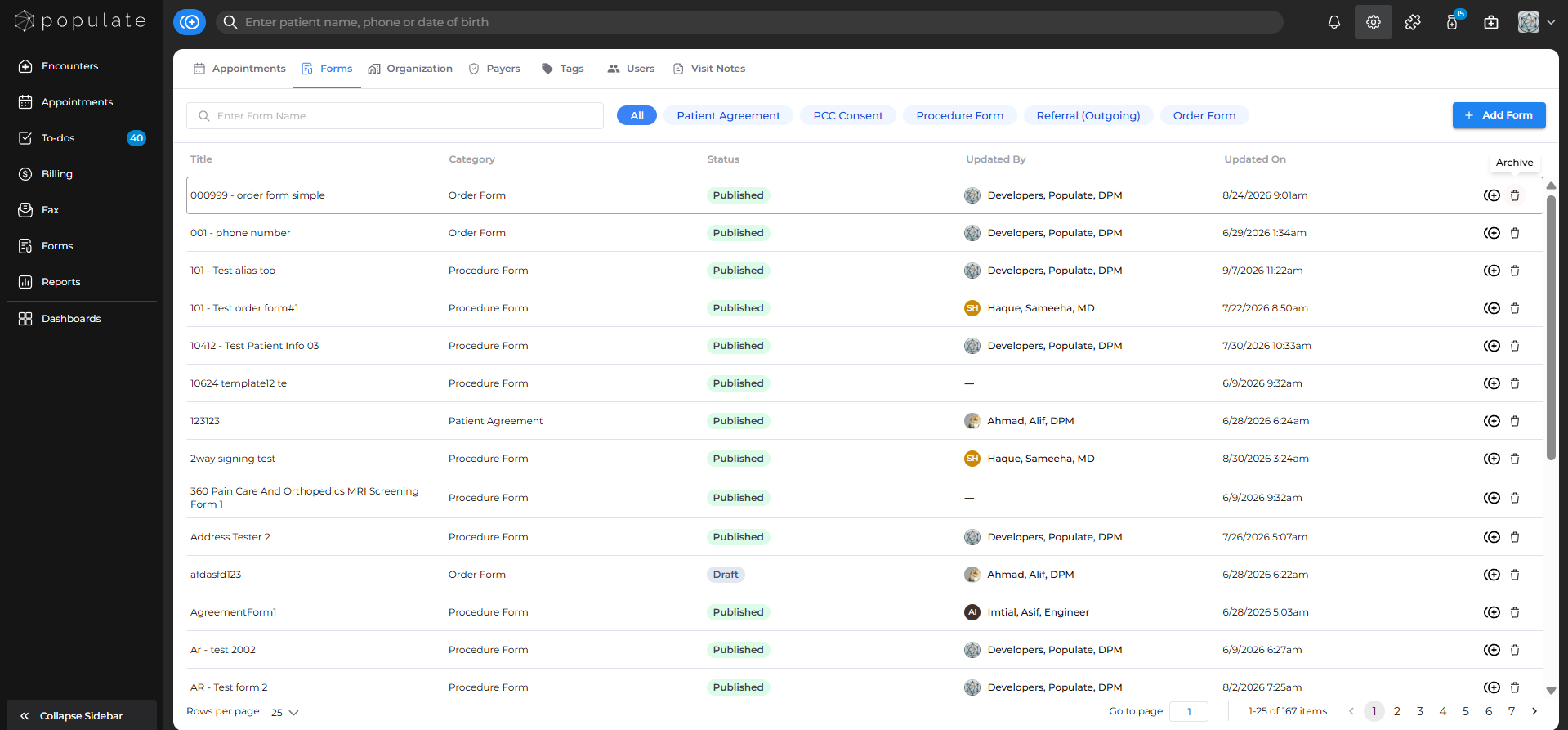
To remove a form, click the archive button beside the duplicate button.
![](https://usercontent.us.prod.clueso.io/0ee74cae-77f1-4ef9-a322-2a7d9ec1a279/08dedc75-165d-4750-beab-156b0938f6b5/53eff2ef-e14b-4320-bd56-ca5536d0ee76/images/d1a3ae0c-b82d-4588-8003-6dba049d548e.png)

Click the **Archive** button and the form will be archived. ![](https://usercontent.us.prod.clueso.io/0ee74cae-77f1-4ef9-a322-2a7d9ec1a279/08dedc75-165d-4750-beab-156b0938f6b5/53eff2ef-e14b-4320-bd56-ca5536d0ee76/images/d9b08715-e4cd-410c-9d69-2c655cbf6f42.png)
- [FAQ](https://knowledge.populateemr.com/faq?hsLang=en)
- [Support](https://knowledge.populateemr.com/support?hsLang=en)
- [Billing](https://knowledge.populateemr.com/billing?hsLang=en)
- [Appointments](https://knowledge.populateemr.com/appointments?hsLang=en)
- [Visit Notes](https://knowledge.populateemr.com/visit-notes?hsLang=en)
- [Charts](https://knowledge.populateemr.com/charts?hsLang=en)
- [Encounters](https://knowledge.populateemr.com/encounters?hsLang=en)
- [Intake](https://knowledge.populateemr.com/intake?hsLang=en)
- [To-Dos & Stickies](https://knowledge.populateemr.com/to-dos-stickies?hsLang=en)
- [Fax & Reports](https://knowledge.populateemr.com/fax-reports?hsLang=en)
- [Settings](https://knowledge.populateemr.com/settings?hsLang=en)
- [Rachel—AI Agent](https://knowledge.populateemr.com/rachel-ai-agent?hsLang=en)
- [Forms](https://knowledge.populateemr.com/forms?hsLang=en)

[![](https://knowledge.populateemr.com/hs-fs/hubfs/Full%20Logo%20-%20Black-1.png?width=250&height=67&name=Full%20Logo%20-%20Black-1.png)](https://knowledge.populateemr.com/?hsLang=en)

6790 Embarcadero Ln #100, Carlsbad, CA 92011

<https://www.facebook.com/> <https://www.instagram.com/populateemr/> [mailto:support@populate.com](mailto:support@populate.com)

Copyright © 2025, Populate EMR, Inc.