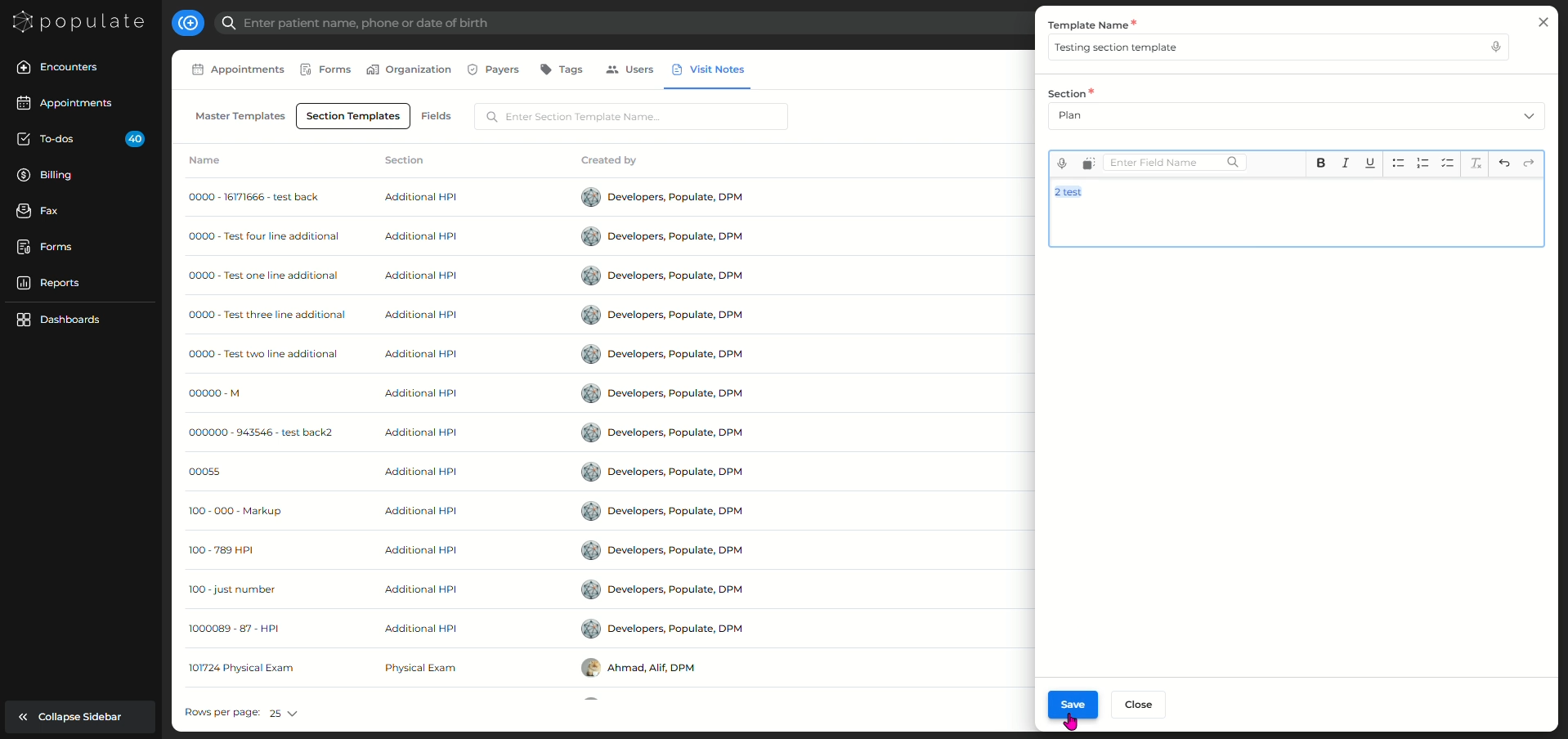
From Settings navigate to "Visit Notes"
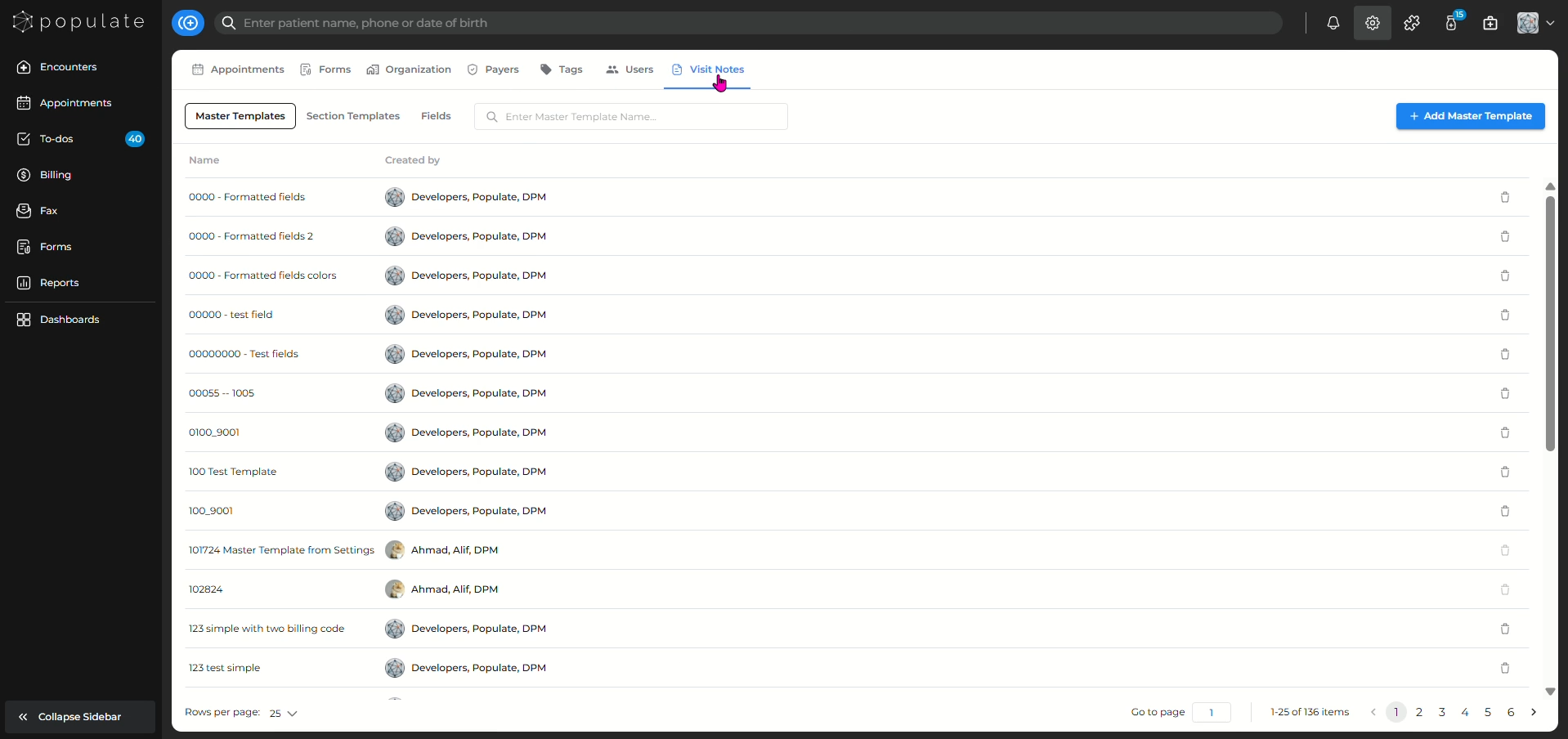
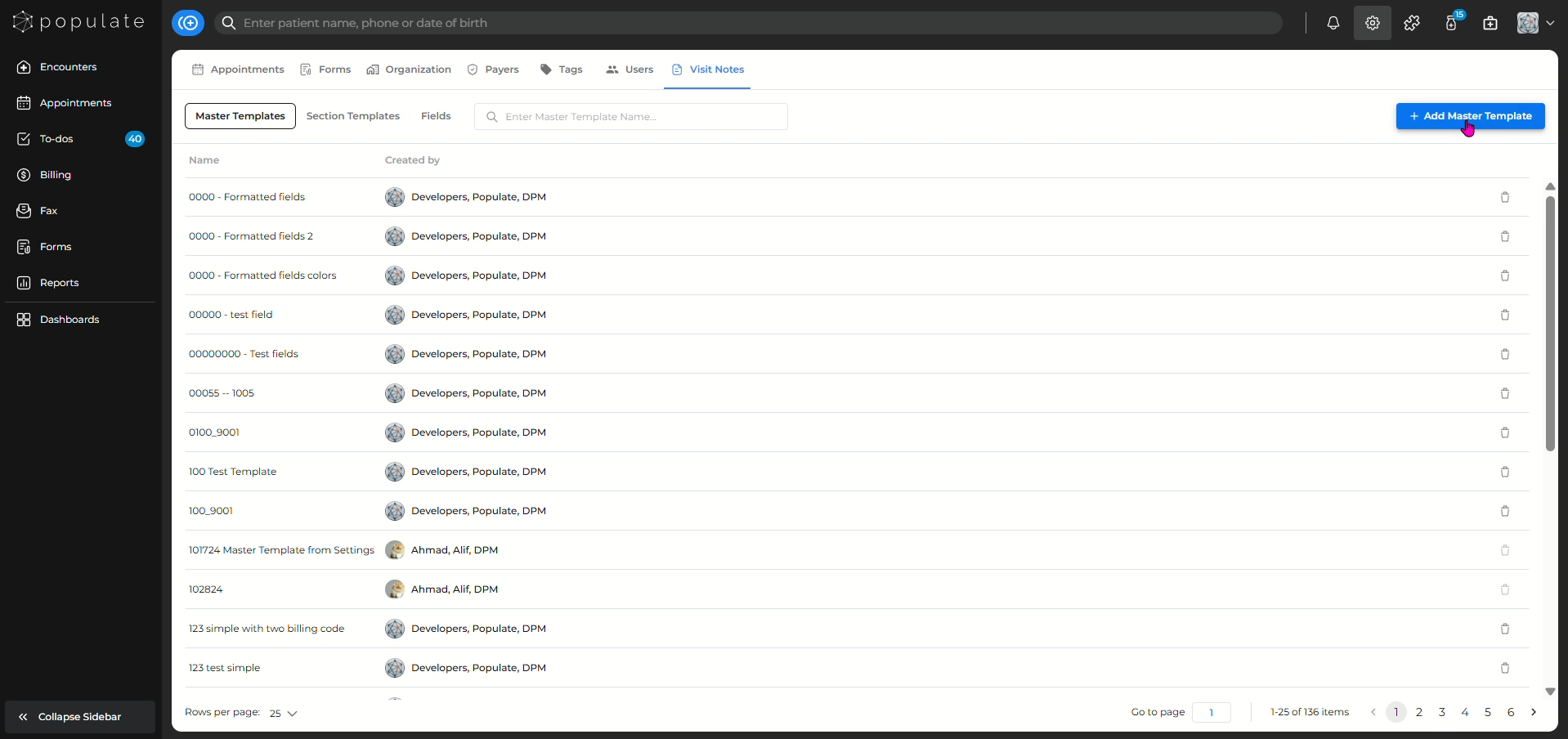
The first tab you'll see is "Master Templates" where you can find all existing master templates. To create a new master template, click on the "Add Master Template" button on the top right corner of the page.
To get started, add a name to your template so you can search for it when creating a visit note. Once you've added a name, you can draft the template in two ways.
You can either choose to manually fill out each section as you would in your visit note, or use an existing template and customize it according to your needs.
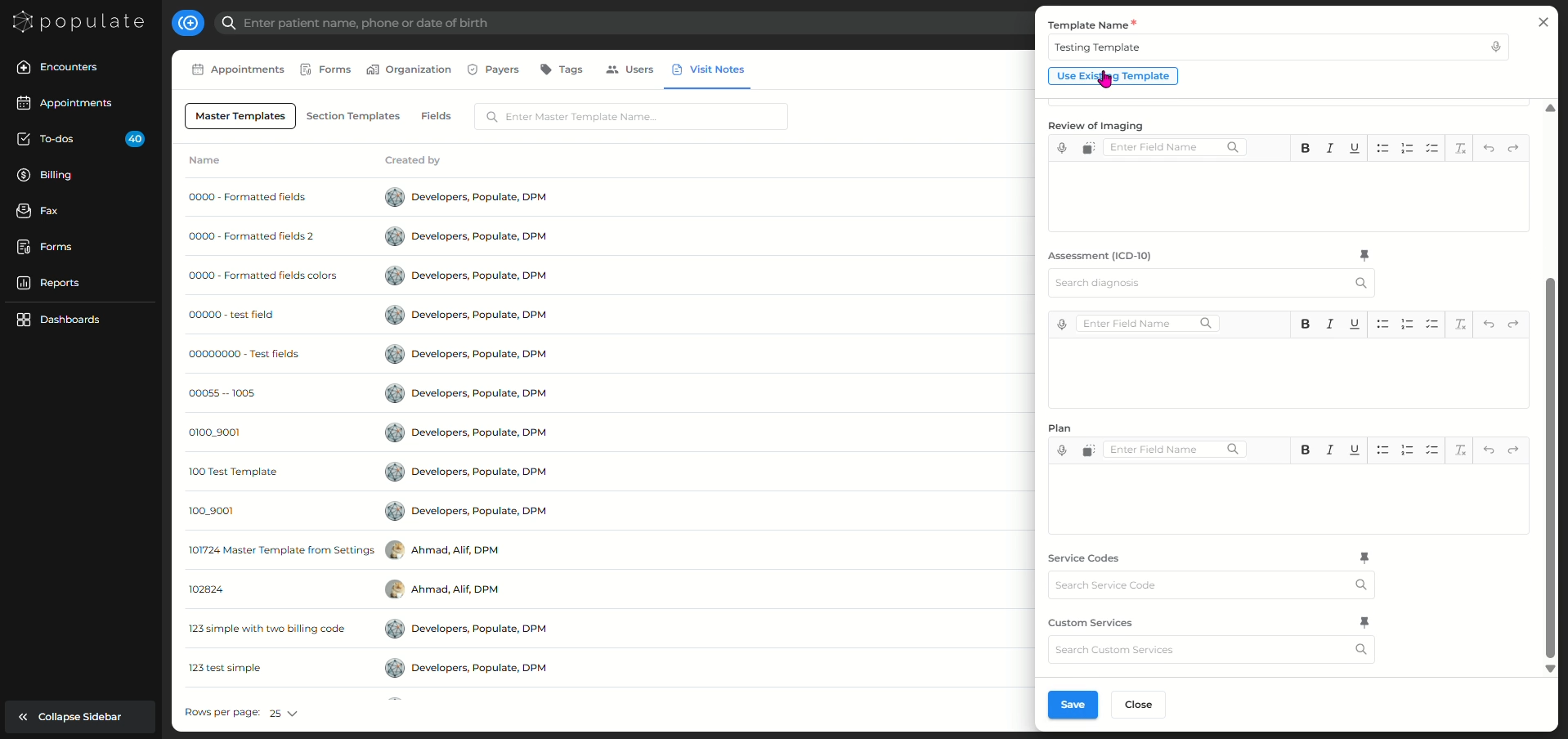
If you wish to manually fill out each section of the visit note, you can use different functionalities like dictation, adding fields existing section templates. Click "Save" after filling out the entire template.
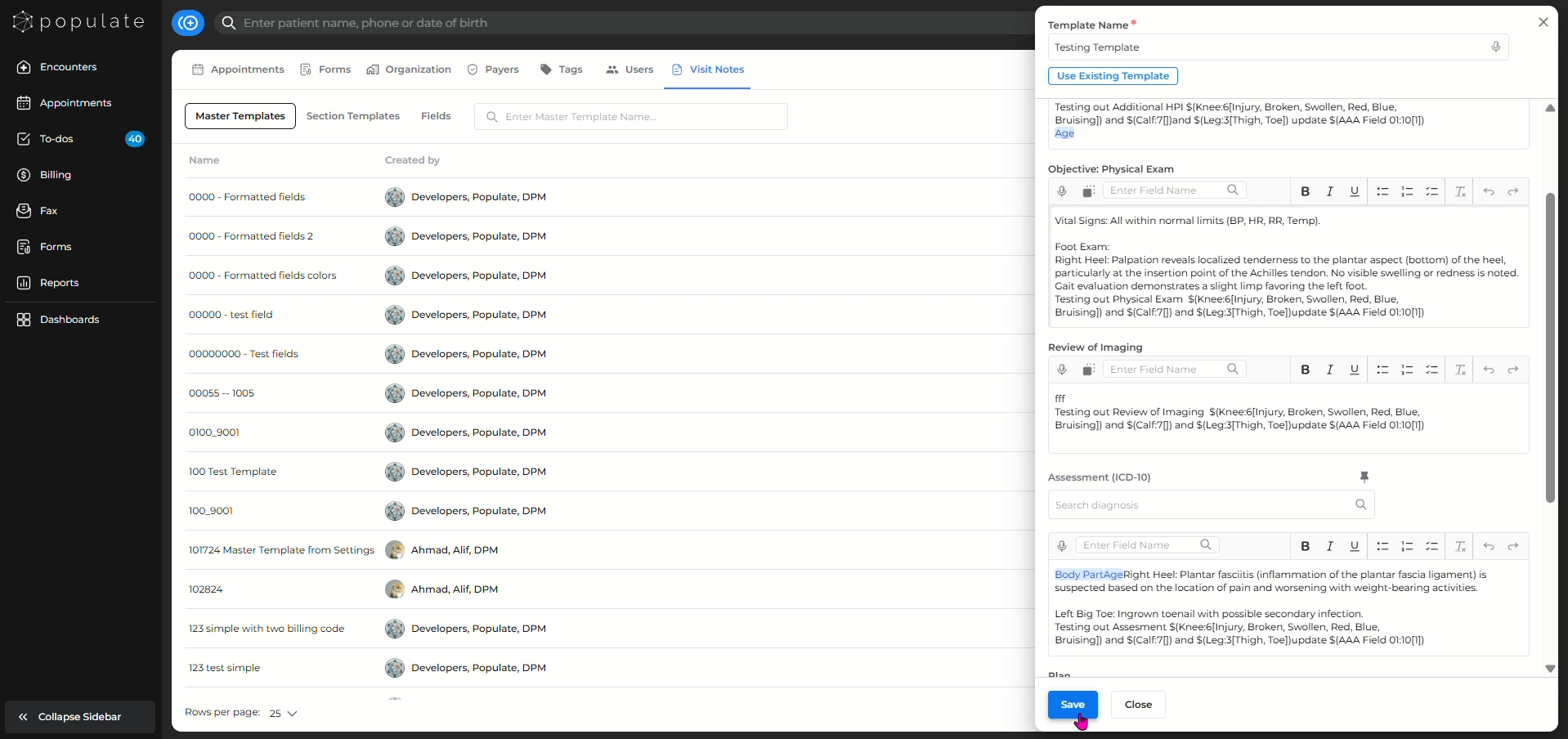
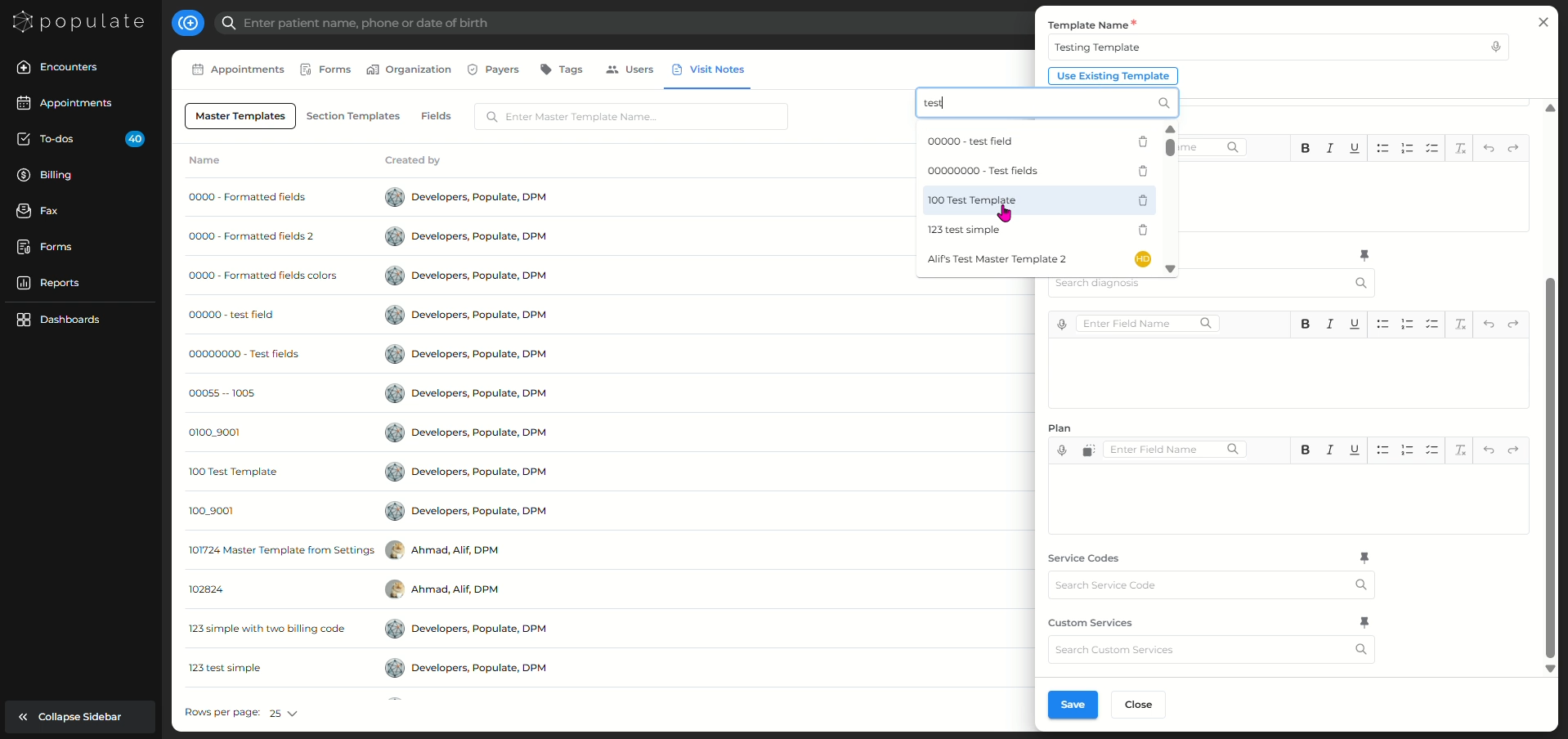
To modify existing master templates, click on the "Use Existing Template" button, where you can search and select the template you want to modify. Upon modification, click "Save" and you're done!
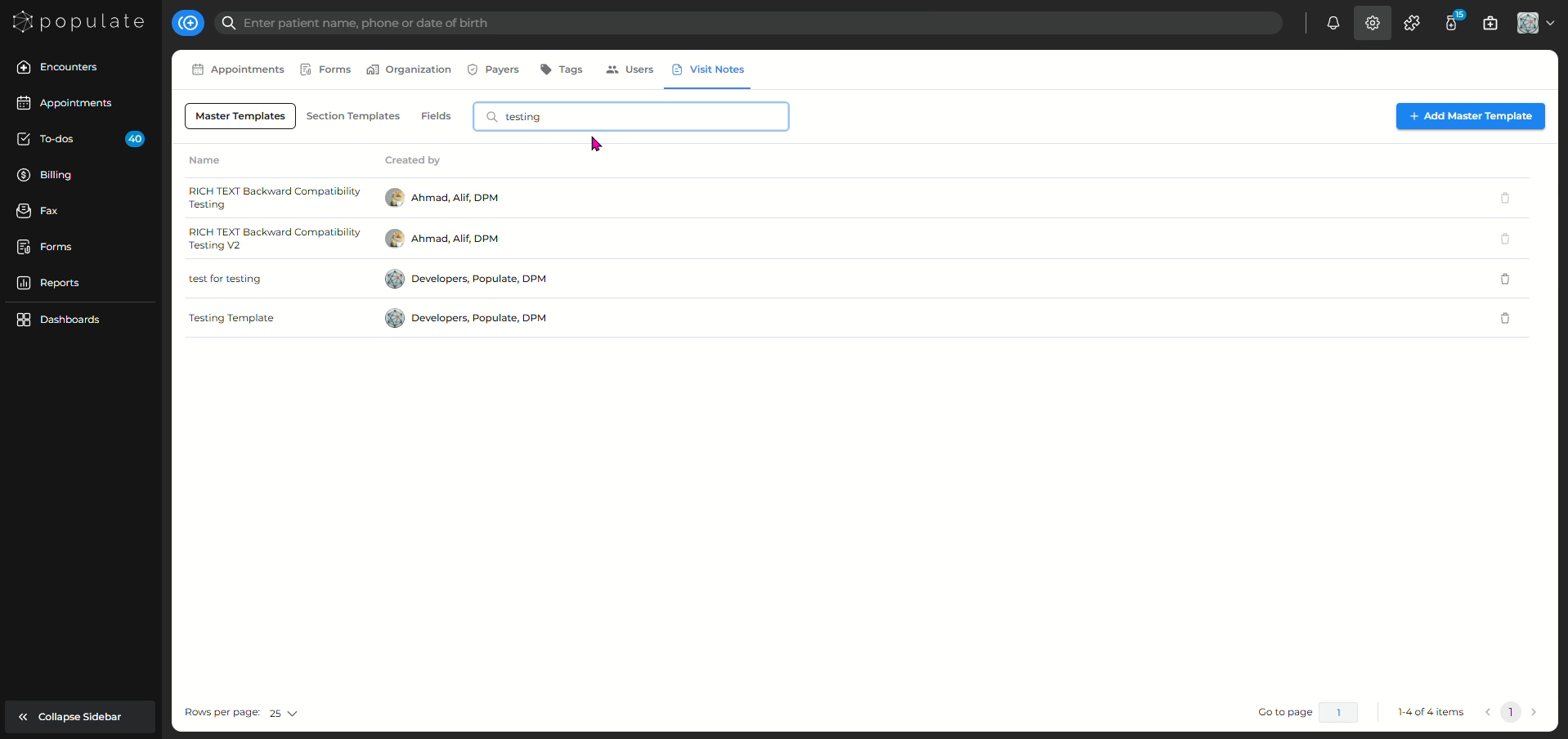
Your created template will now be visible under the list of templates created or you can search for it by typing the template name.
To create a section template only, go to the "Section Templates" tab under Visit Notes.
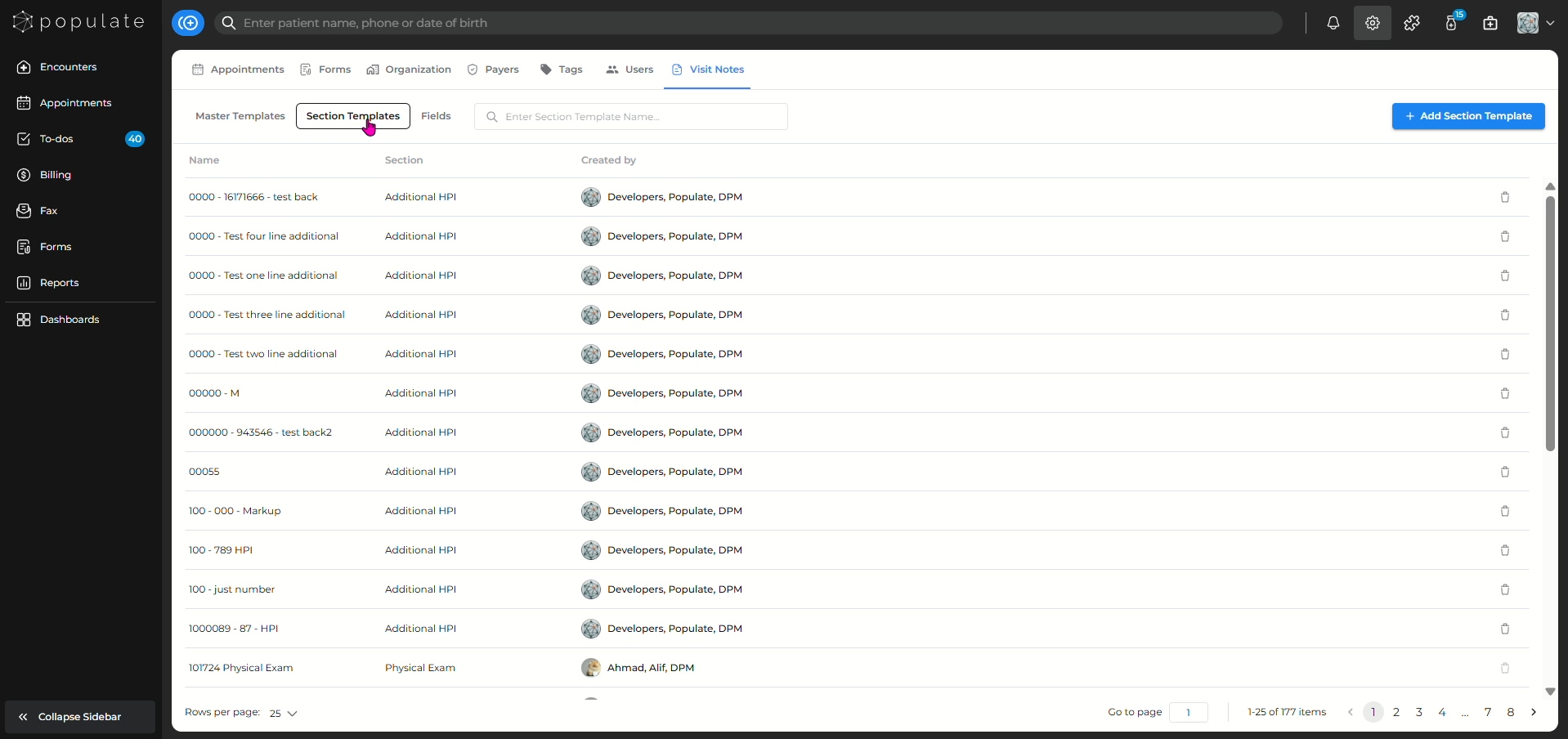
To get started, add a name to your template so you can search for it when creating a visit note. Next, select the section of the visit note for which you want to create the template and proceed to filling out the section as you wish.
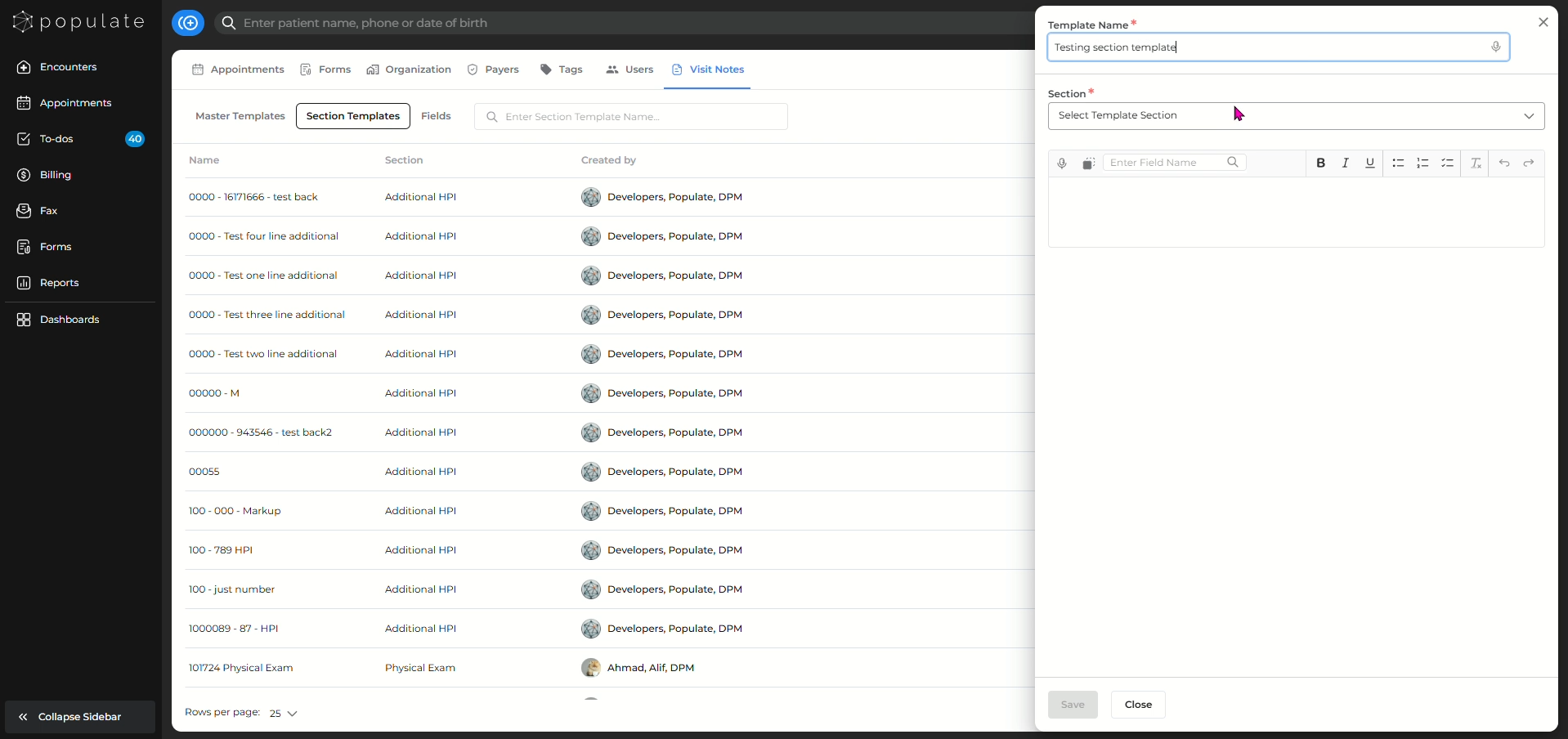
Once you're done, click "Save" and the template will be added to the list of existing templates.