Here are 2 ways to add a write off amount in the system:
1. From the Charges Side-Panel
Navigate to the Charges tab under Billing and click on the charge you want to add the write off amount to. This will open the Charges side-panel.
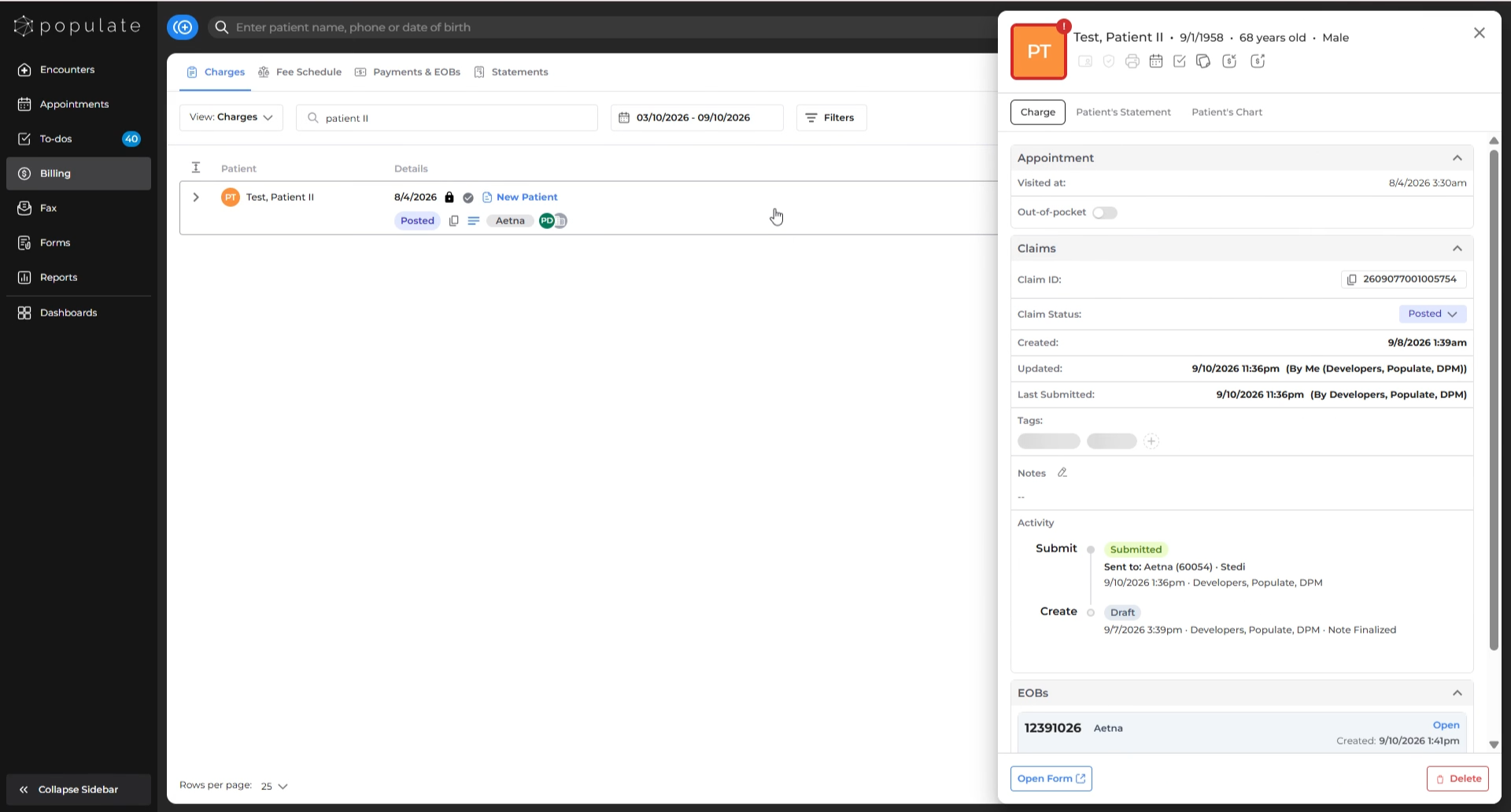
On the Charges side-panel, click on Patient’s Statement section.
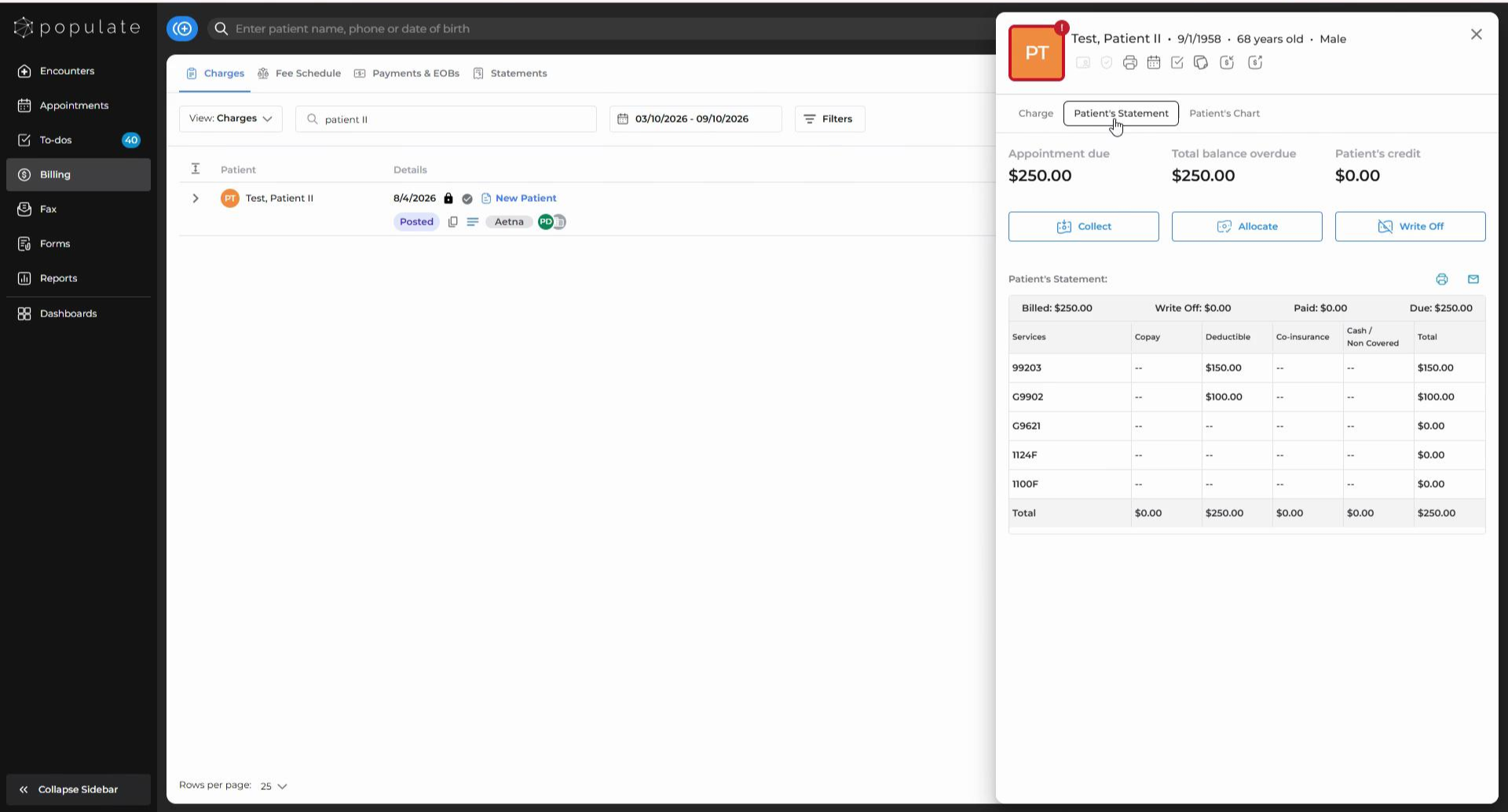
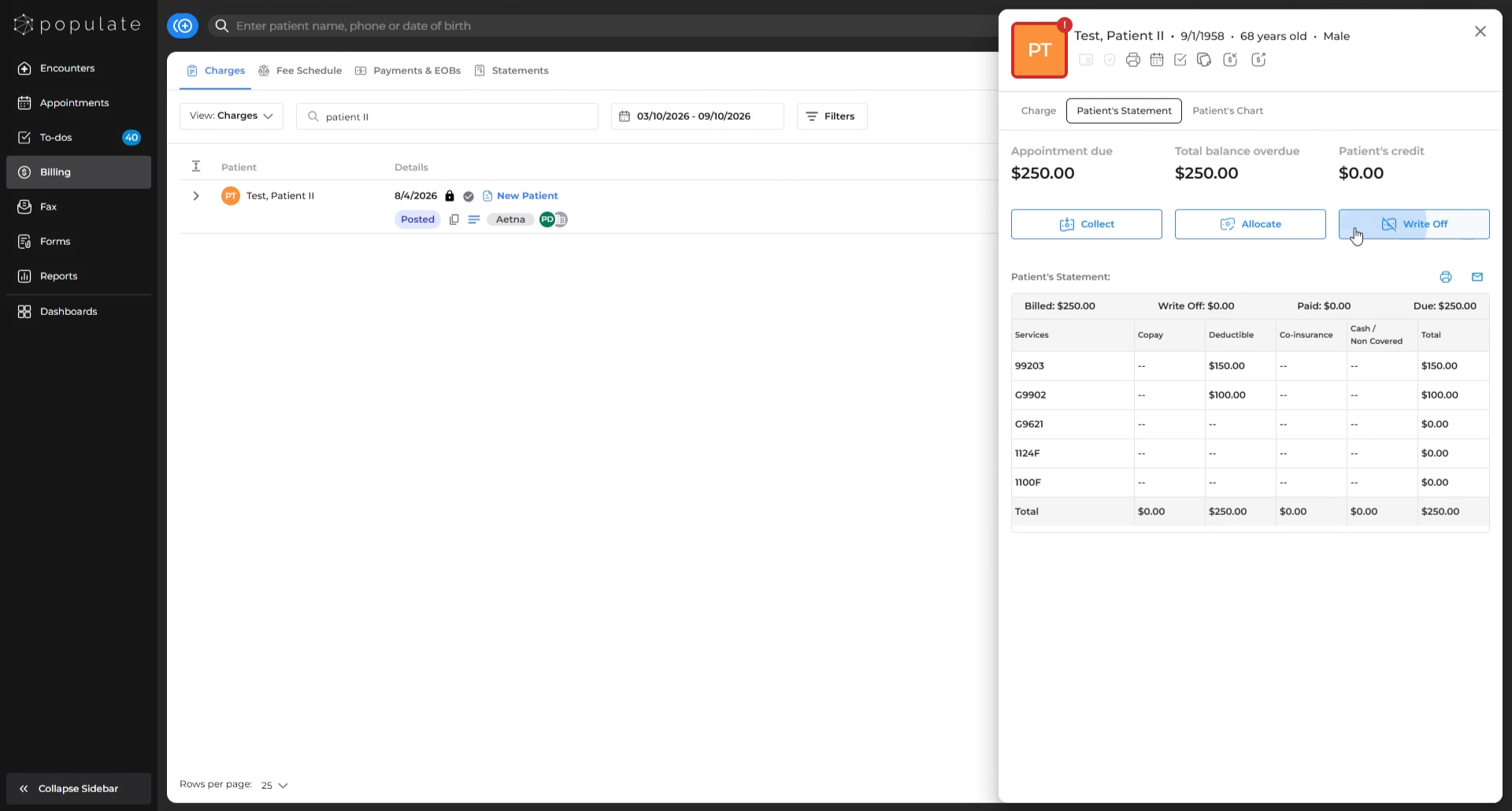
Click on Write Off.
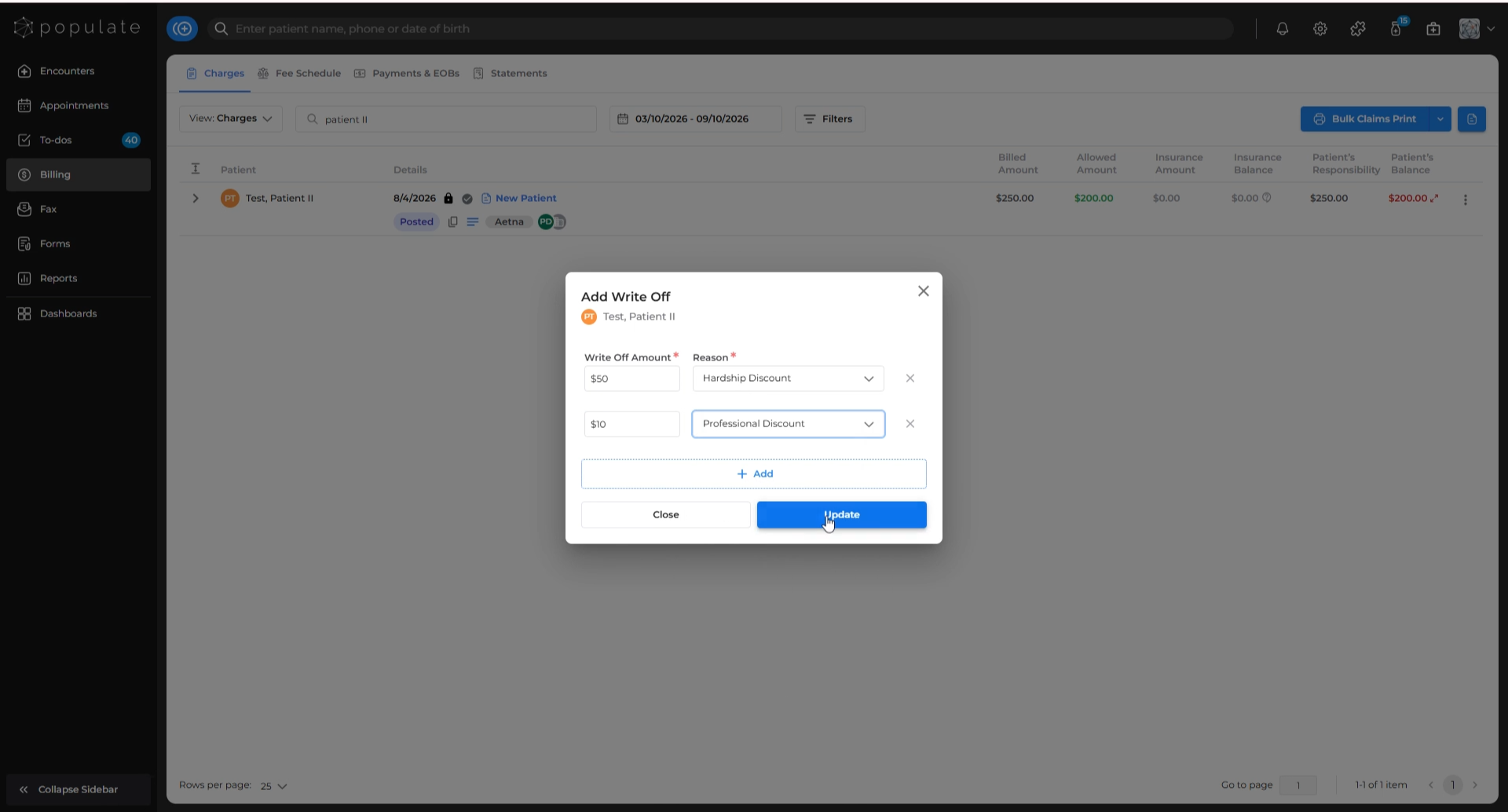
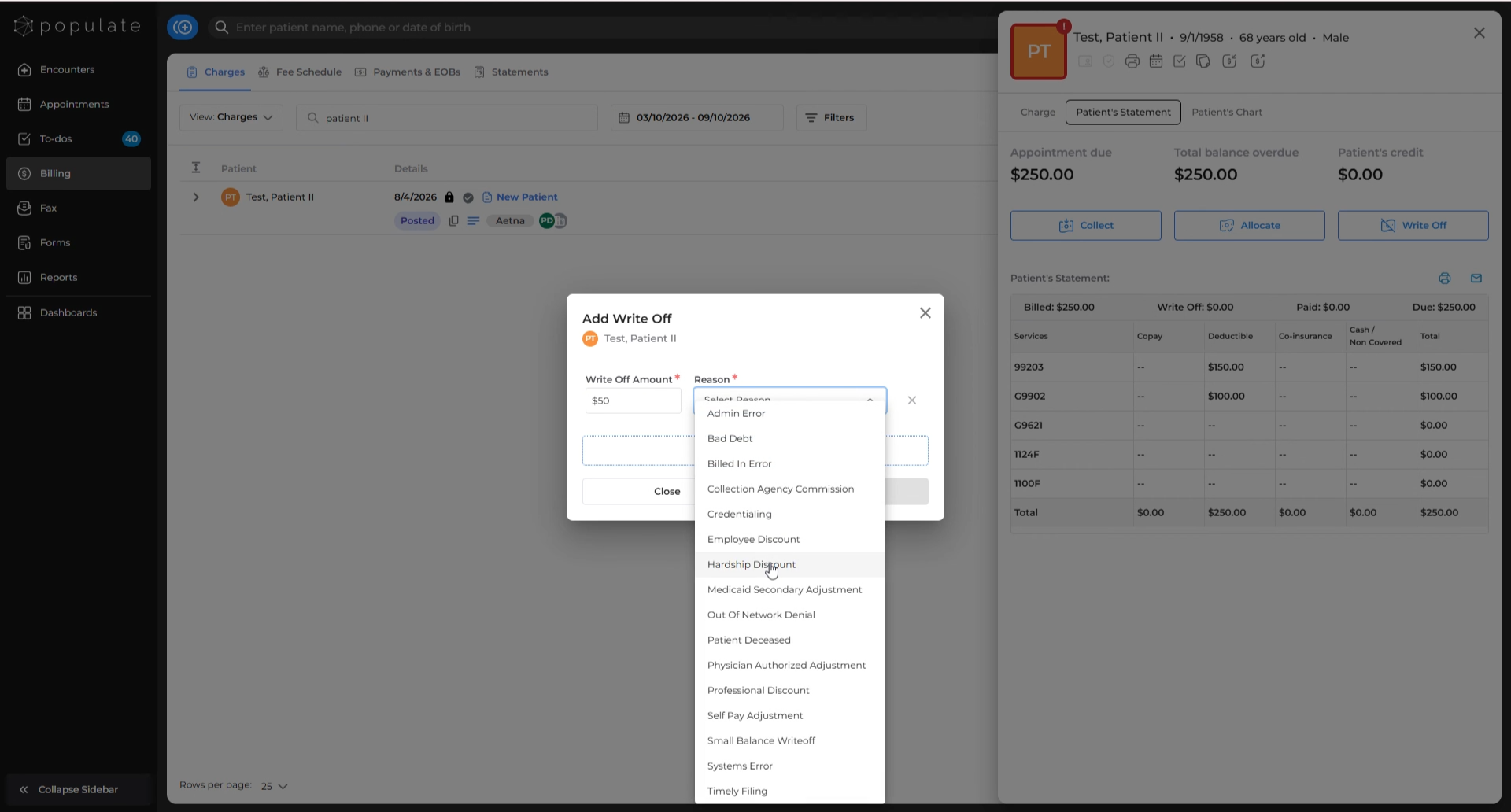
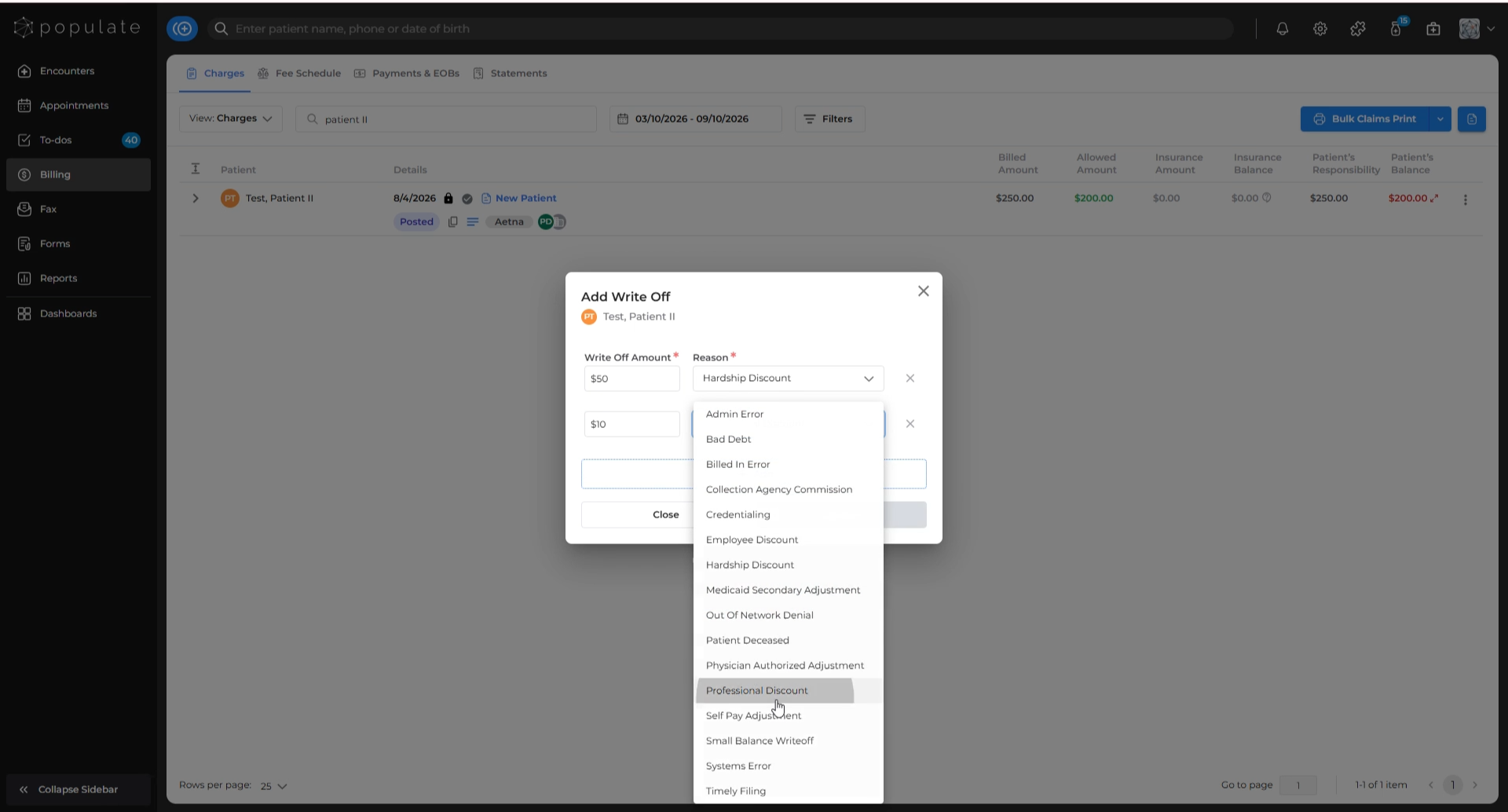
When the write off dialog box appears, enter the Write Off Amount you wish to write off and select a Reason from the dropdown menu.
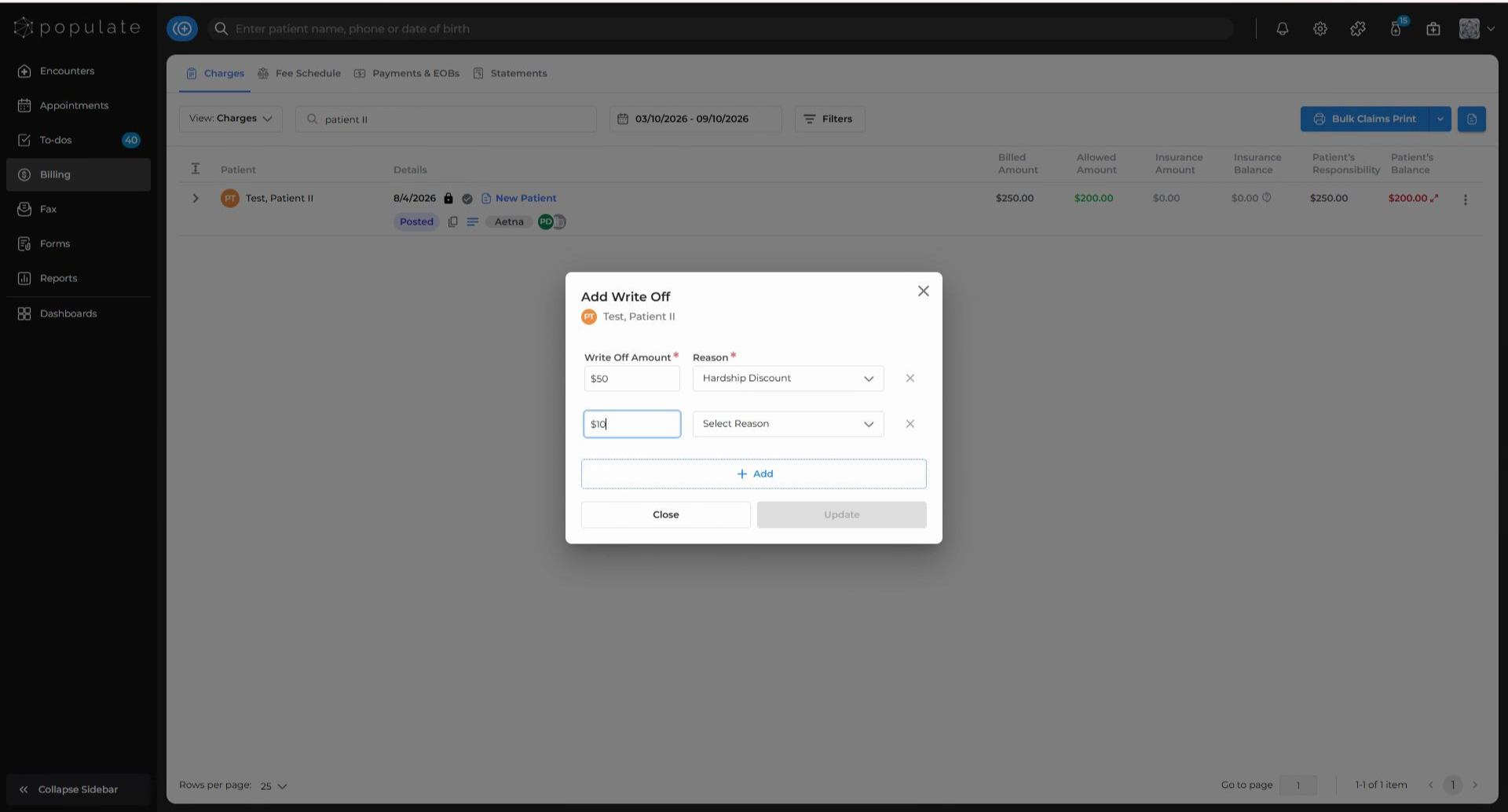
To add multiple write-offs, simply click on +Add within the dialog, then proceed to enter the next amount and reason.
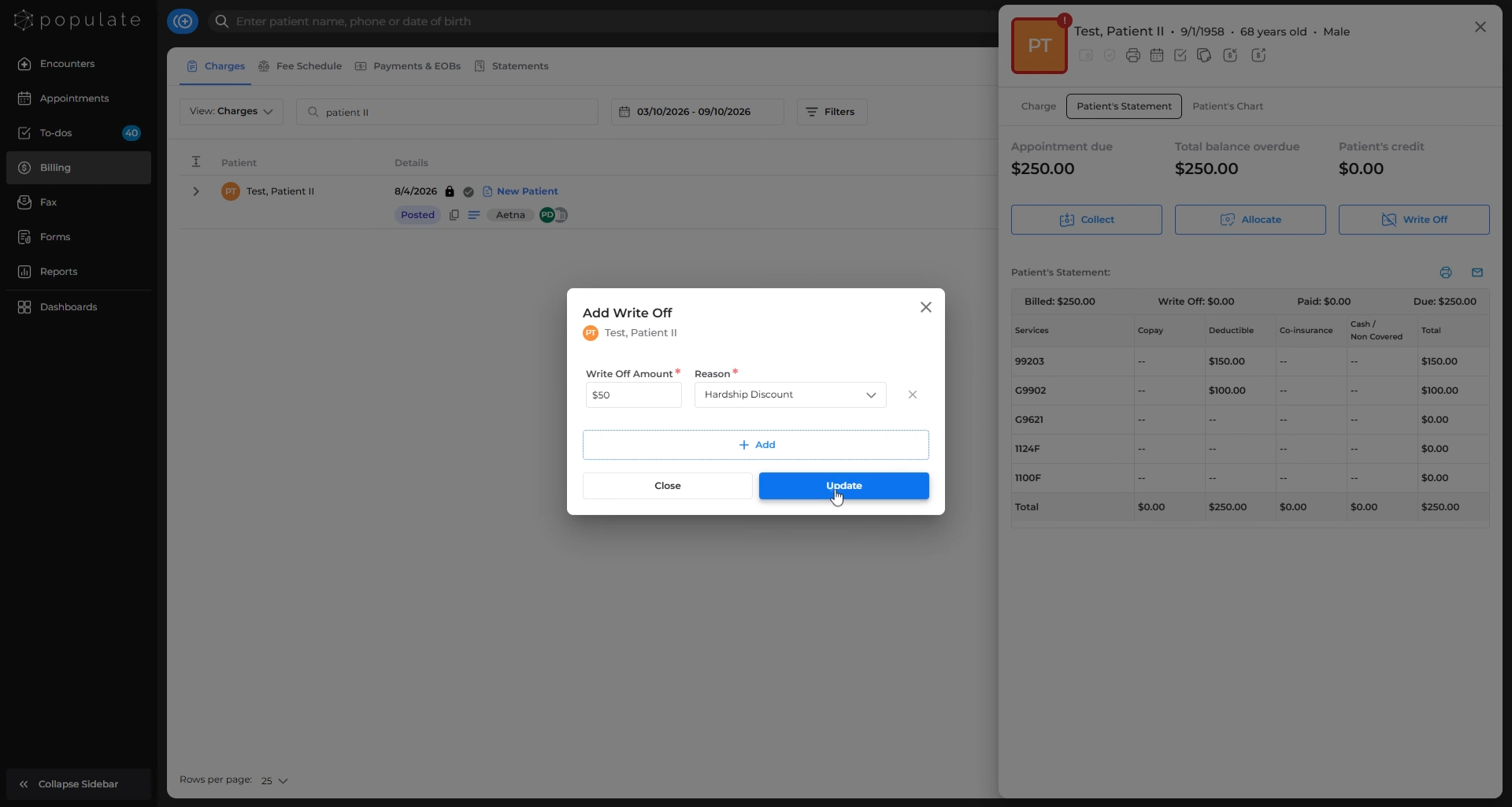
Once all amounts and reasons are filled in, click Update.
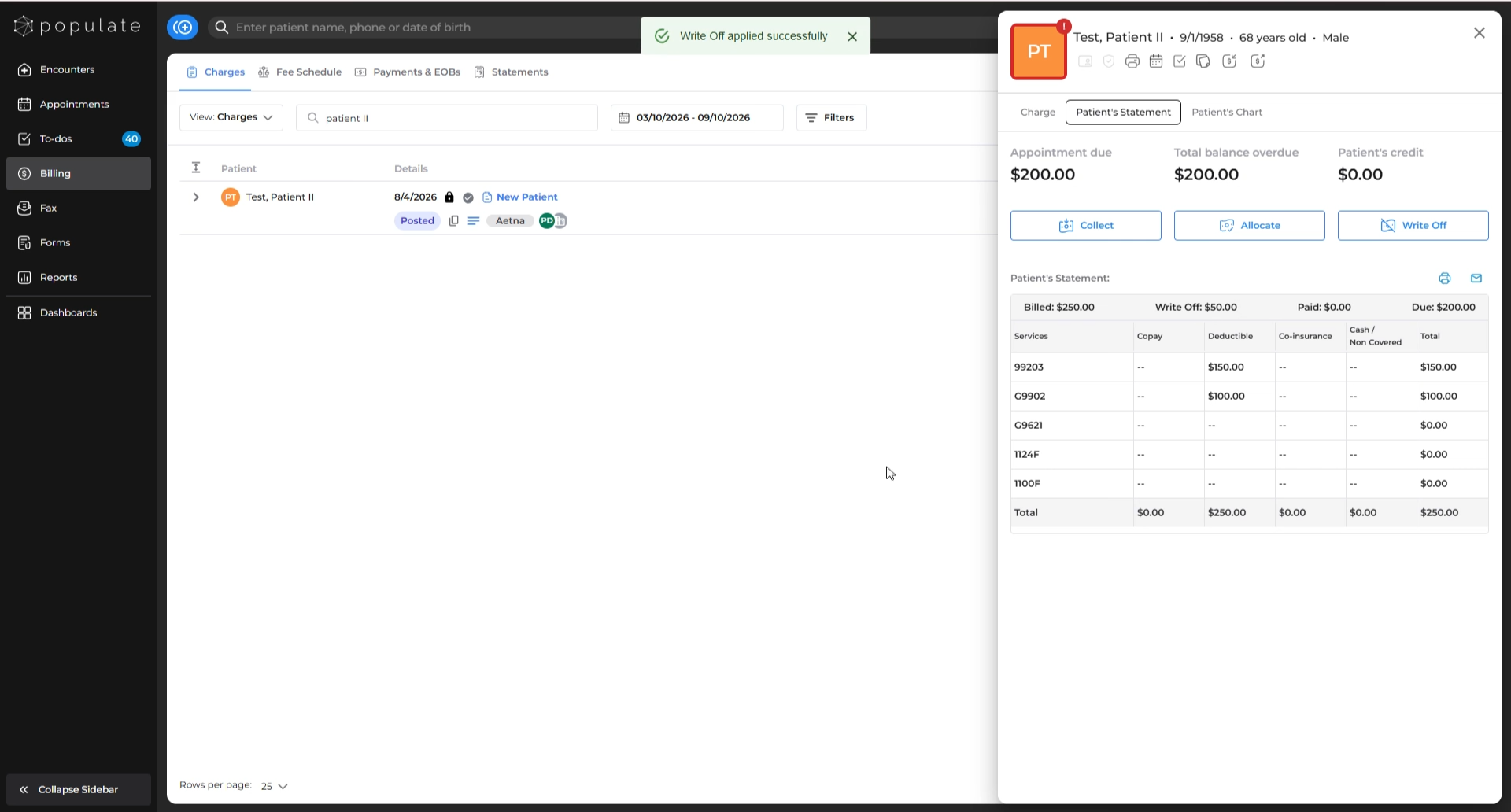
This will apply your write-off(s) to the patient’s due balance, and the due will be adjusted immediately.
2. From the Options Menu (Three Dots)
Alternatively, go to the charges screen, locate the three-dots menu, and hover over it.
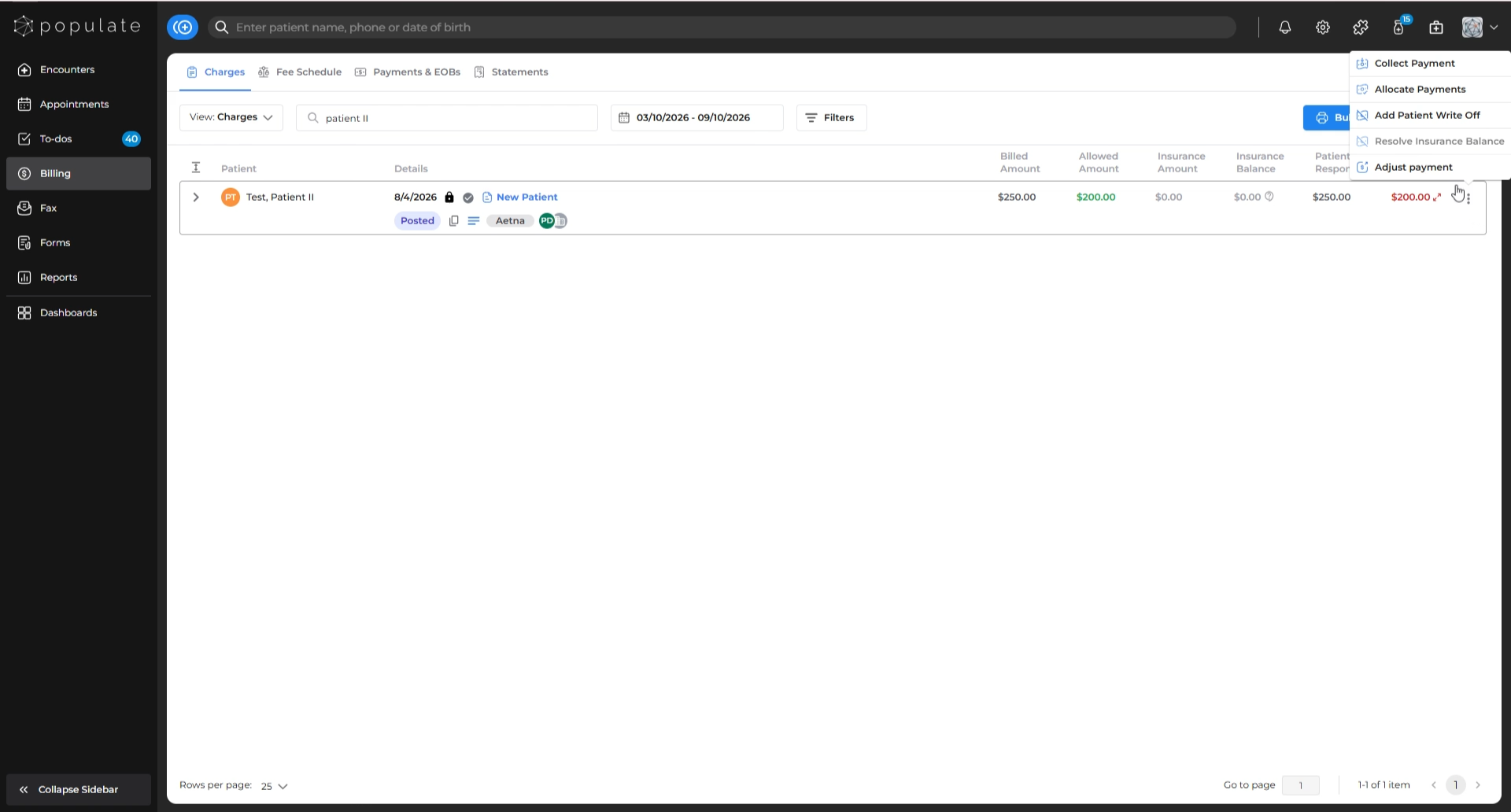
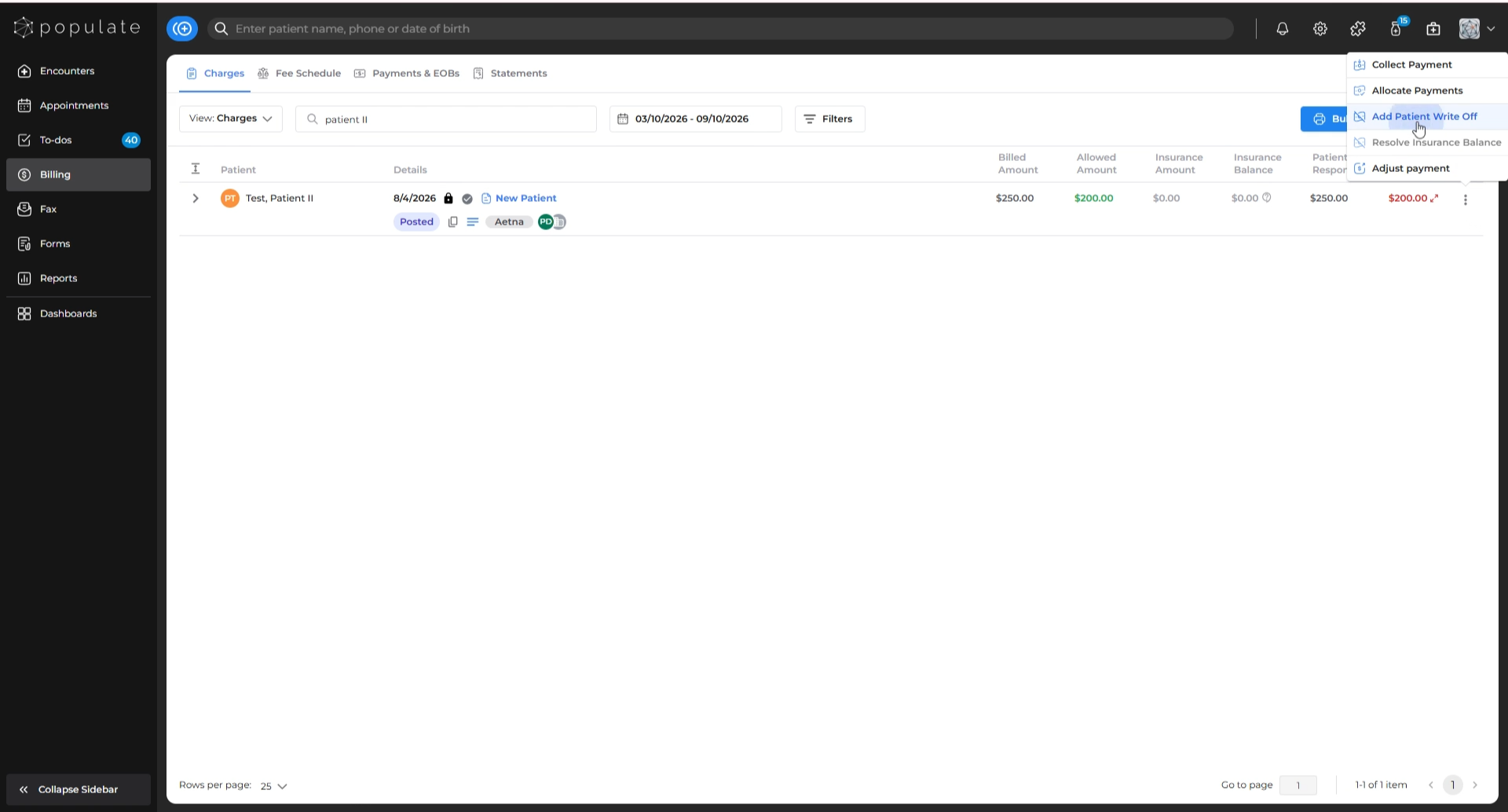
From the menu, select Add Patient Write-Off. Other options here may include collecting payment, allocating payment, resolving insurance balance, or adjusting payment.
Enter the write-off amount and select the appropriate reason, just as described above.
Click "Update" to confirm the write off and the due amount will update right away.