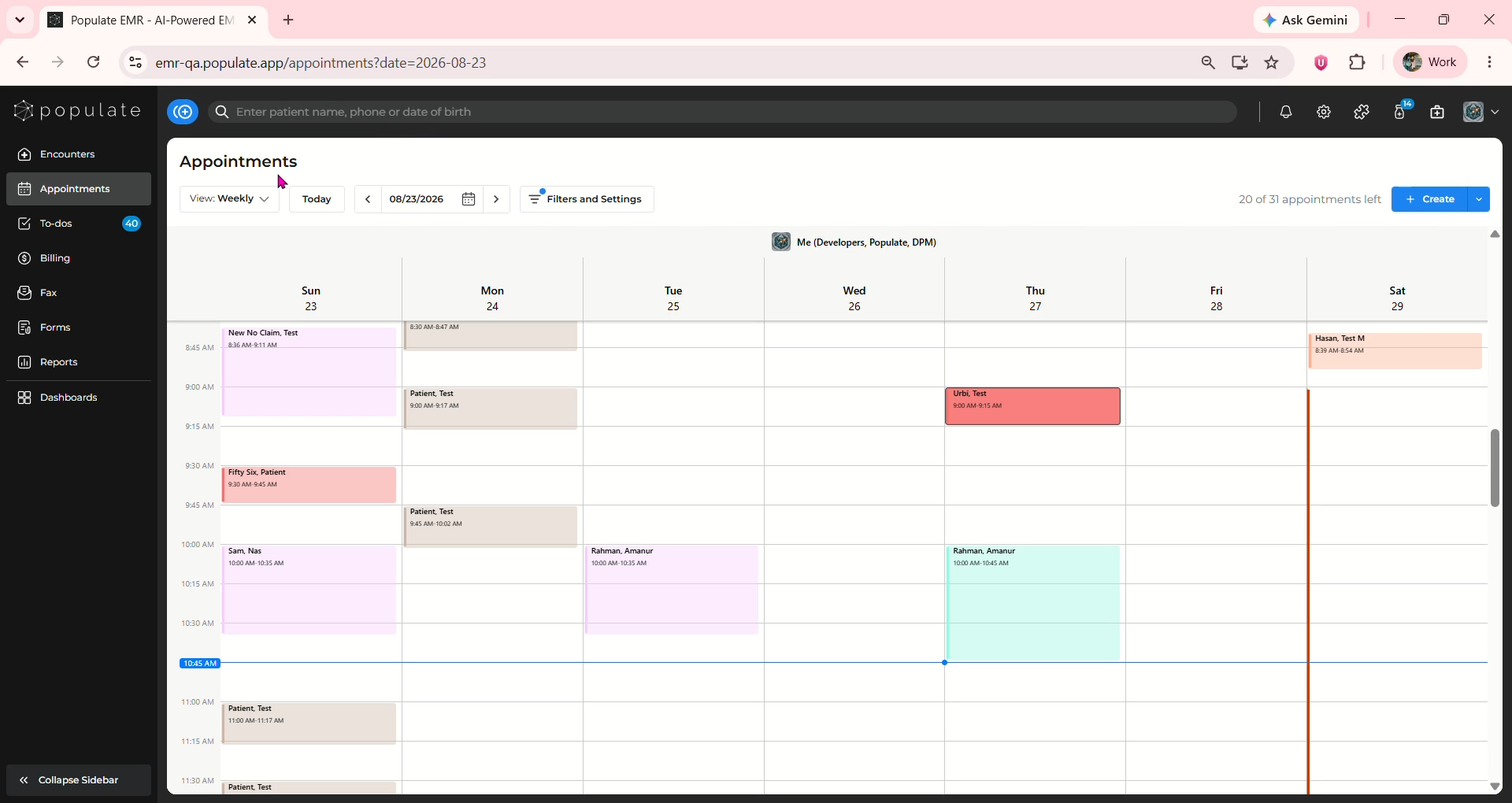
The appointment calendar view can be customized to fit your preference using the different filters shown right above the calendar.
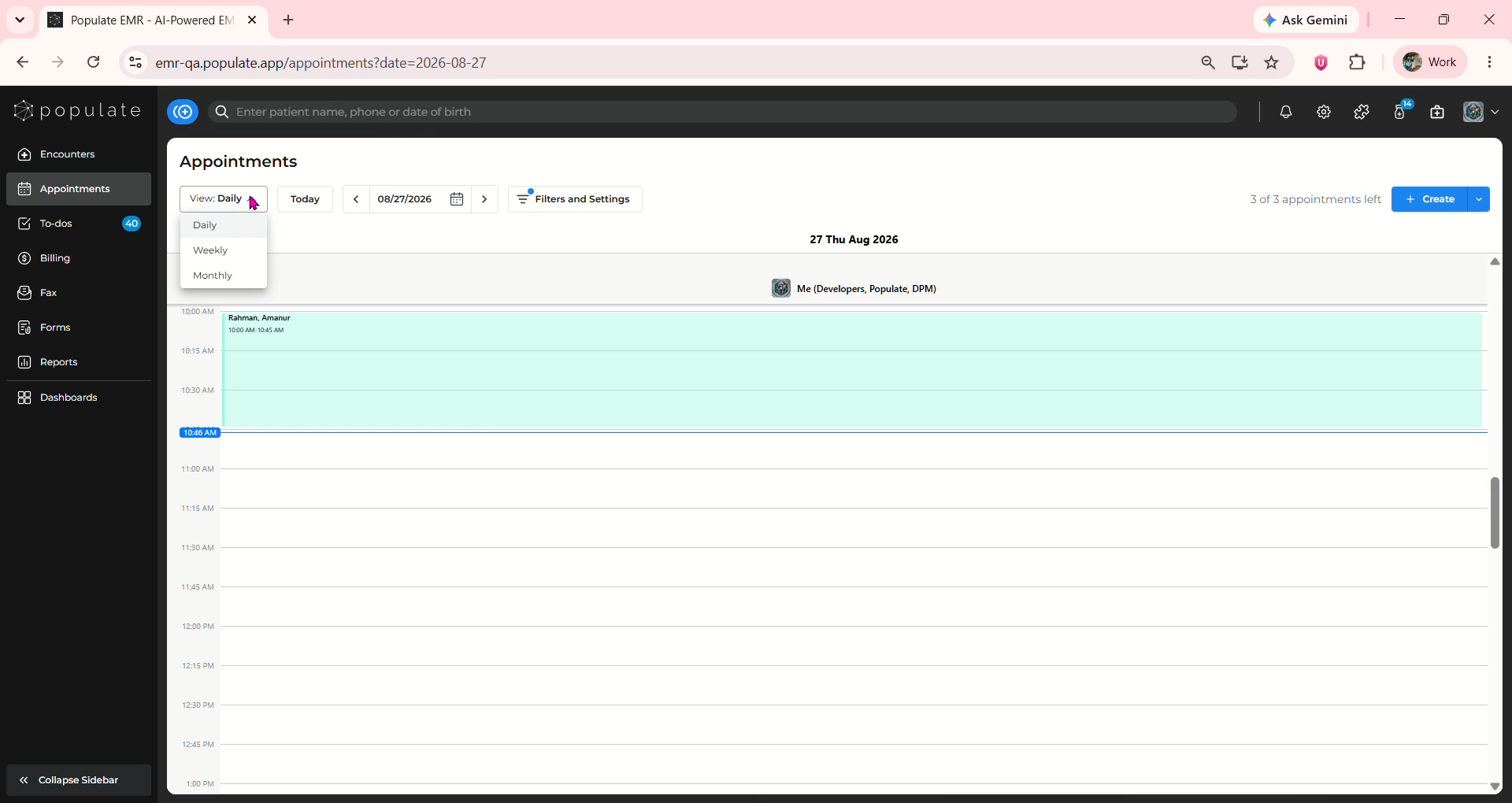
Click the View dropdown to select one of three calendar display modes: Daily, Weekly, or Monthly. Selecting each option adjusts the calendar layout to present information for that time period.
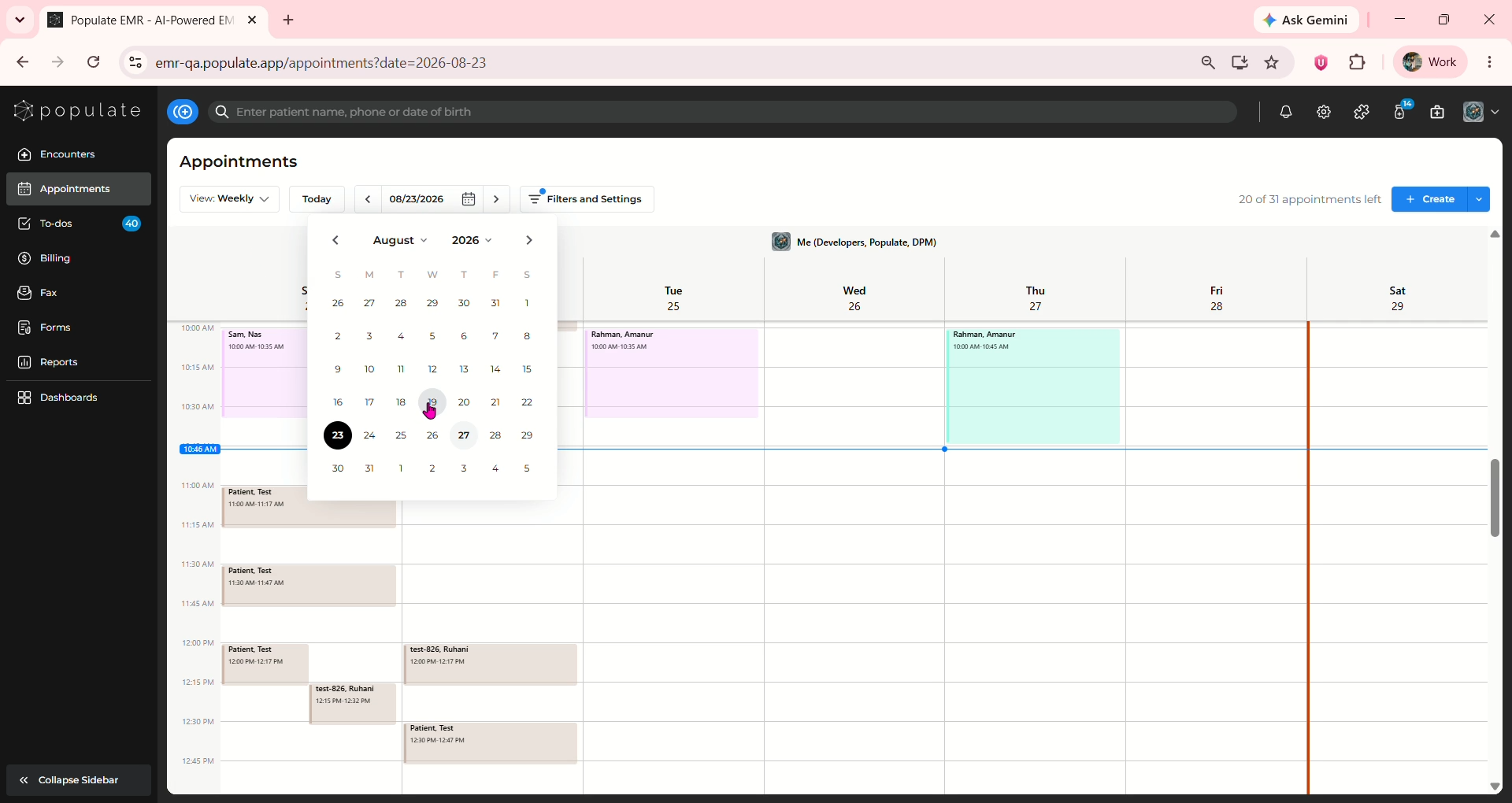
To navigate to a specific date, click the calendar icon in the toolbar and select your desired date from the date picker.
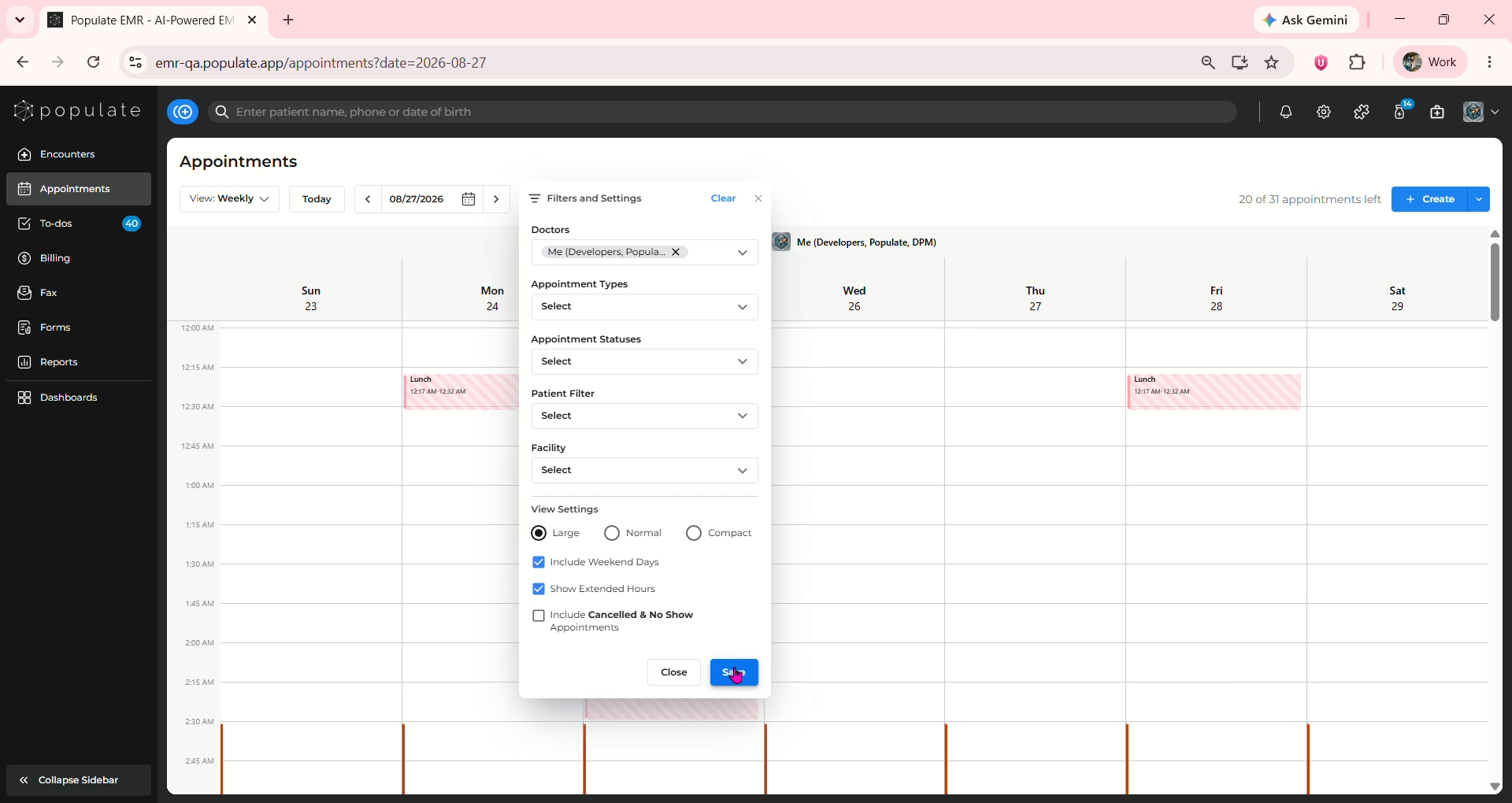
Click Filters and Settings to filter the appointments displayed in the calendar by criteria such as provider, appointment type, or status.
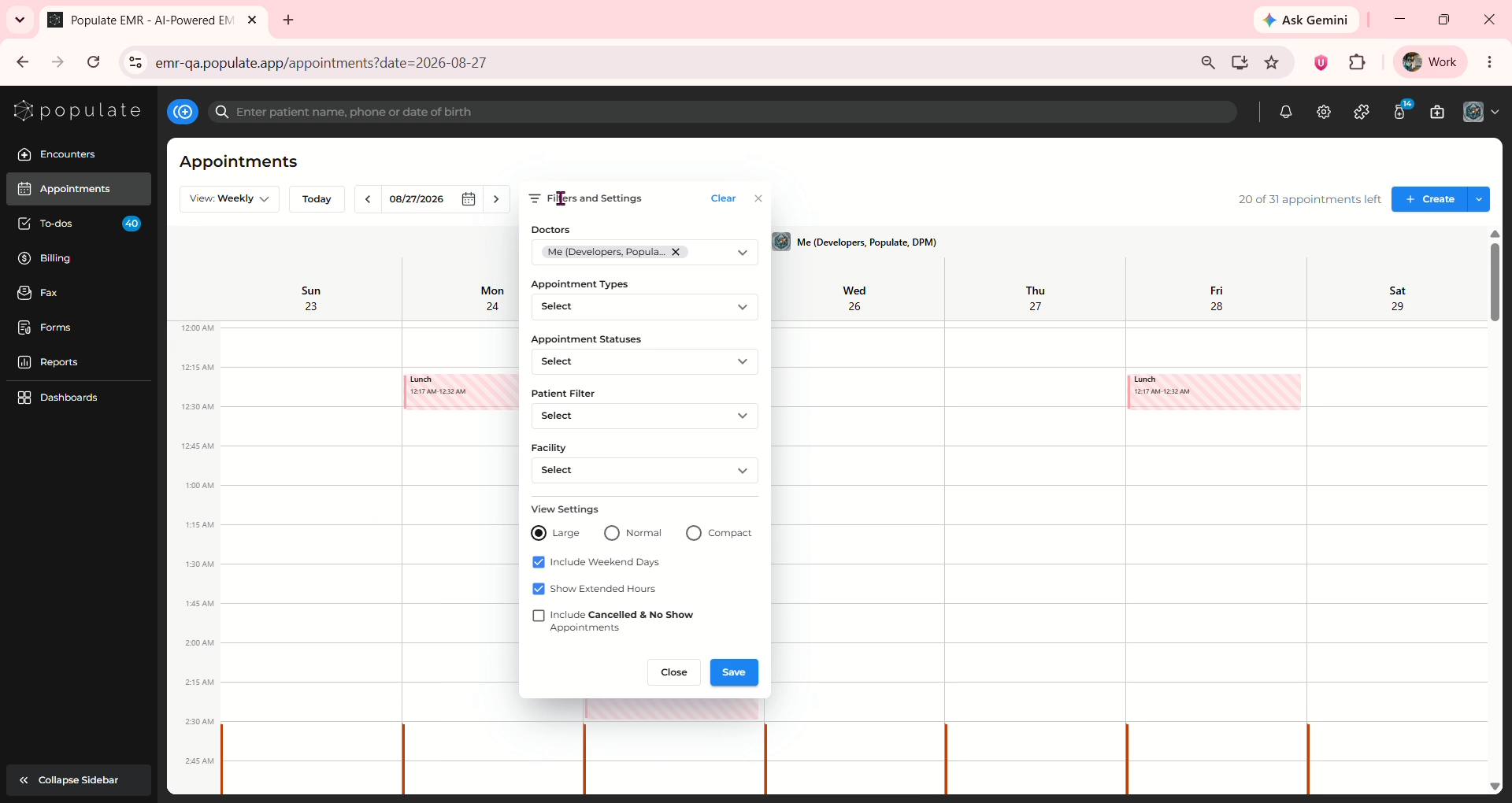
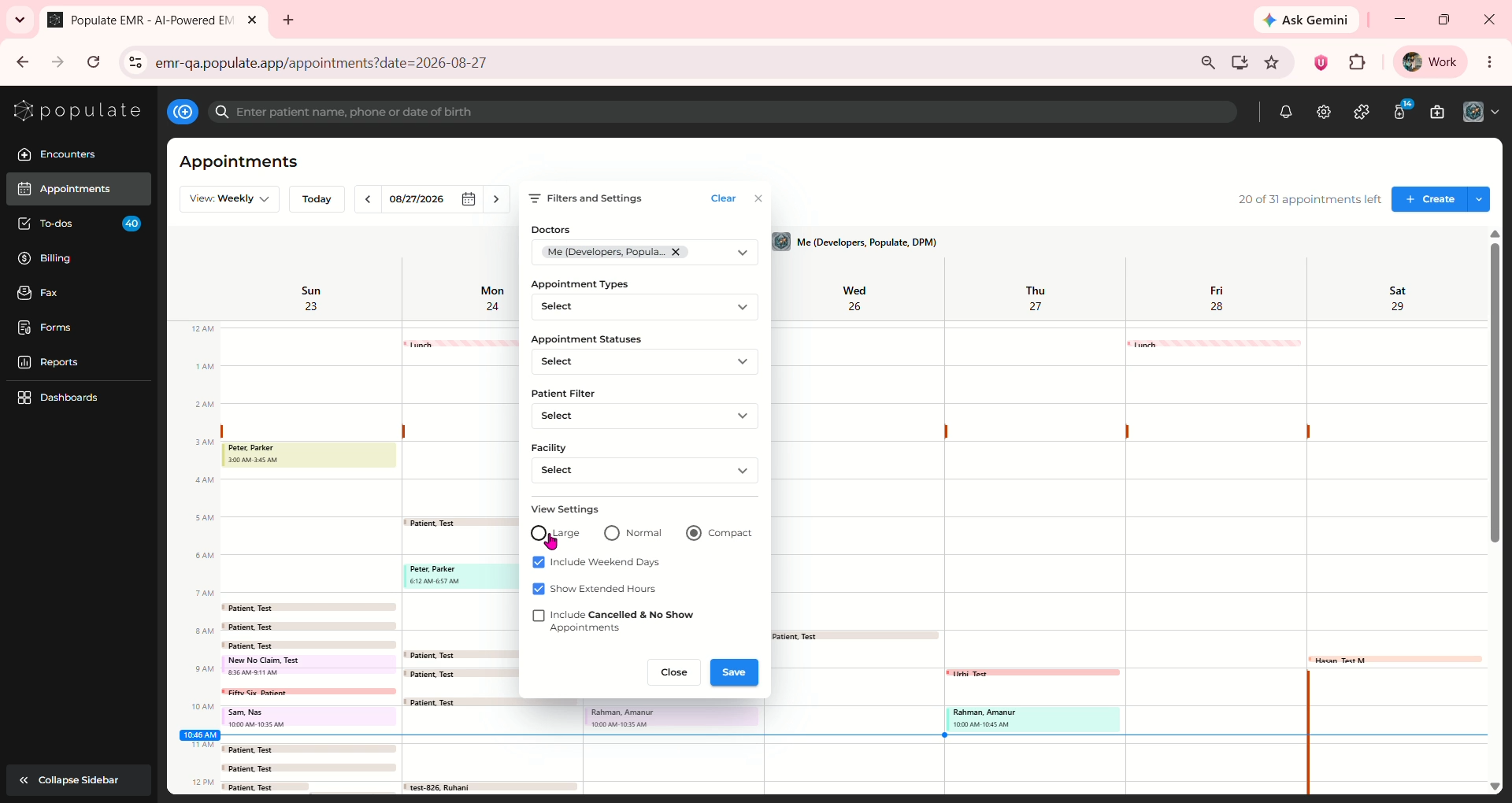
Within Filters and Settings, you can also adjust the calendar's display size to make appointment blocks larger or smaller.
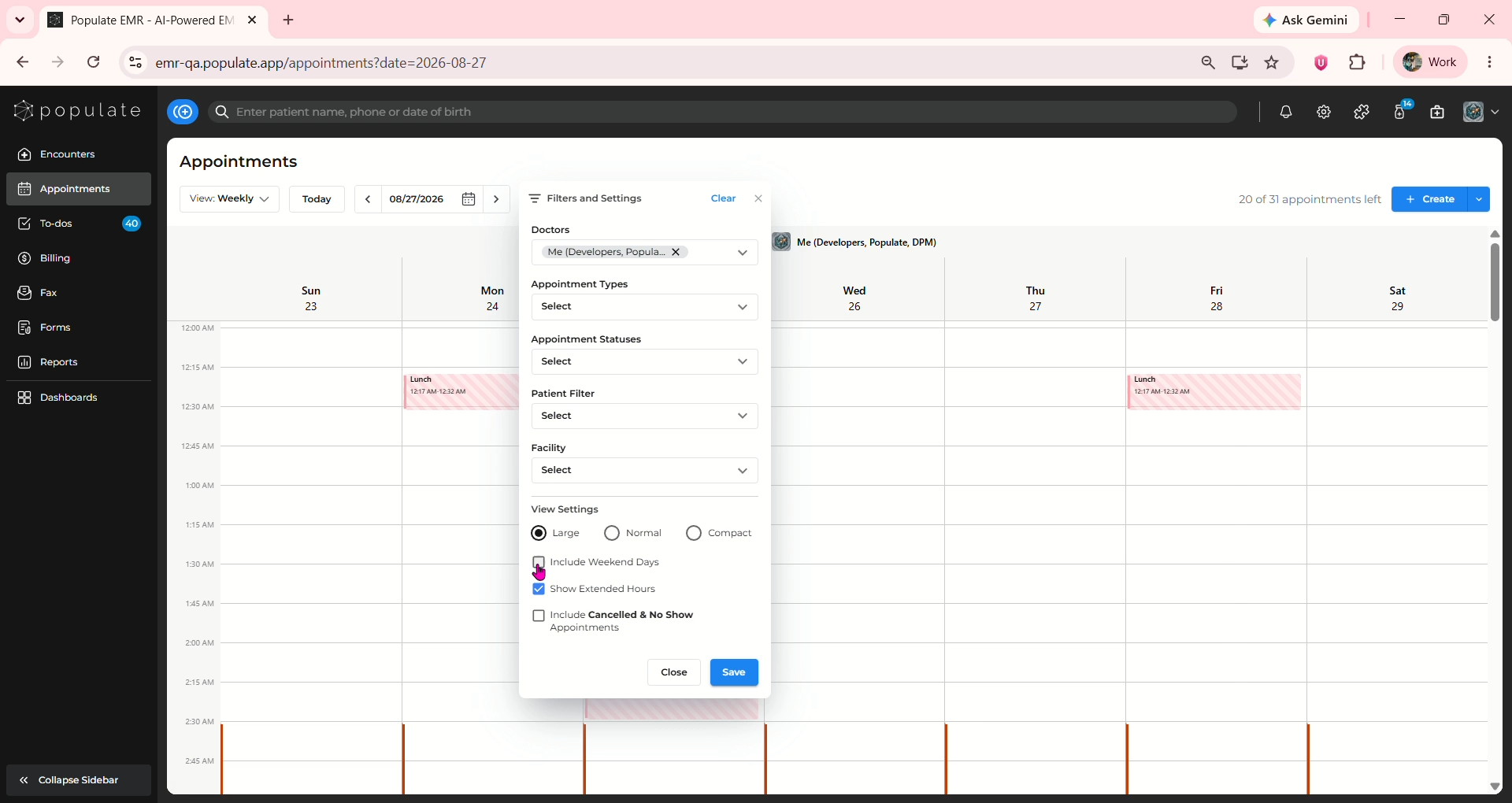
Click the "Include Weekend Days" checkbox if you want to add weekends to your calendar view.
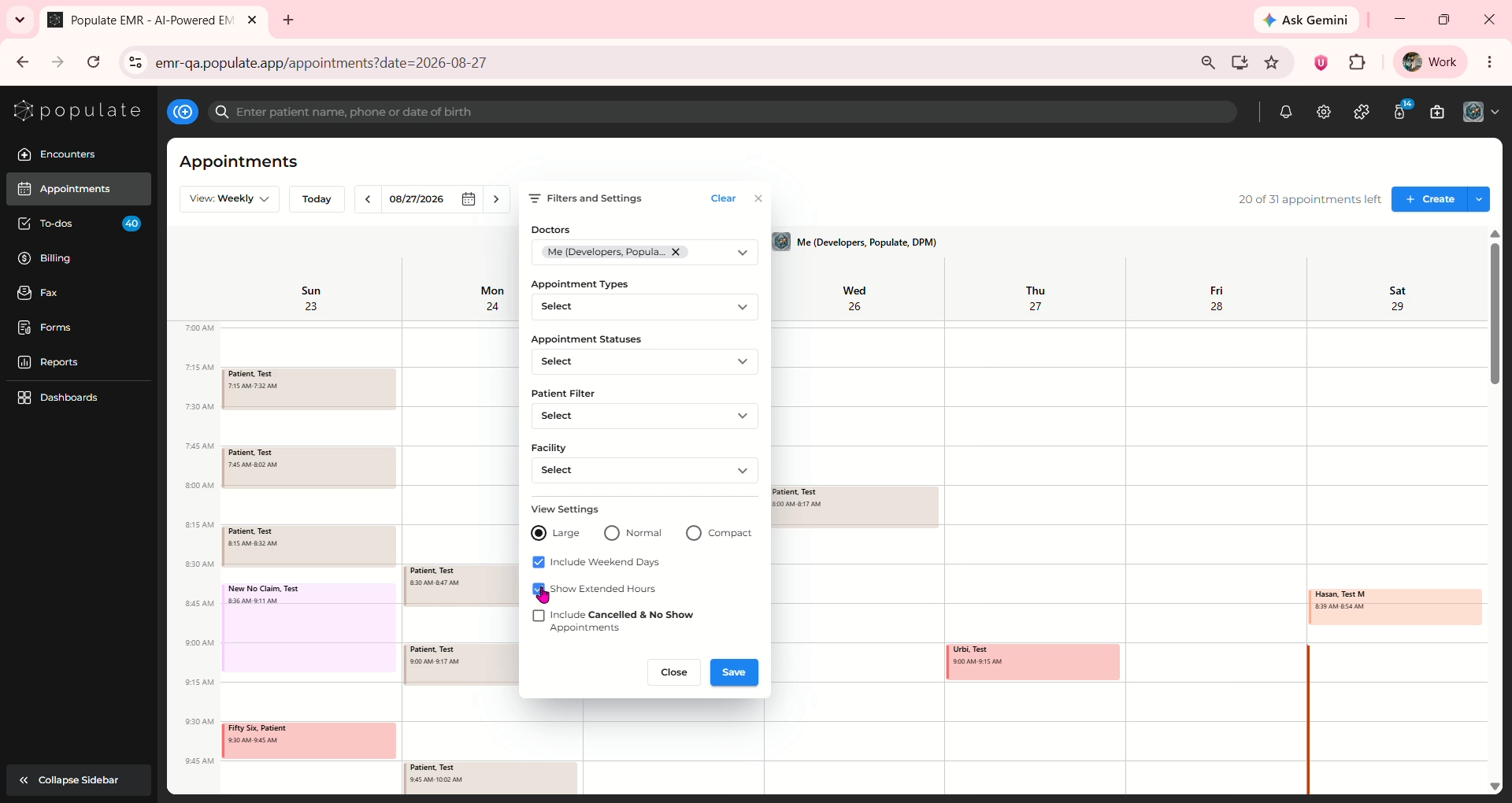
Click the "Show Extended Hours" field if you want to view the hours beyond your practice time.
Click Save to apply your filter selections. The calendar will update to highlight matching appointments, while non-matching appointments are grayed out for easy comparison.