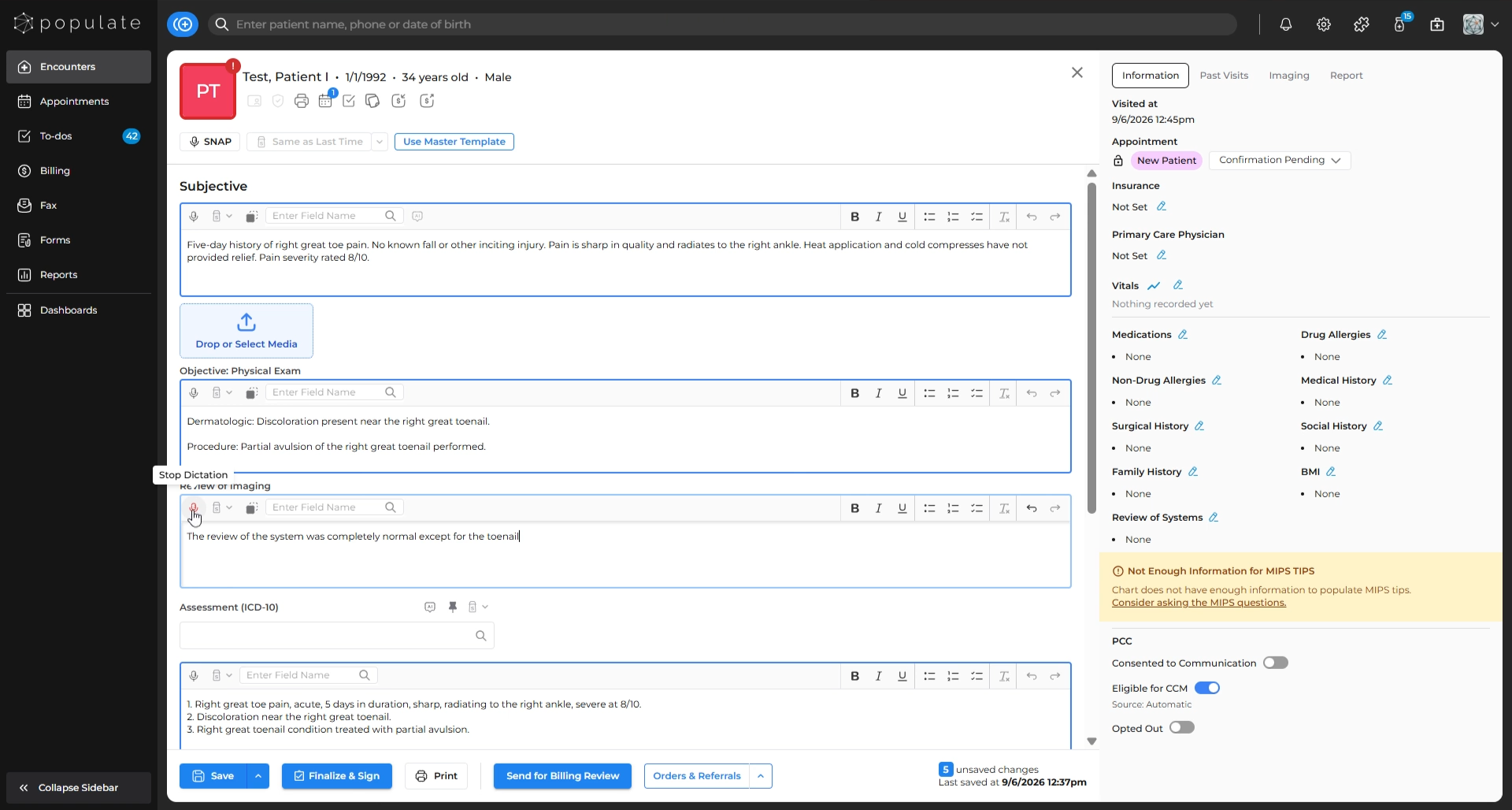
You can complete your visit note in 2 ways: using SNAP (Smart Note Automation Program) which uses AI for completing the SOAP note by listening to the conversation between you and your patient, or dictating each note section individually using the microphone feature.
Using SNAP (Smart Note Automation Program)
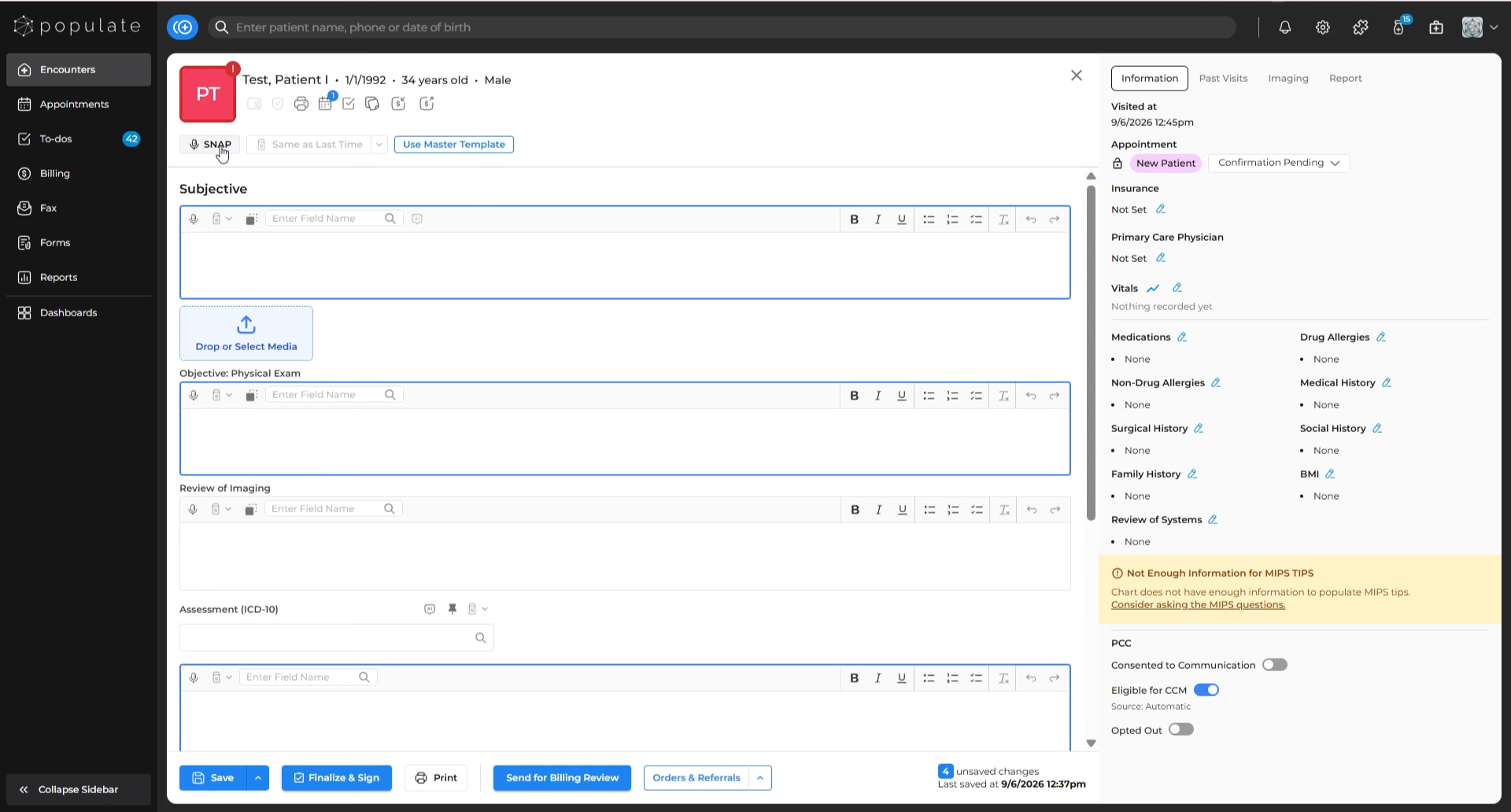
Click the "SNAP" button.
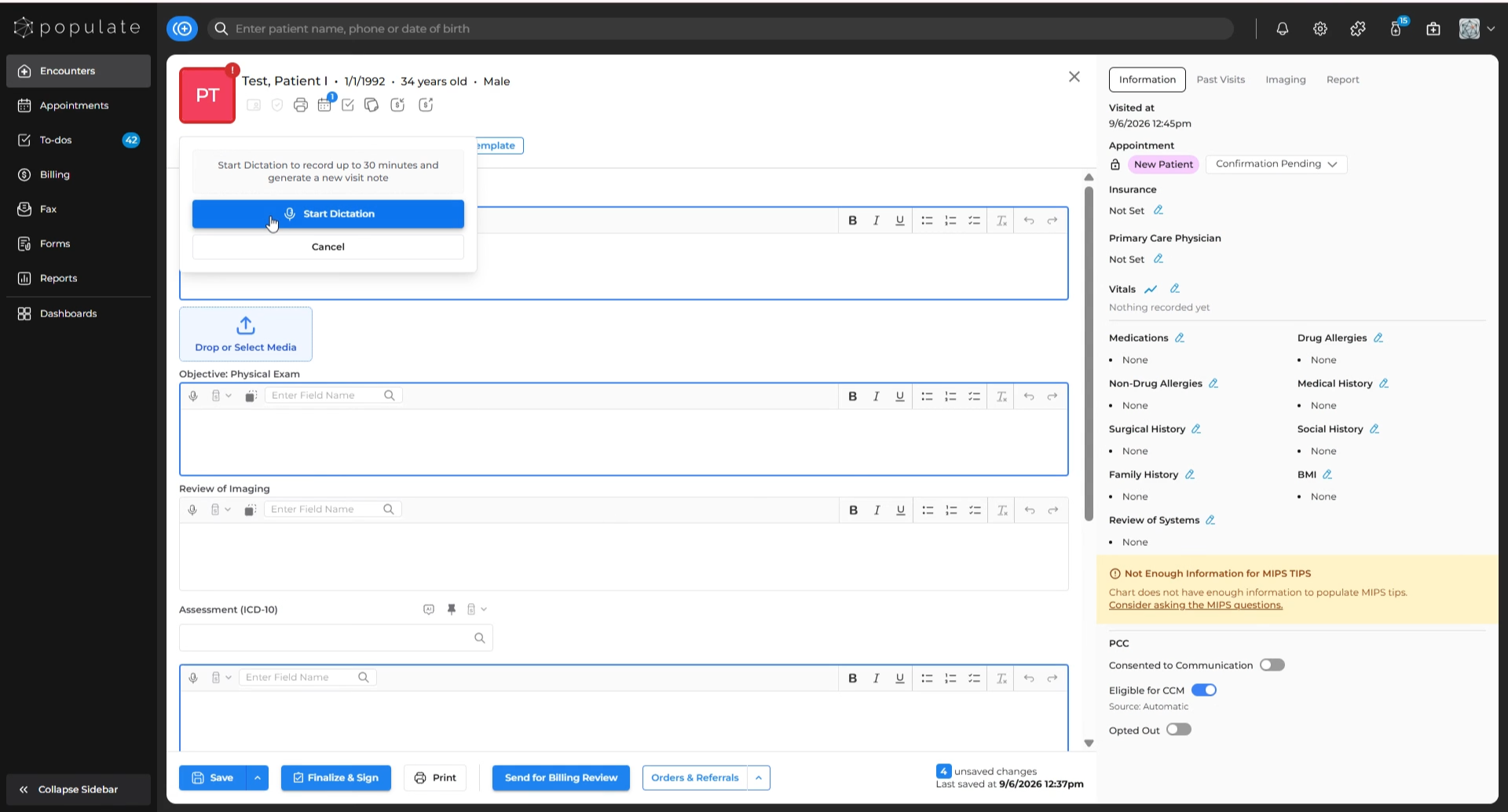
Select "Start Dictation" to begin recording your conversation.
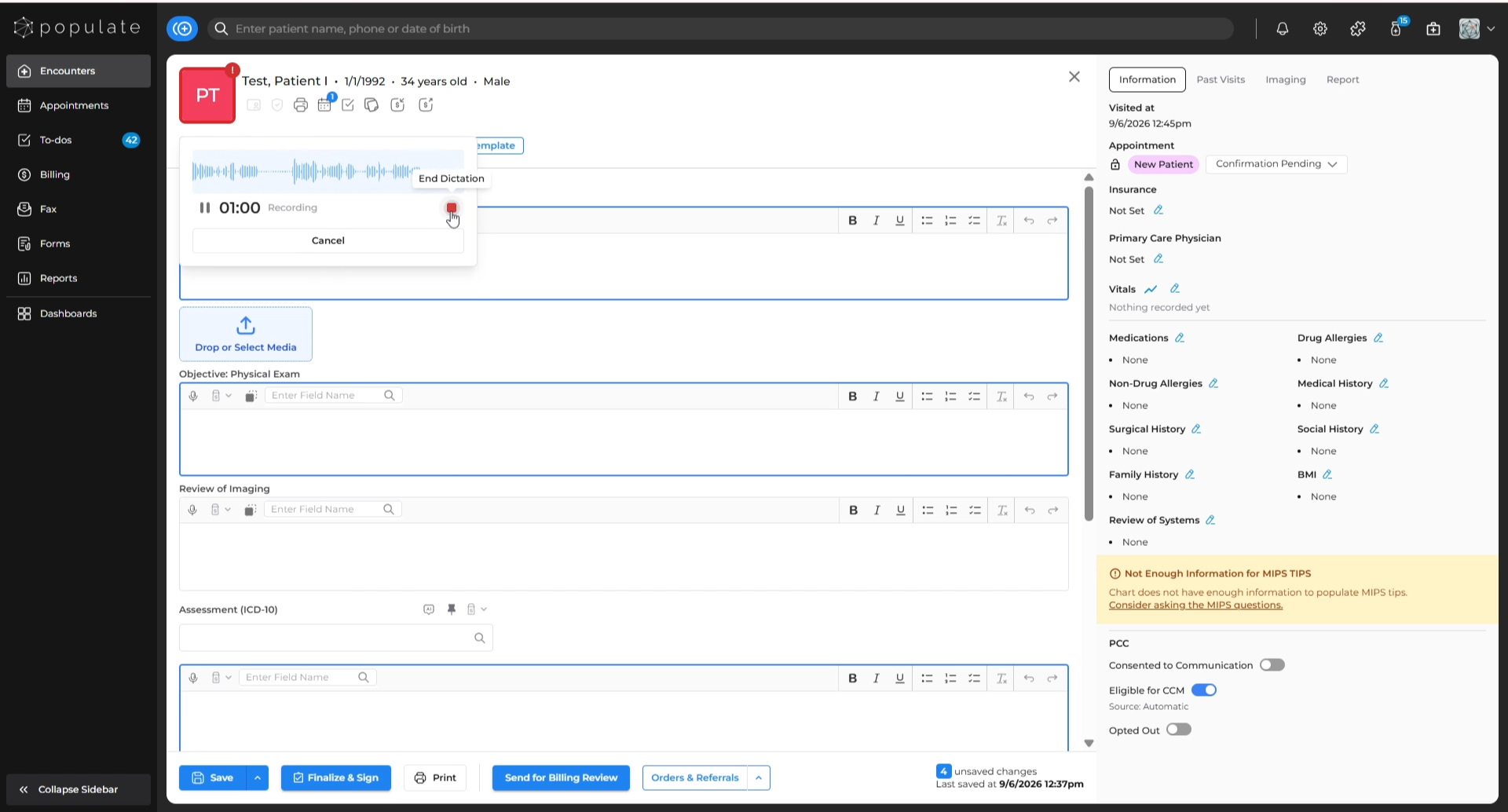
Conduct your patient visit. When finished, click the red square button to stop the recording.
Click "Generate Note". (If it is a longer conversation, it might take some time for SNAP to successfully generate a note. The estimated time of completion is shown above the "Generate Note" option)
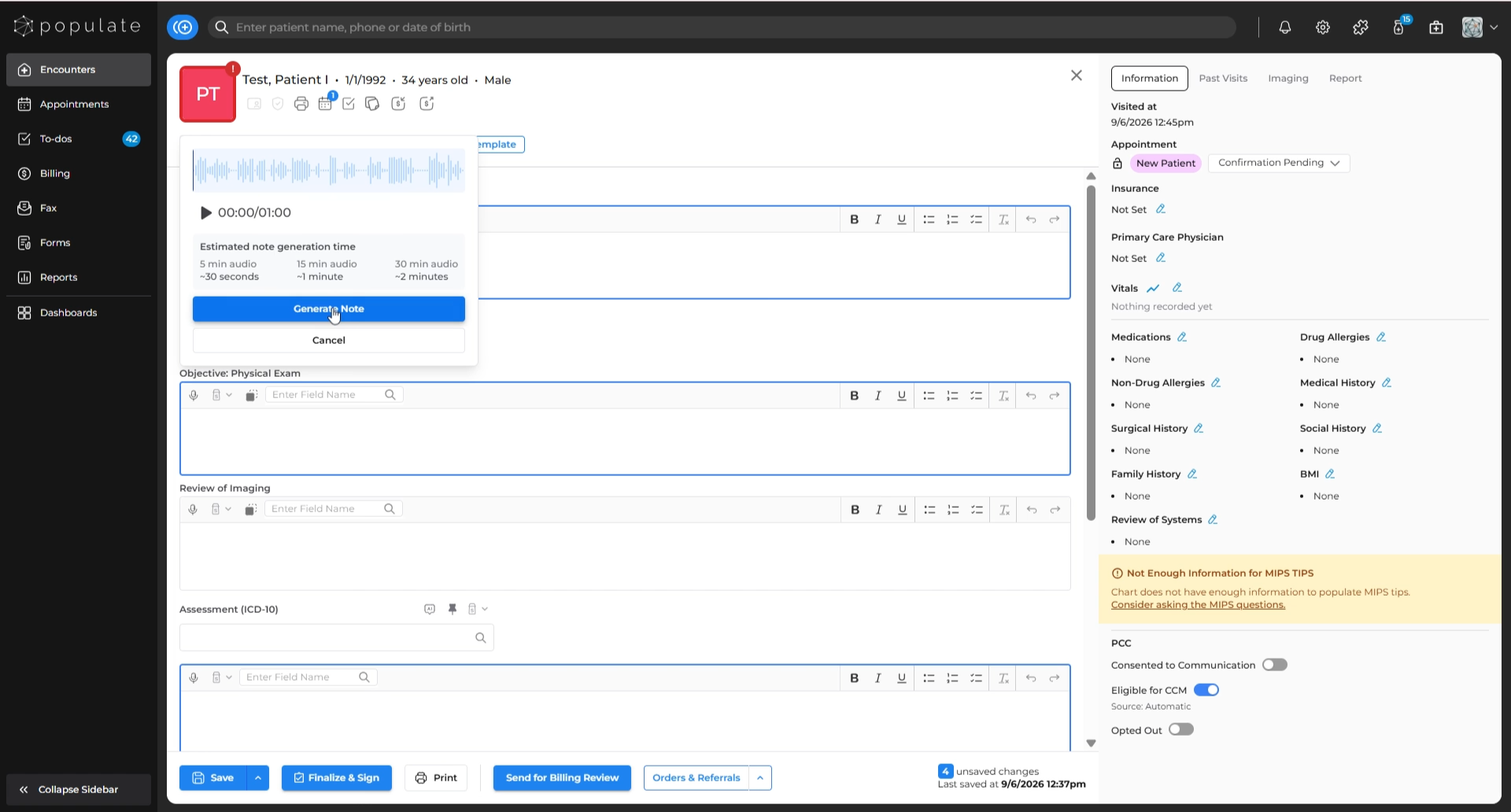
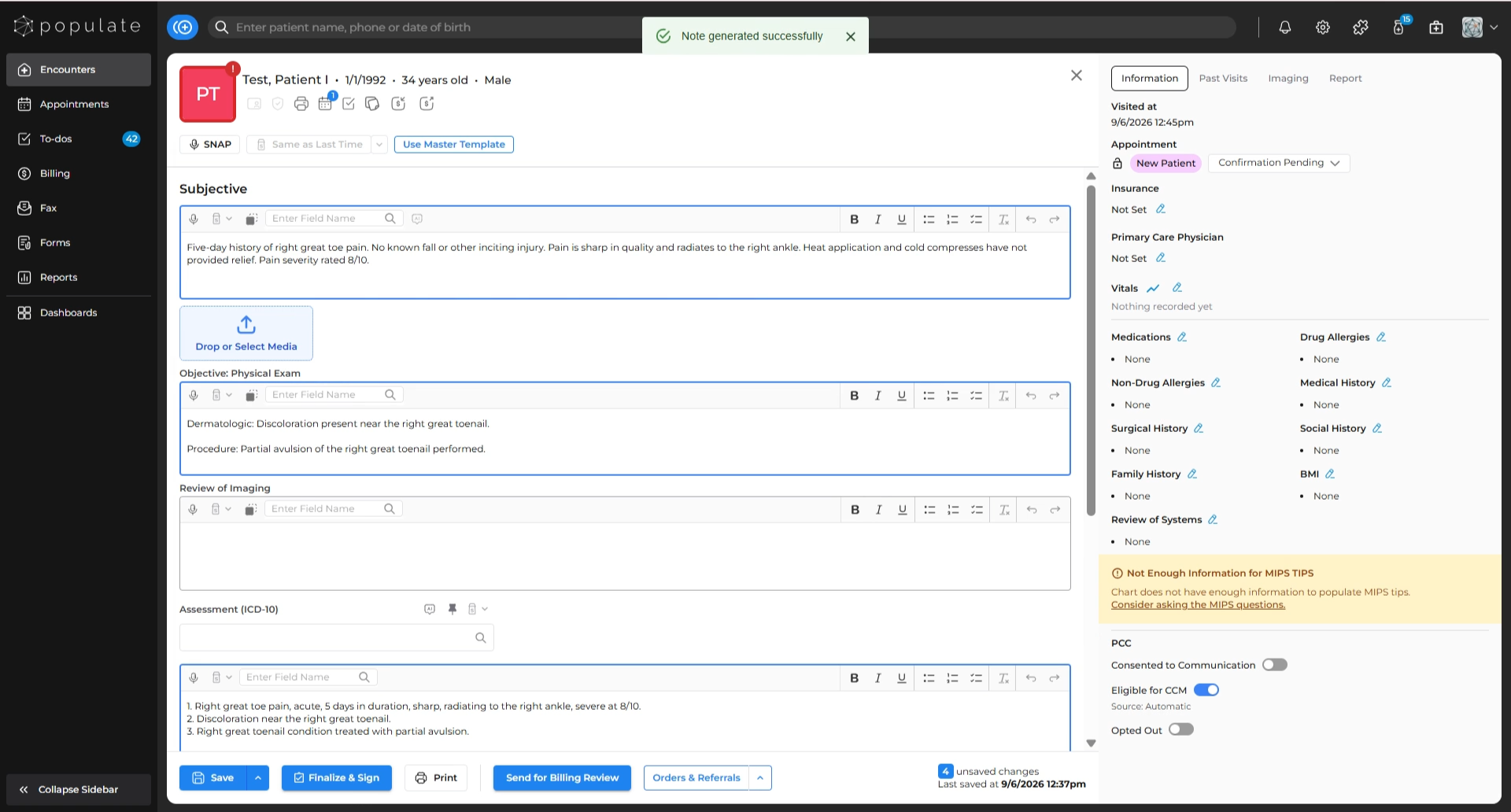
SNAP will automatically generate and organize the visit content into the appropriate note sections.
To stop without saving, click the cancel option and confirm cancellation.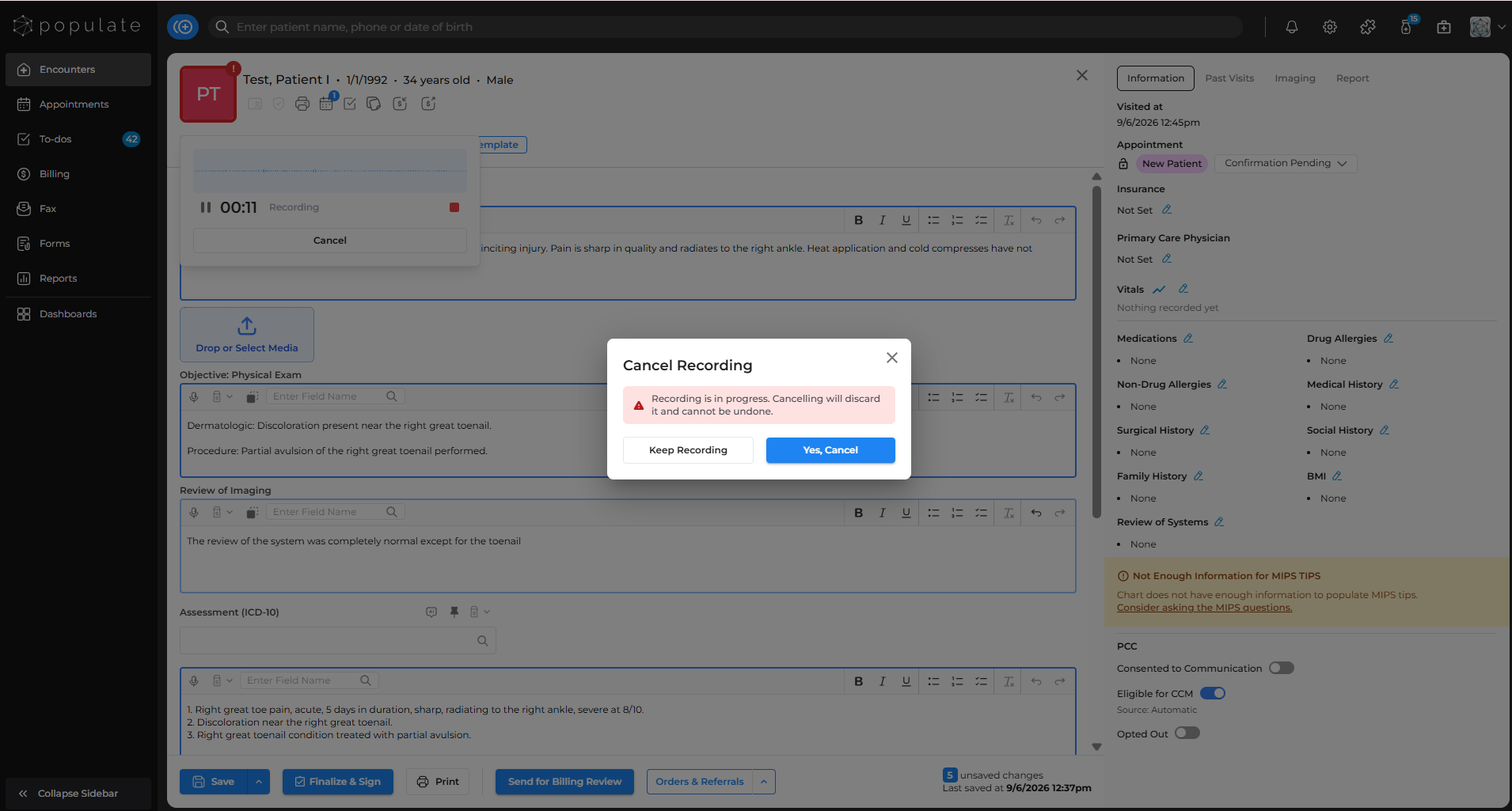
Dictating Each Section Individually
Click the microphone icon at the left corner of each text box for the section you want to dictate.
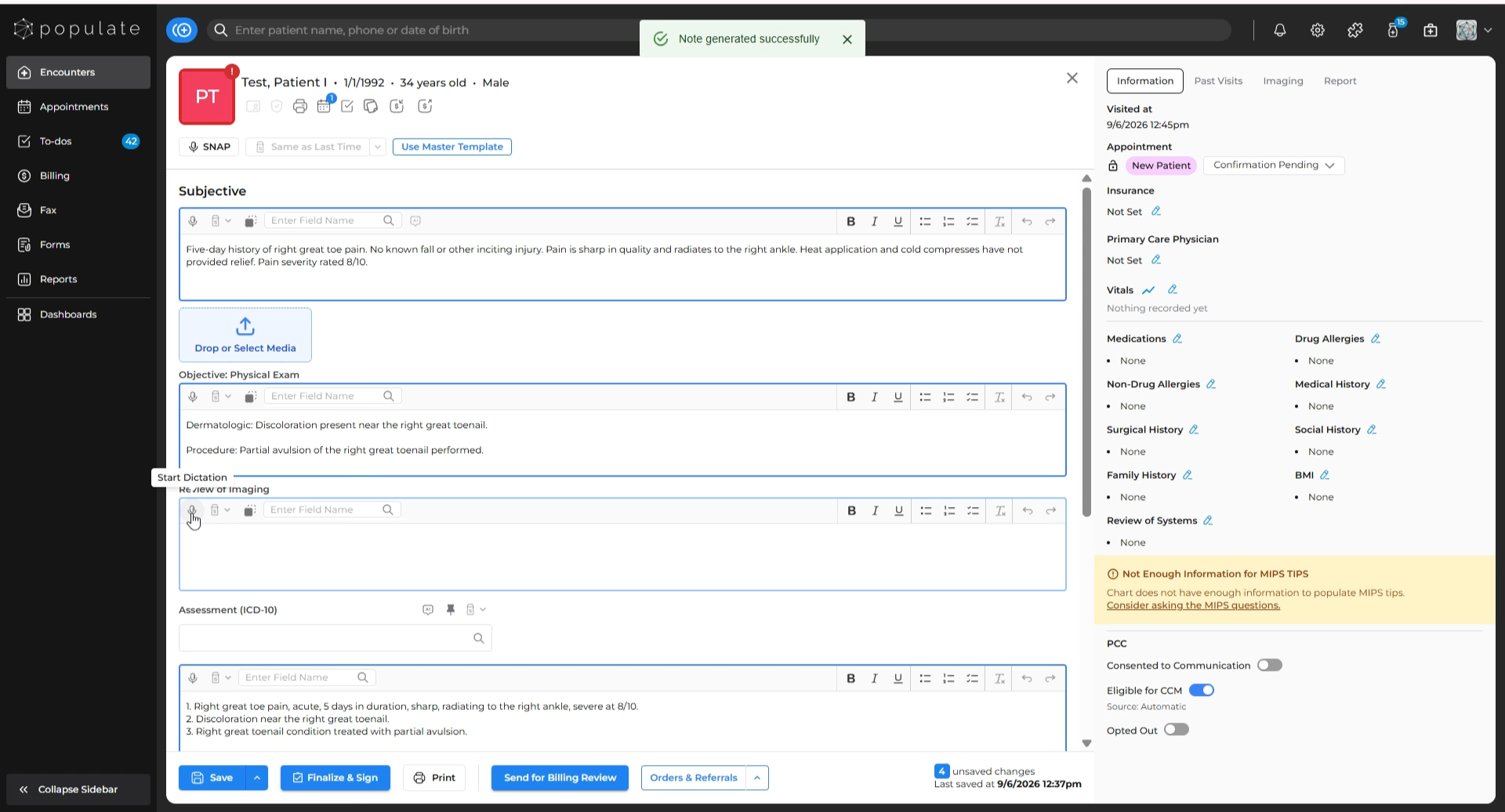
When the microphone icon turns red, start speaking to record for that section.
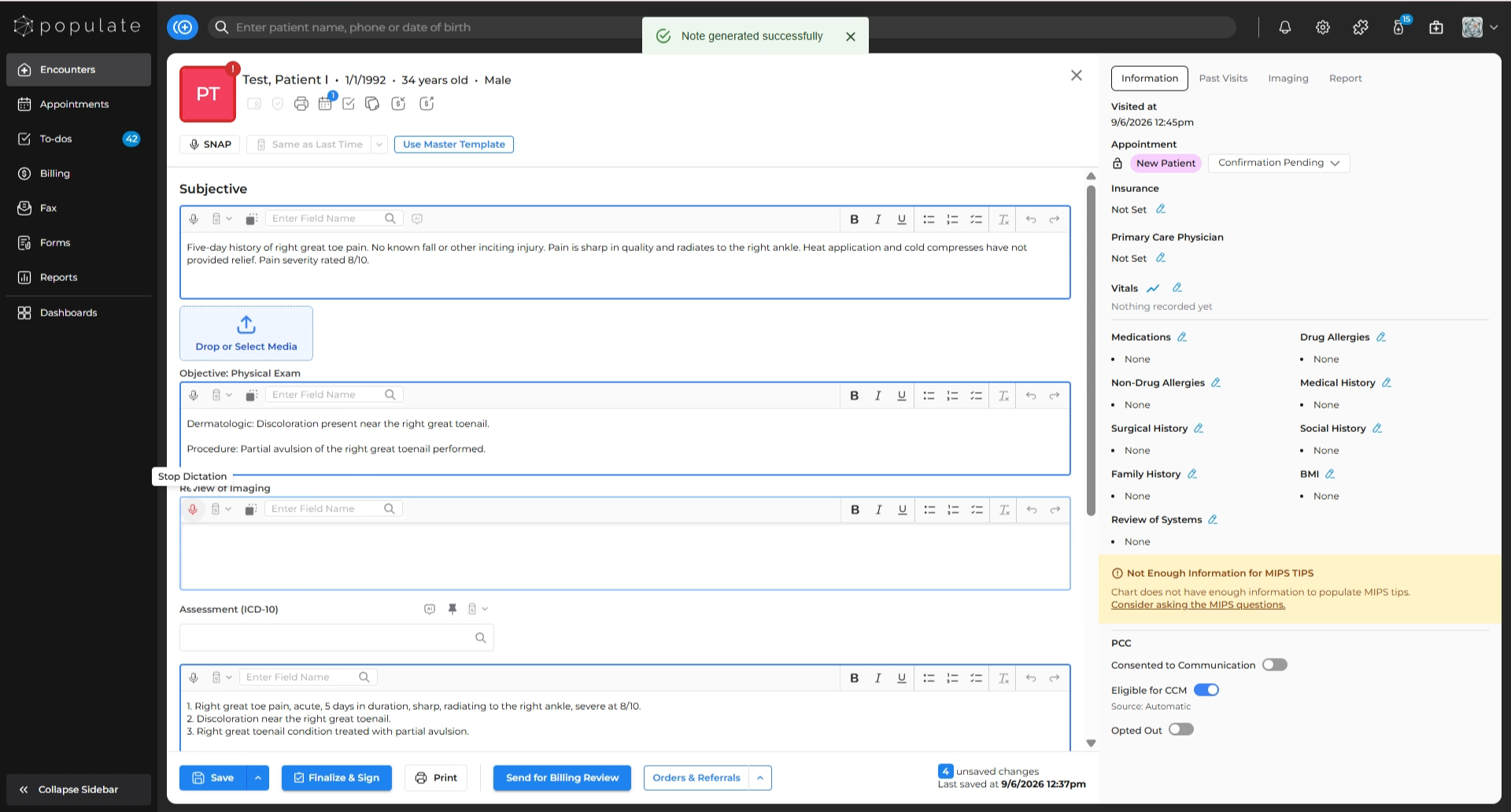
Click the microphone icon again to stop the recording when finished.