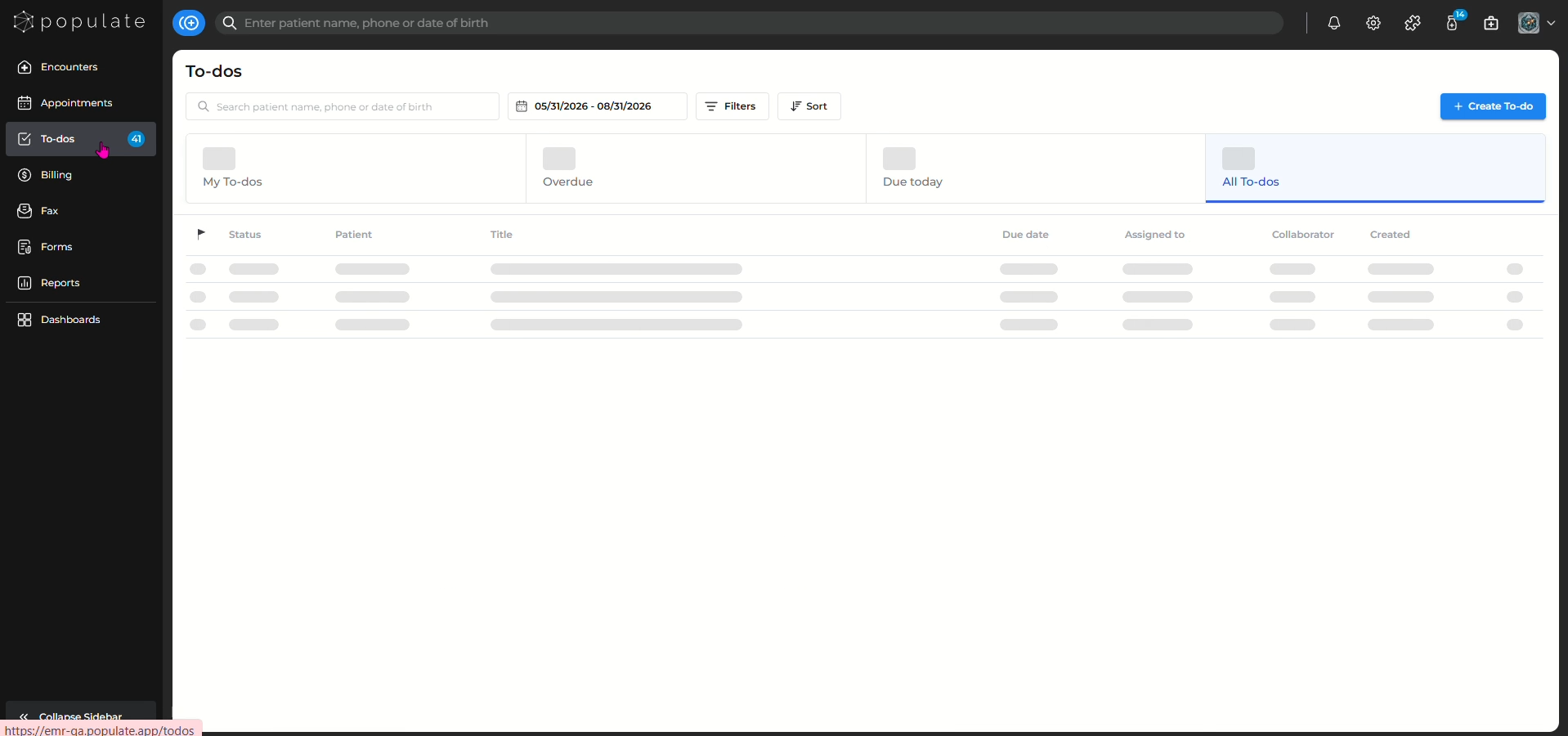
Navigate to the To-Dos from the main menu
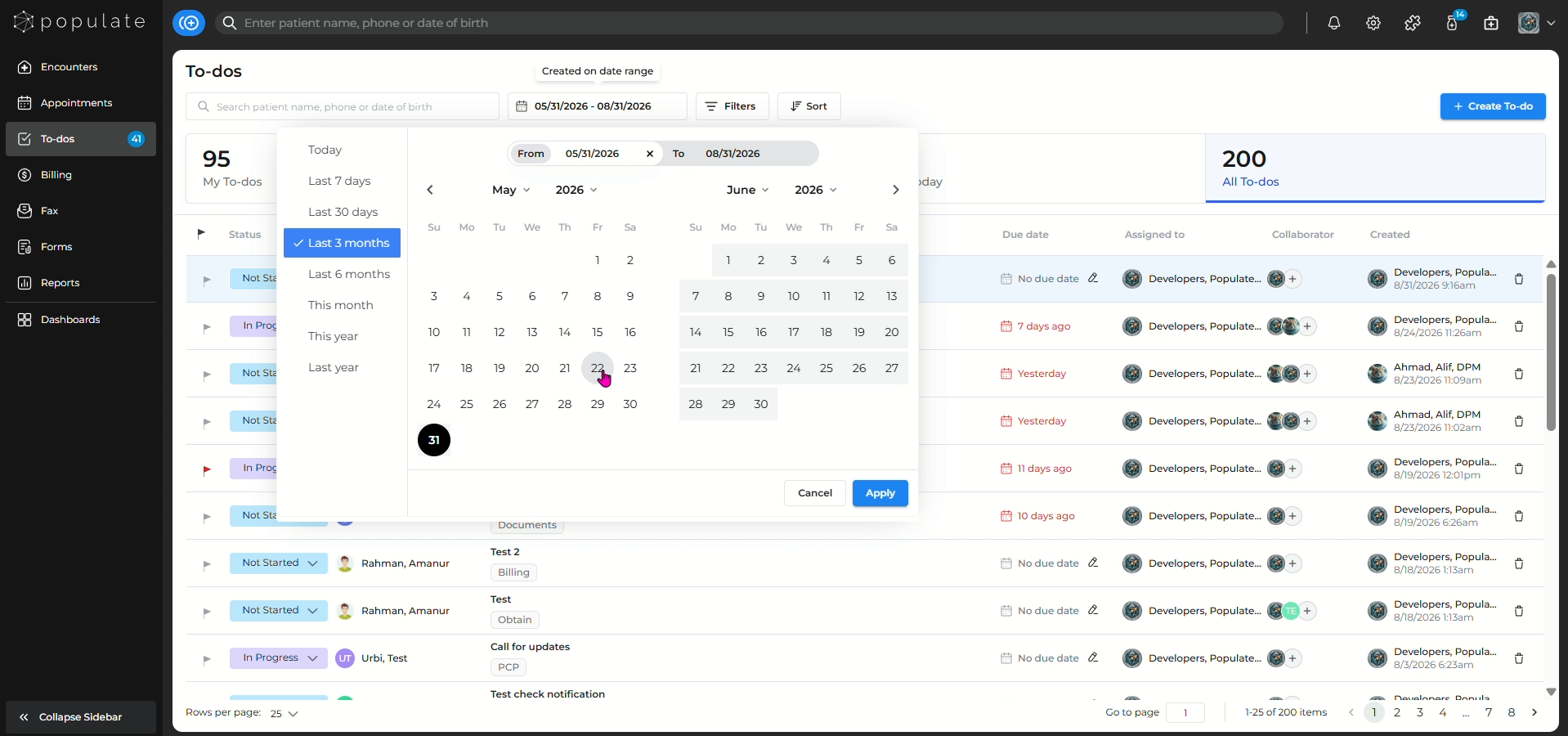
To see the To-dos from a specific date, click on the date and select your desired date range.
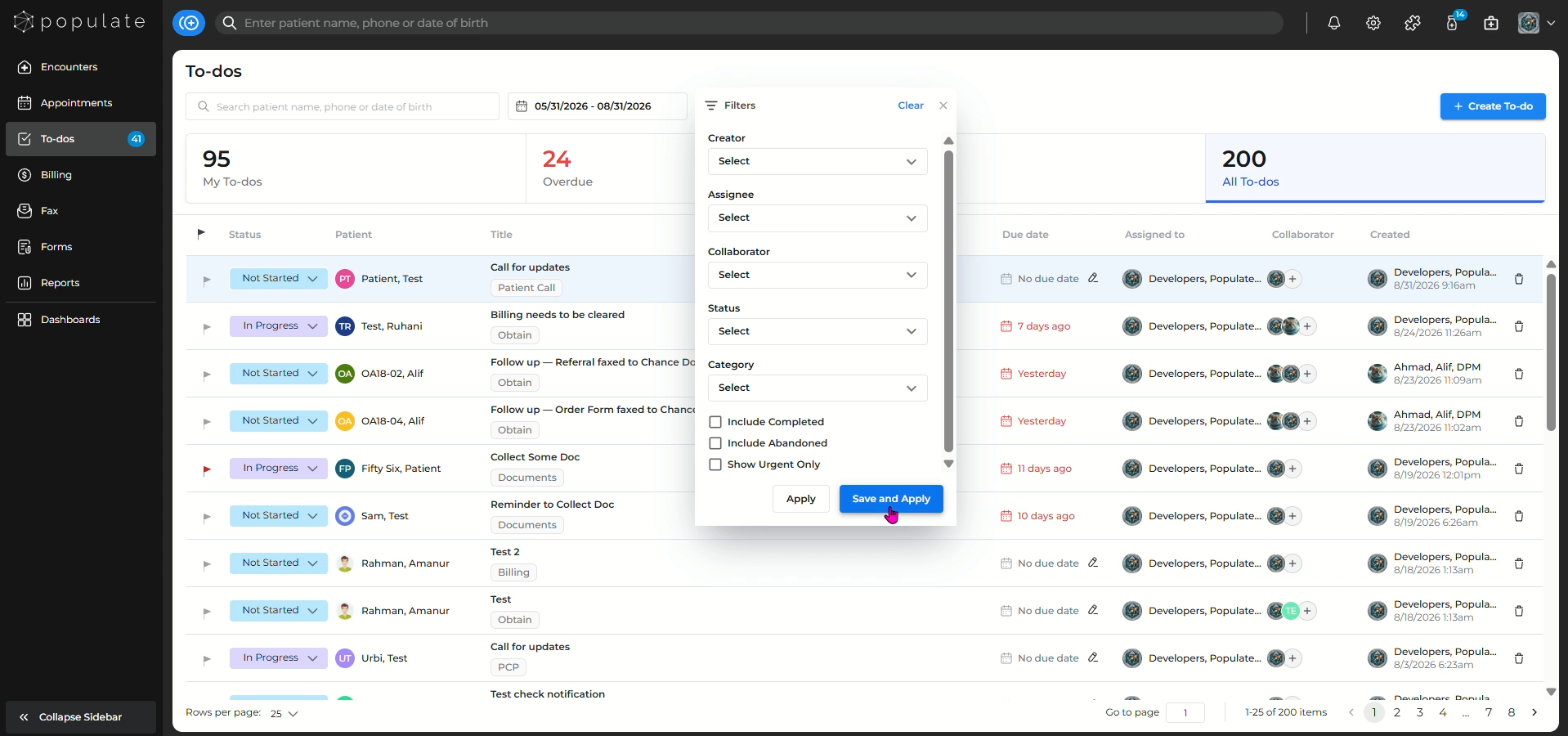
To see To-Dos created by only you or a specific assignee, click on filters.
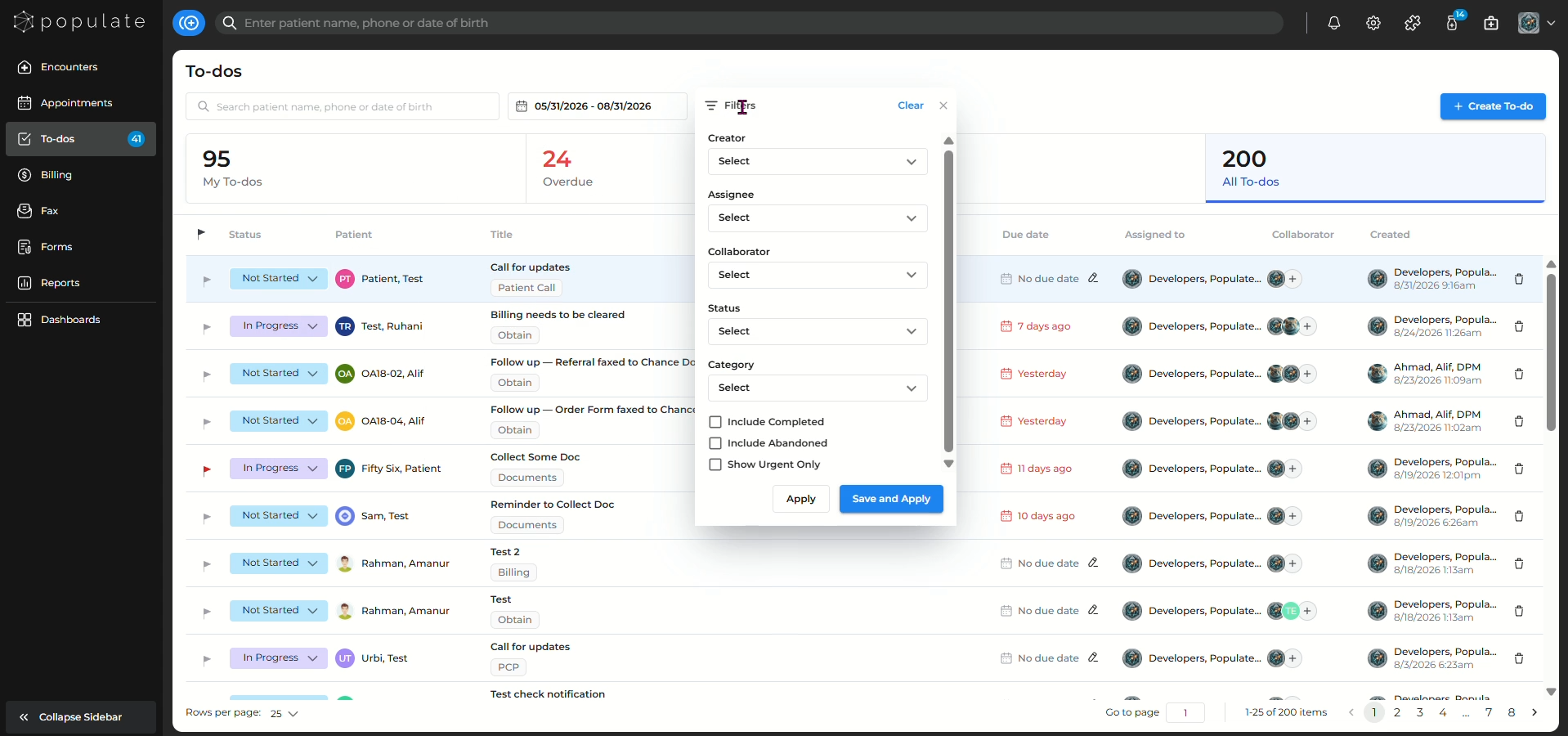
After you've selected the required filters, click on save to apply the filters.
You can also change the status of the to-dos by clicking on the dropdown button for individual to-dos.
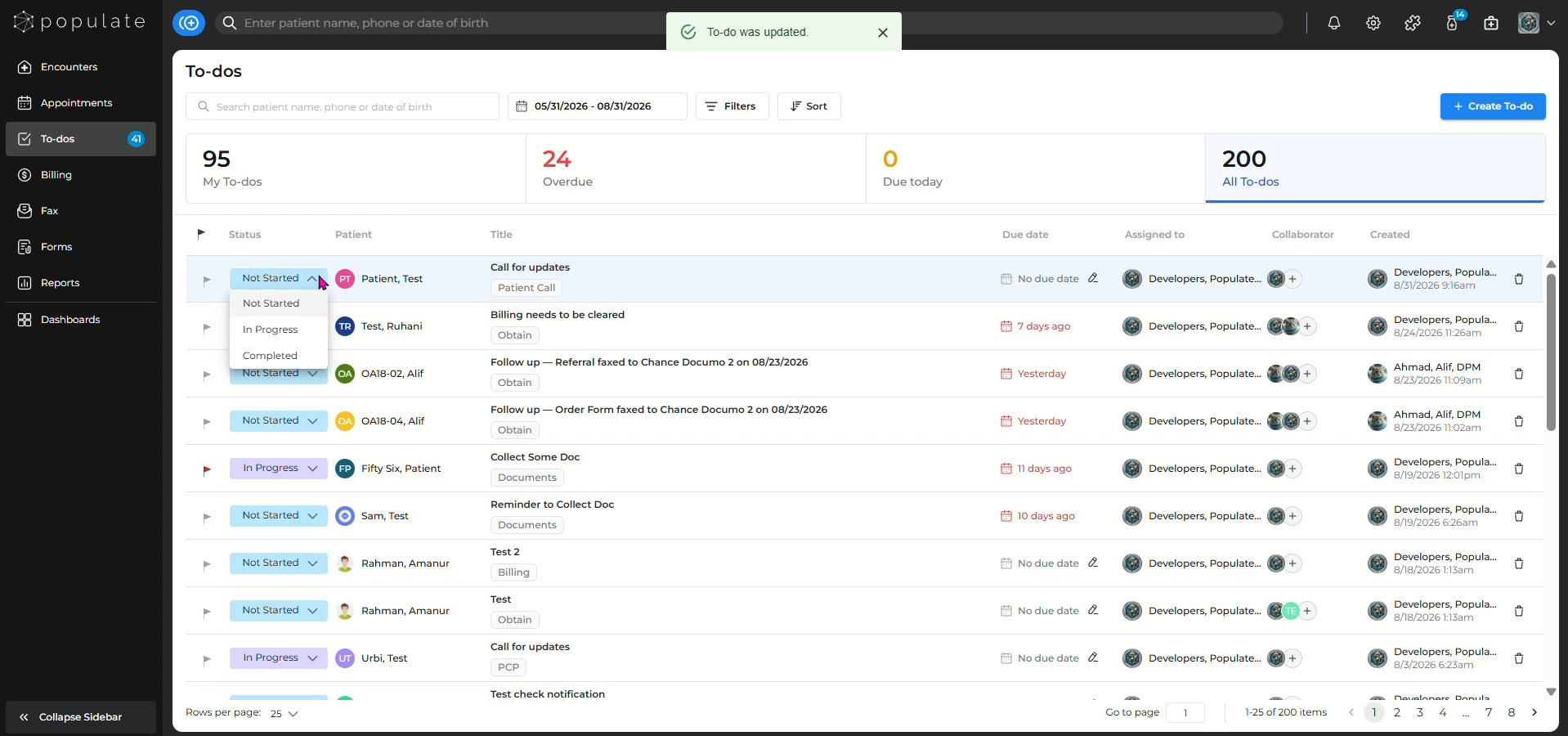
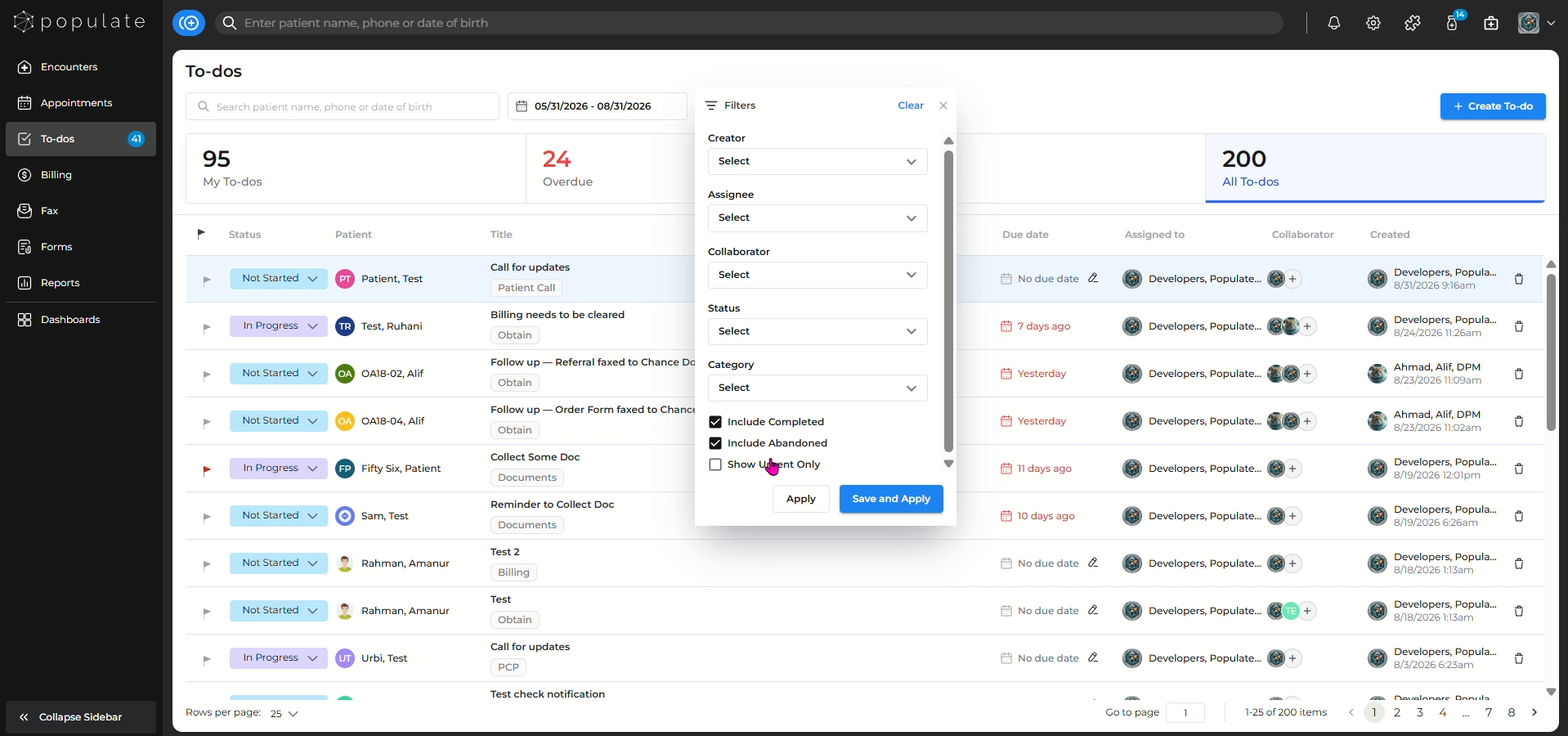
Clicking on completed will remove the to-do from the screen, but you can click on include completed on the filters to see the completed to-dos.
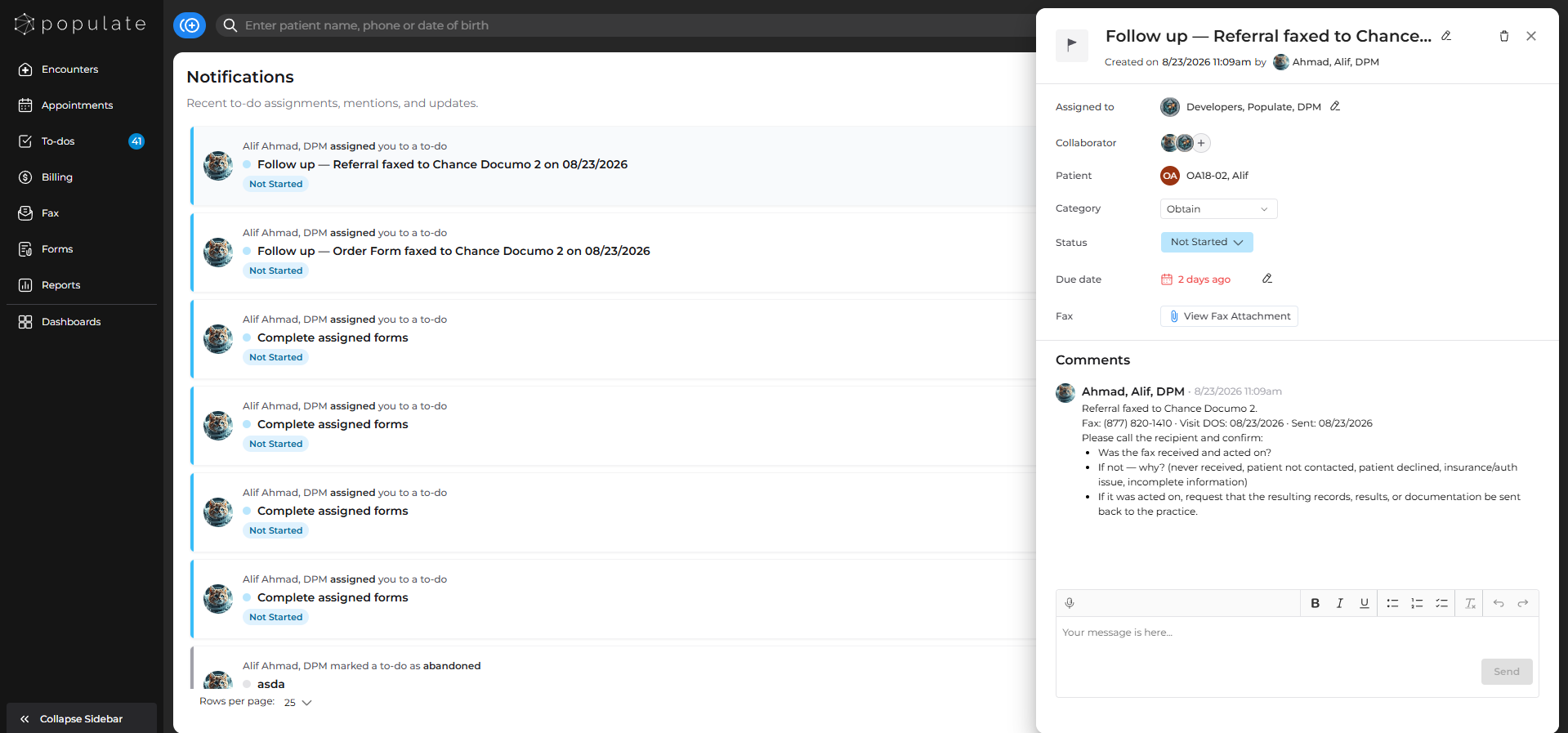
When you are assigned to a to-do or added as a collaborator, you will receive a notification here. Navigate to the Notifications icon located next to Settings on the top navigation bar.
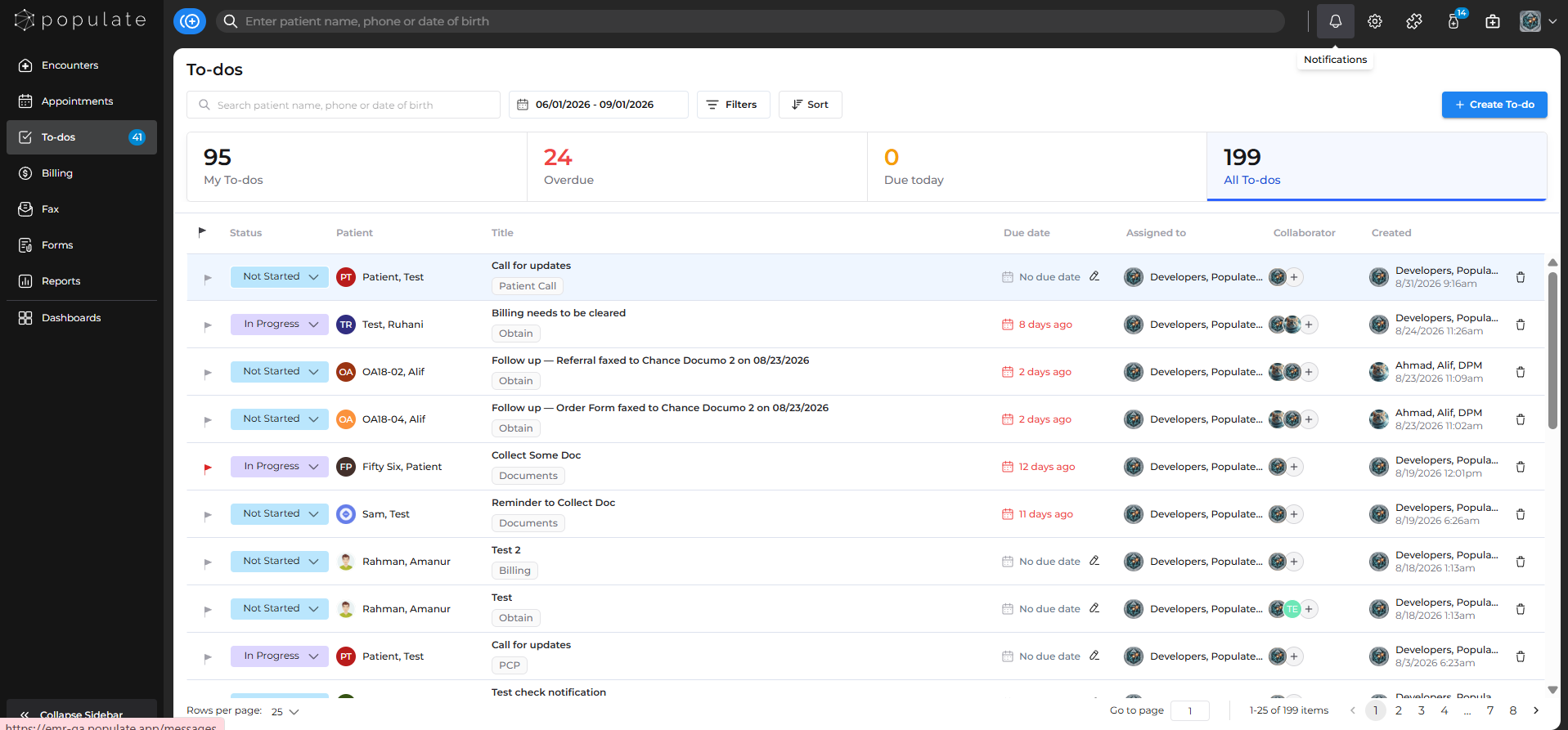
Navigate to Notifications and click on a to-do notification.
The To-Do side panel will open, allowing you to view and interact with the task directly.