
Navigate to the Populate EMR login page. 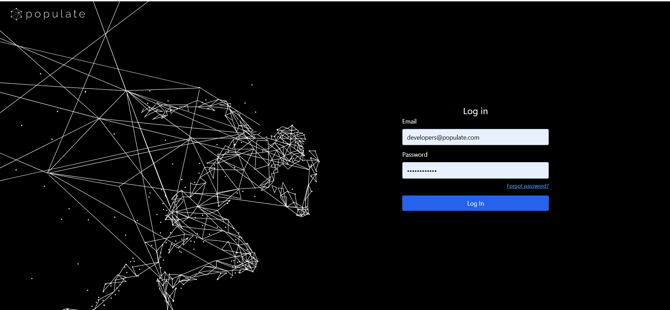
Click Forgot Password? below the password field. 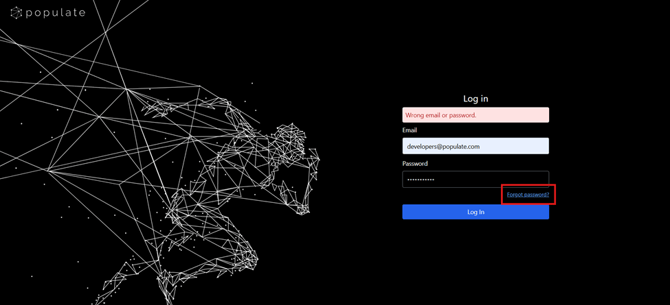
In the Reset Password window, enter the email address associated with your Populate EMR account. The password reset link will be sent to the email address that was originally used to create your Populate EMR account. Make sure you enter that email address when requesting the reset link. 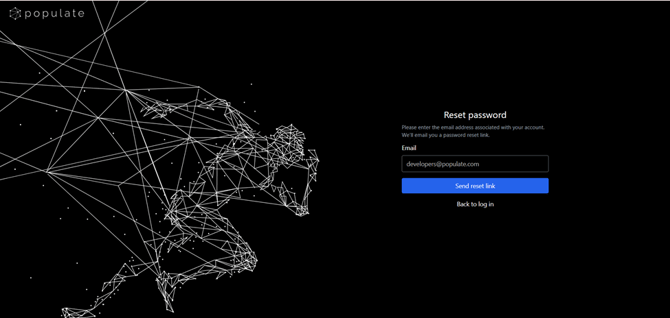
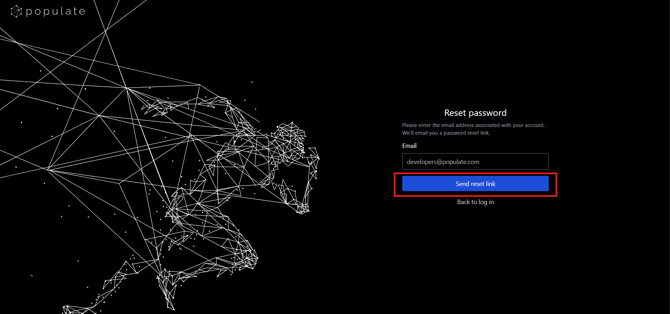
Click Send Reset Link.
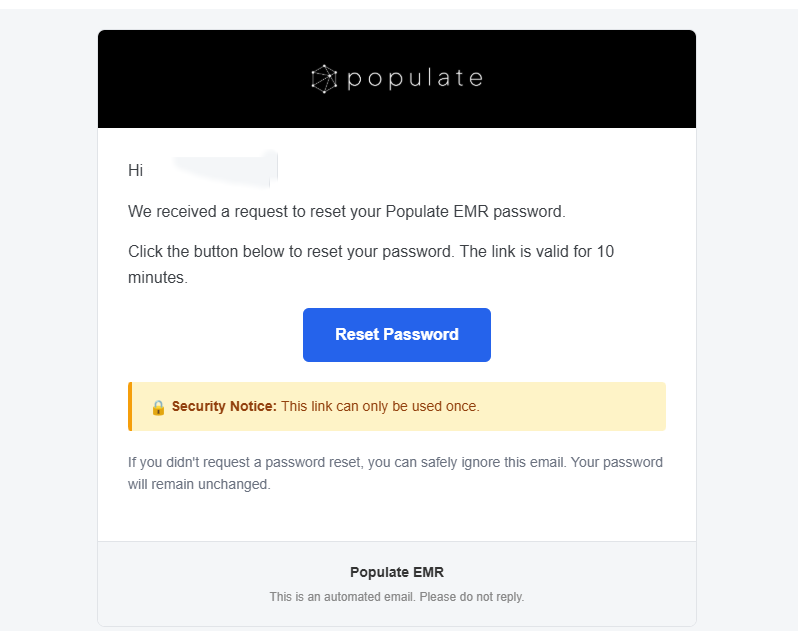
Check your email inbox for an email titled “Reset Your Populate EMR Password.”
Open the email and click Reset Password. The reset link is valid for 10 minutes and can only be used once.
-
- Be at least 6 characters long.
- Include at least 3 of the following: lowercase letters, uppercase letters, numbers, or special characters.

Click Submit to save your new password.