
Sending online payment link for selected encounters:
You can send online payment links for selected encounters using 2 methods in your system. Below are step-by-step instructions for each method.
1. From Appointments Side-Panel
Go to the Appointments module and click on the desired appointment on the calendar. The appointment details side panel will appear.
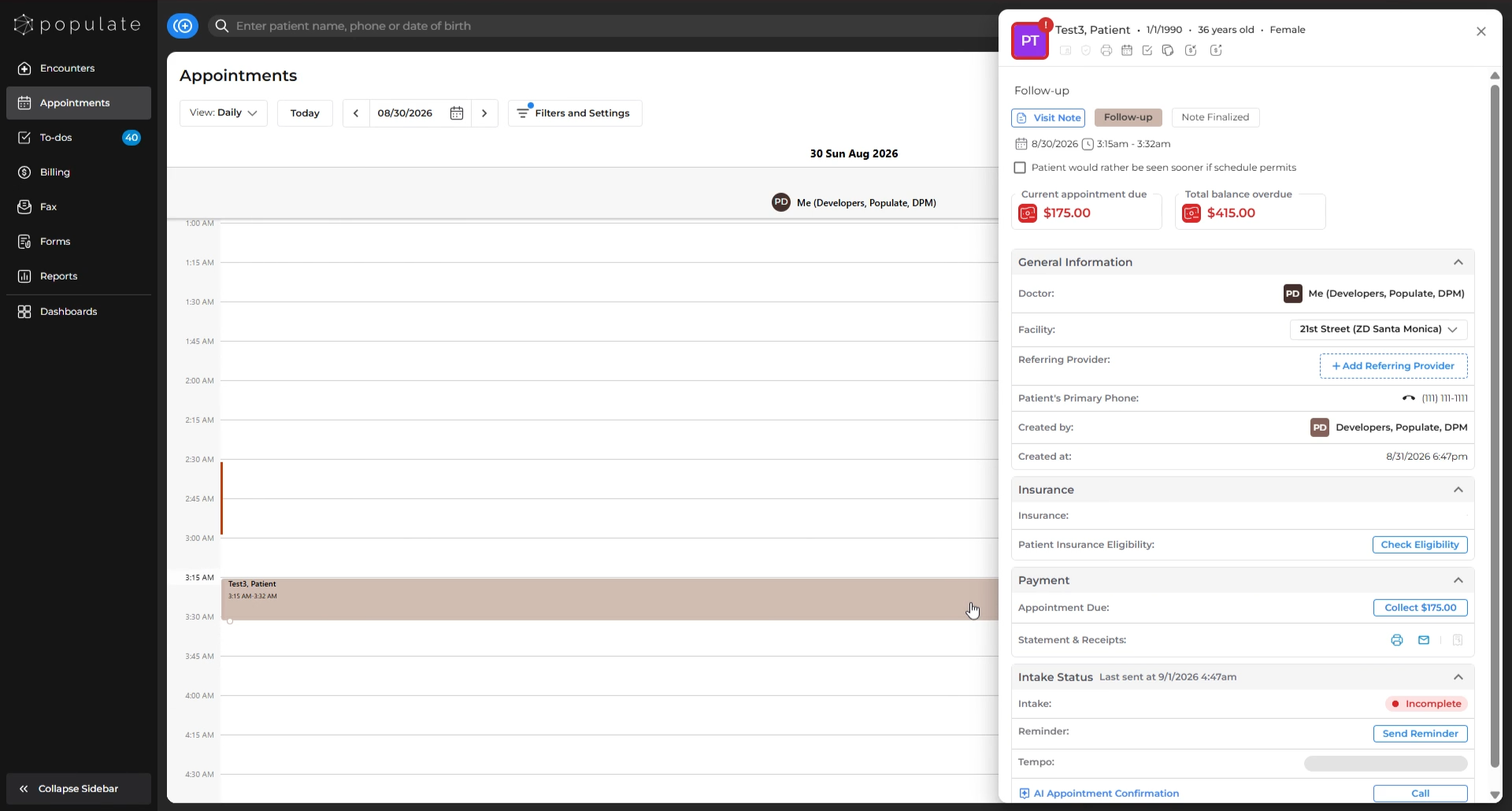
Under the Payment section, look for "Statement & Receipts." Here, you'll see a Print icon and an Envelope icon.
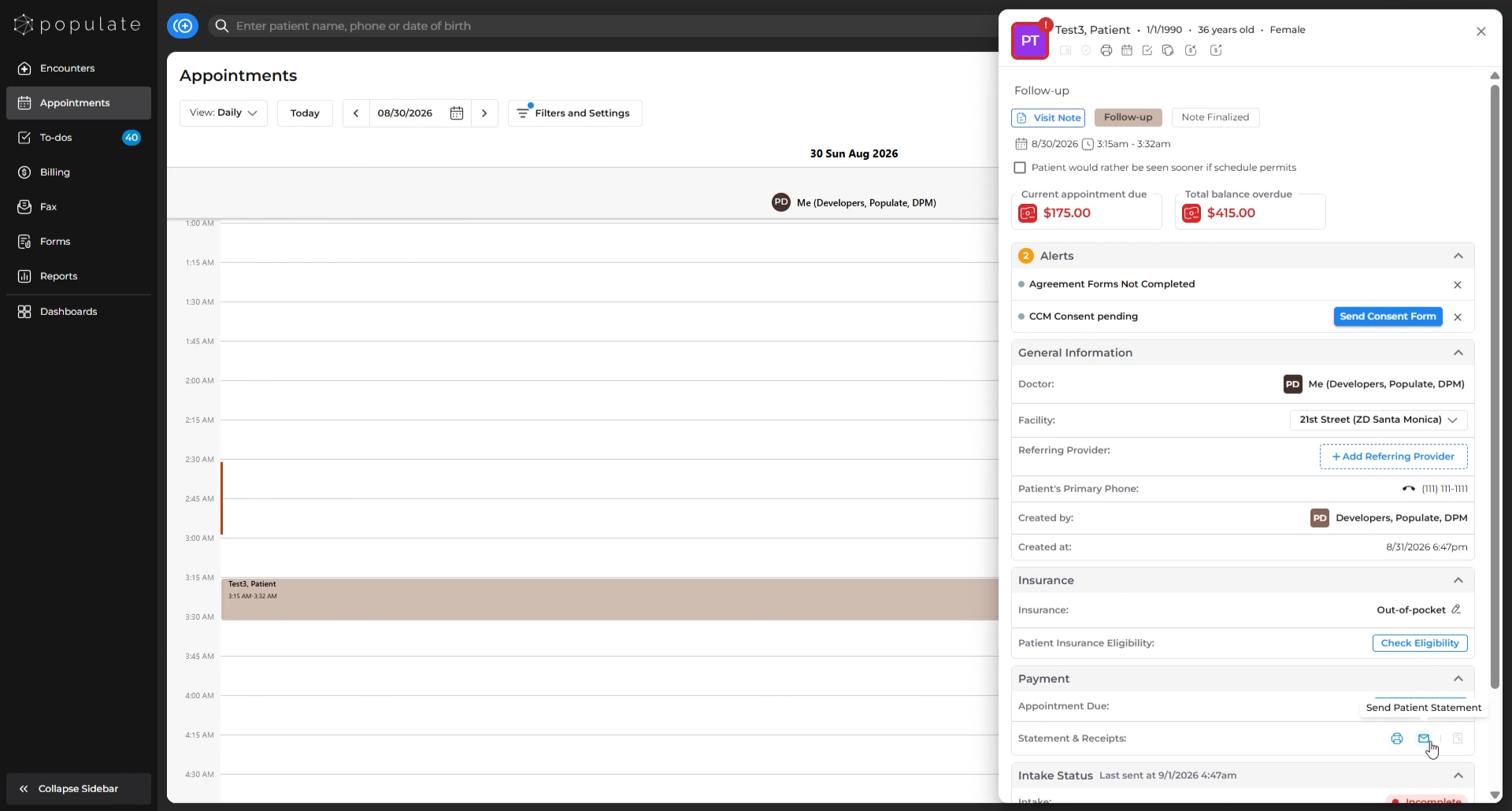
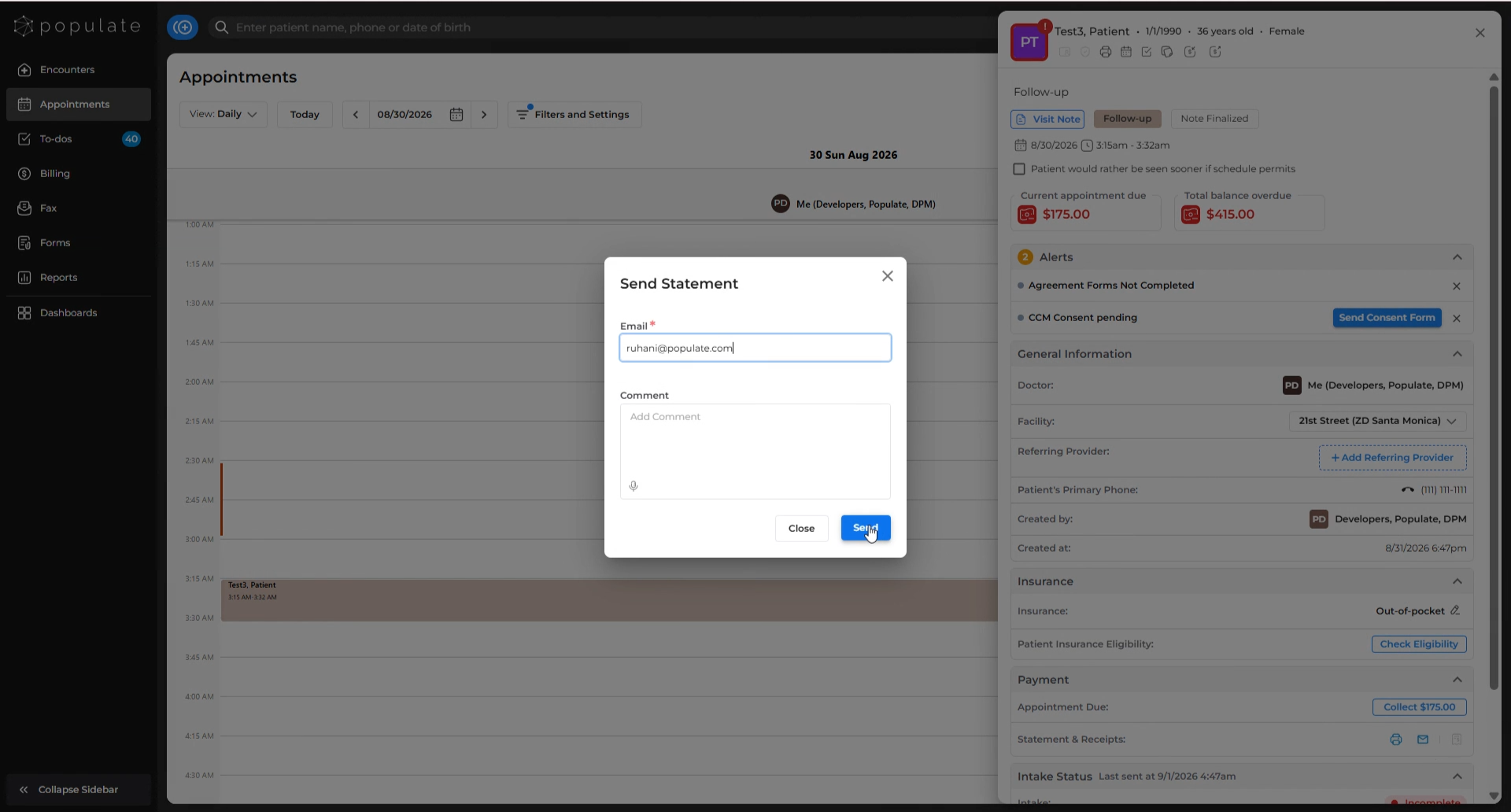
Click the Envelope icon, enter the intended email address (add a comment if needed), and click Send. The patient will receive a statement with an online payment link for that encounter's due balance.
2. From Charges Side-Panel
Navigate to the Charges tab under Billing and select the charge for which you want to send the online payment link. The charges side-panel will appear.
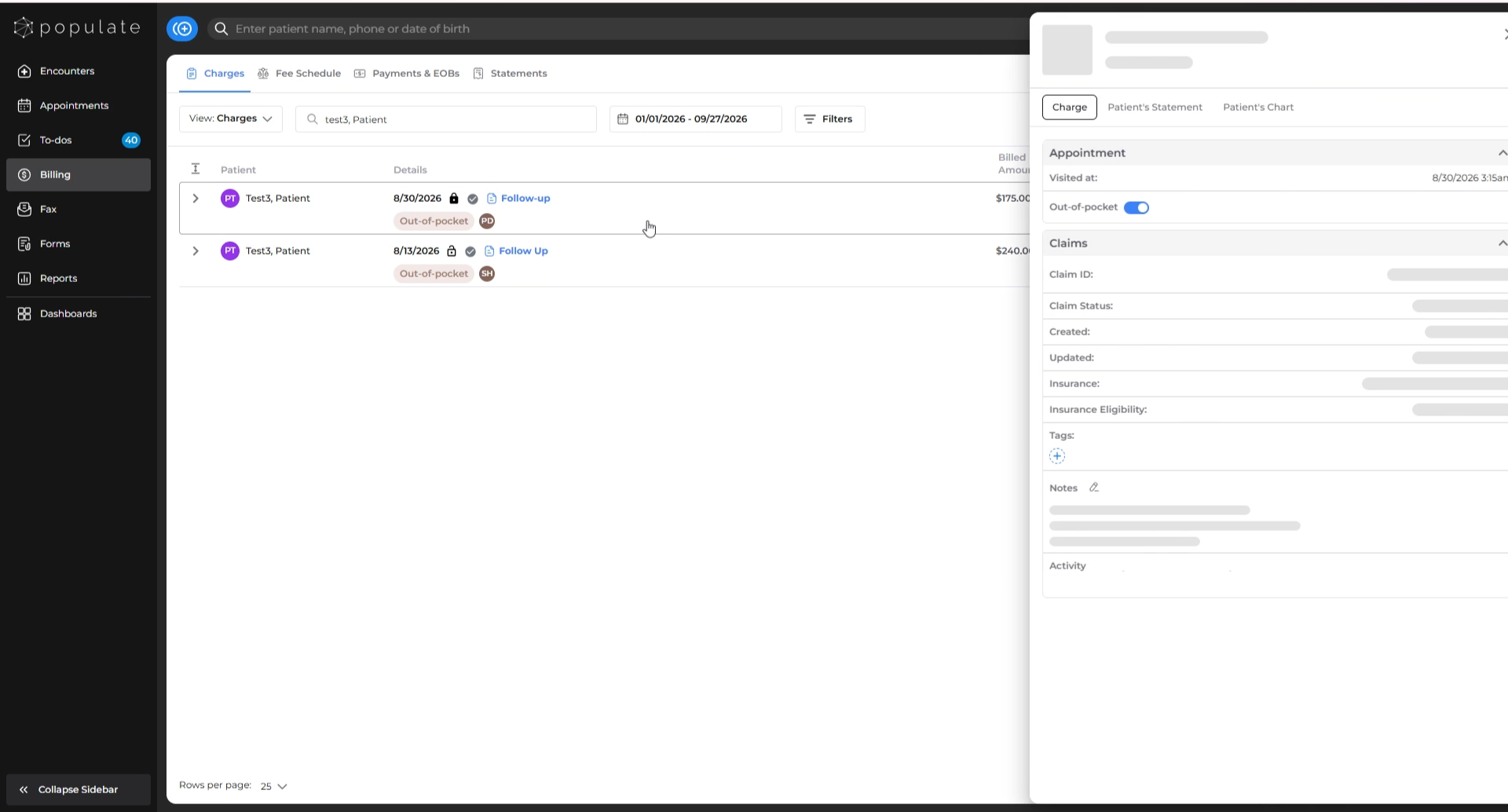
In the Patient’s Statement section, the Print icon and Envelope icon will be available.
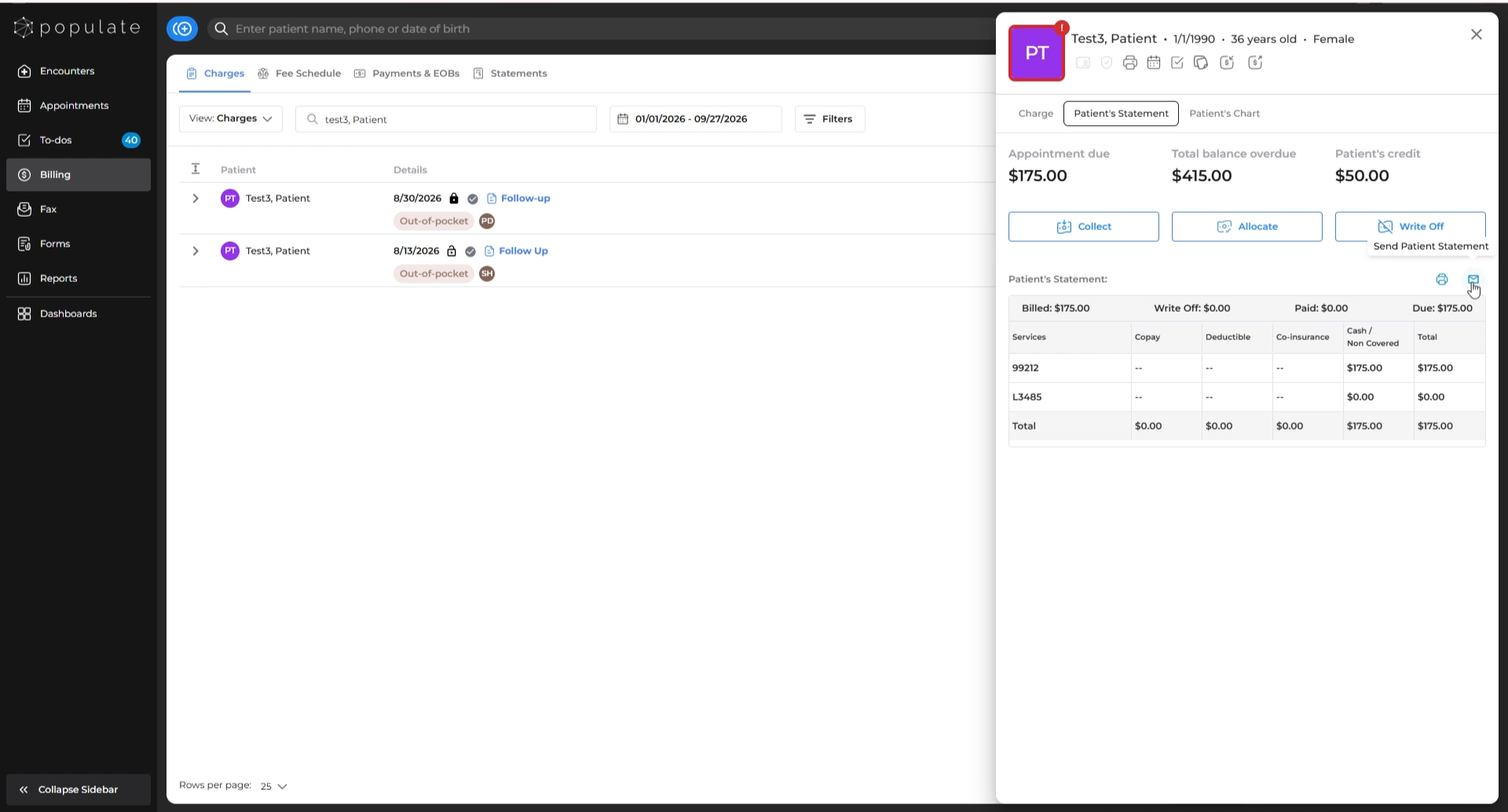
Click the Envelope icon, enter the recipient’s email address (add a comment if desired), and click Send to email the patient statement, which will include an online payment link specific to that charge’s due balance. 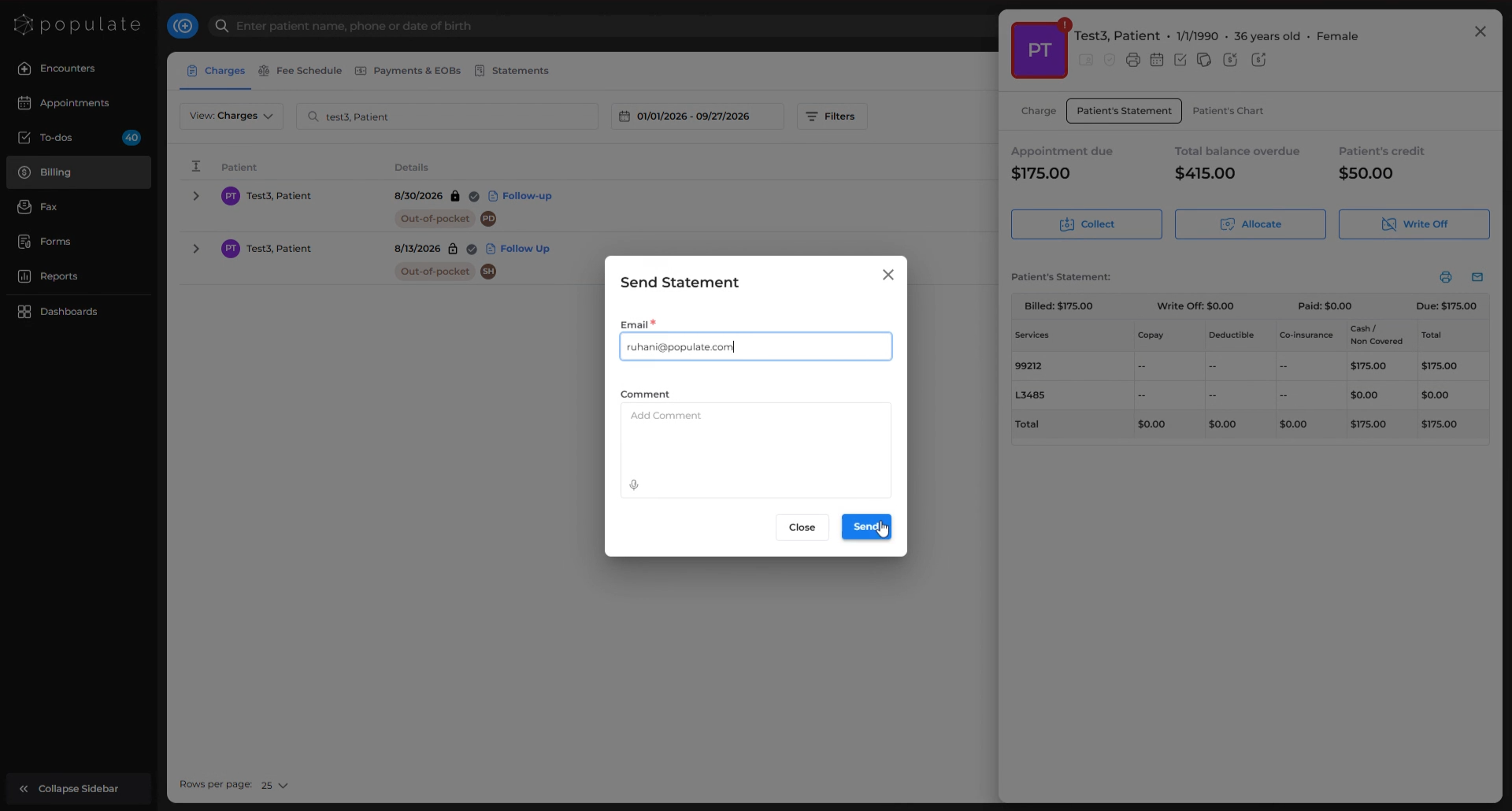
Sending online payment link for all of a patient's encounters:
You can also send an online payment link covering all of a patient’s outstanding encounters using 2 different methods. Below are step-by-step instructions for each method.
1. From Charges Side-Panel:
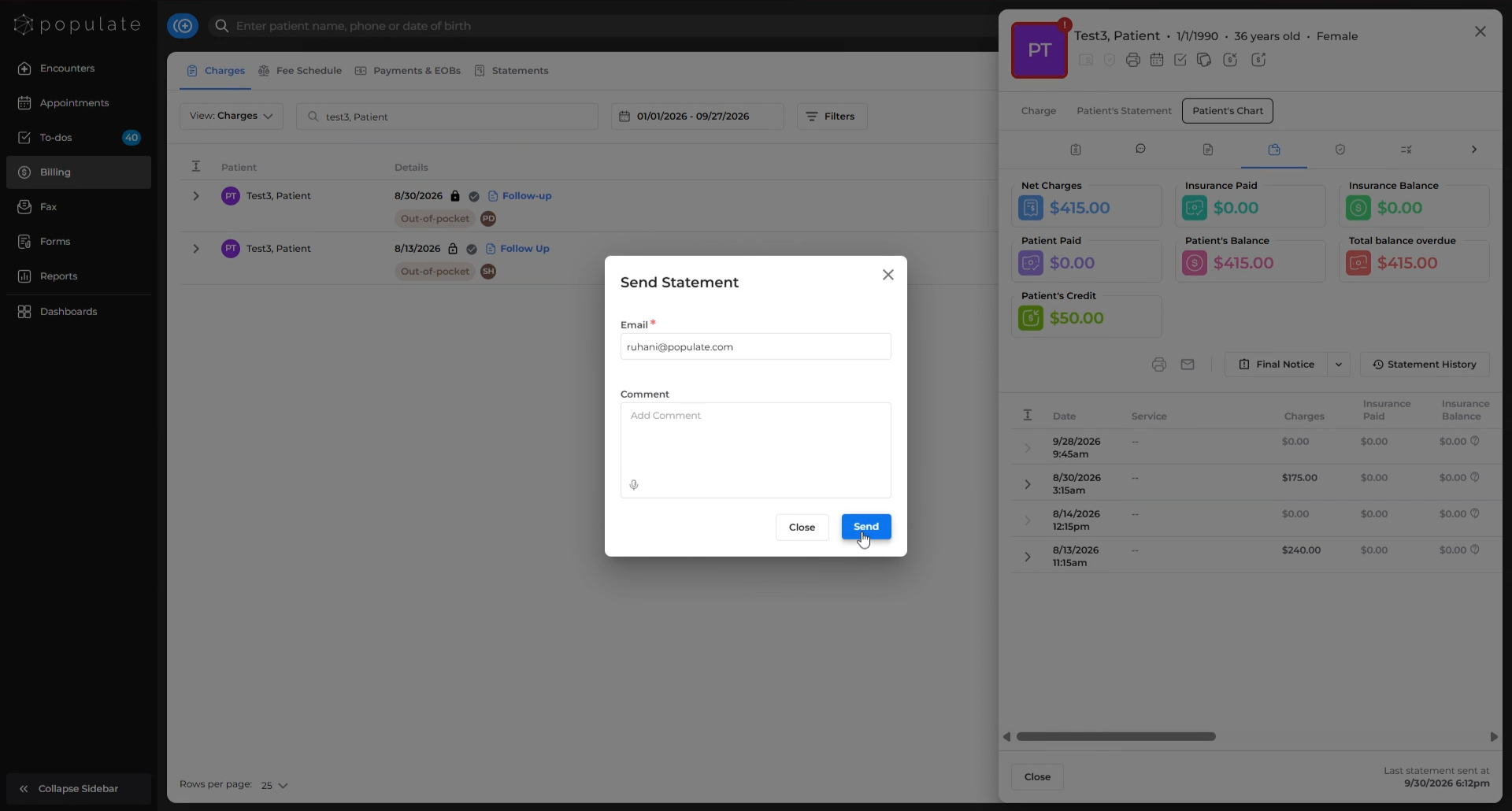
On the Charges side-panel, go to the Patient’s Chart section (next to “Patient’s Statement”).
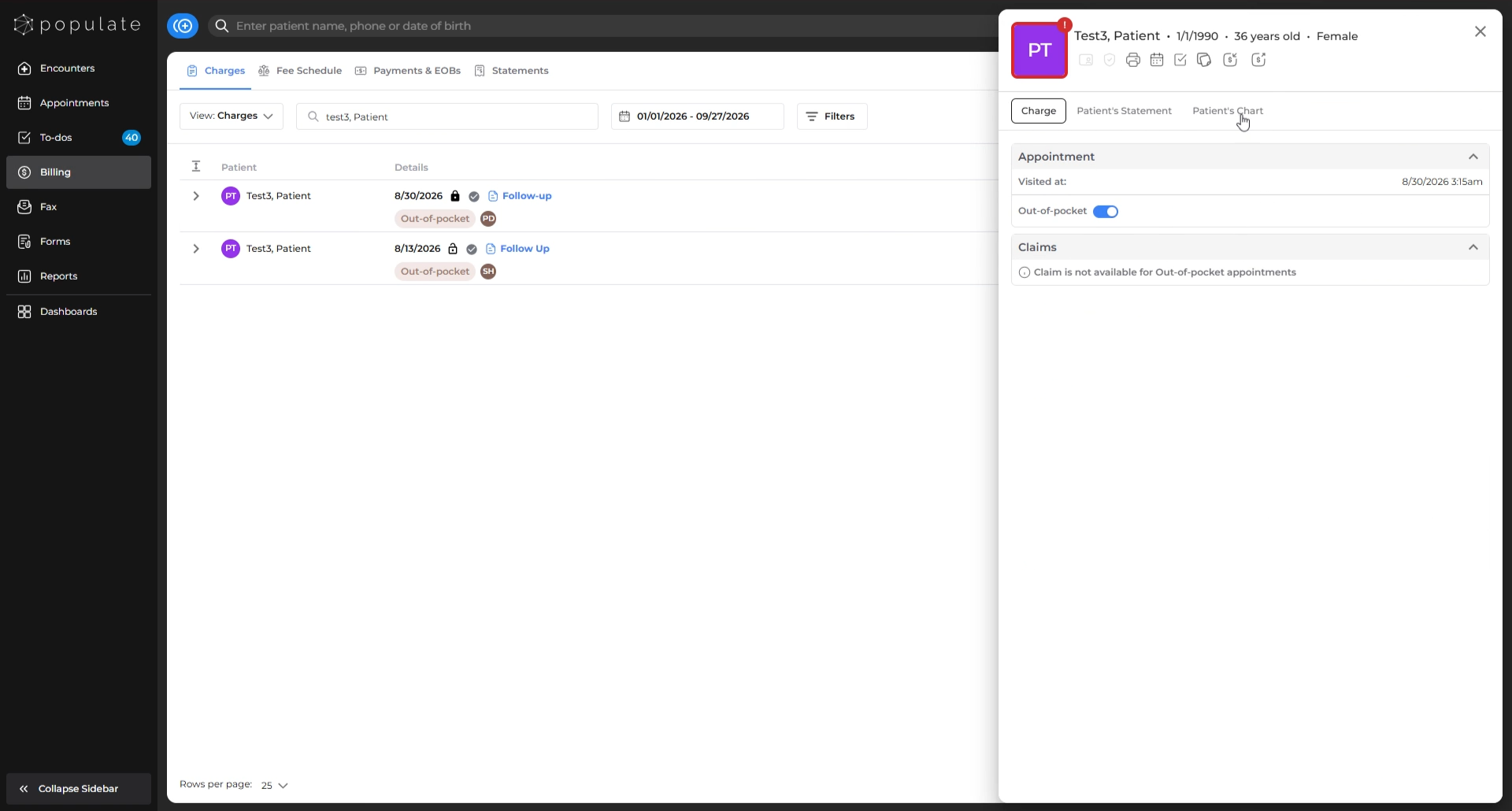
Click the Ledger icon.
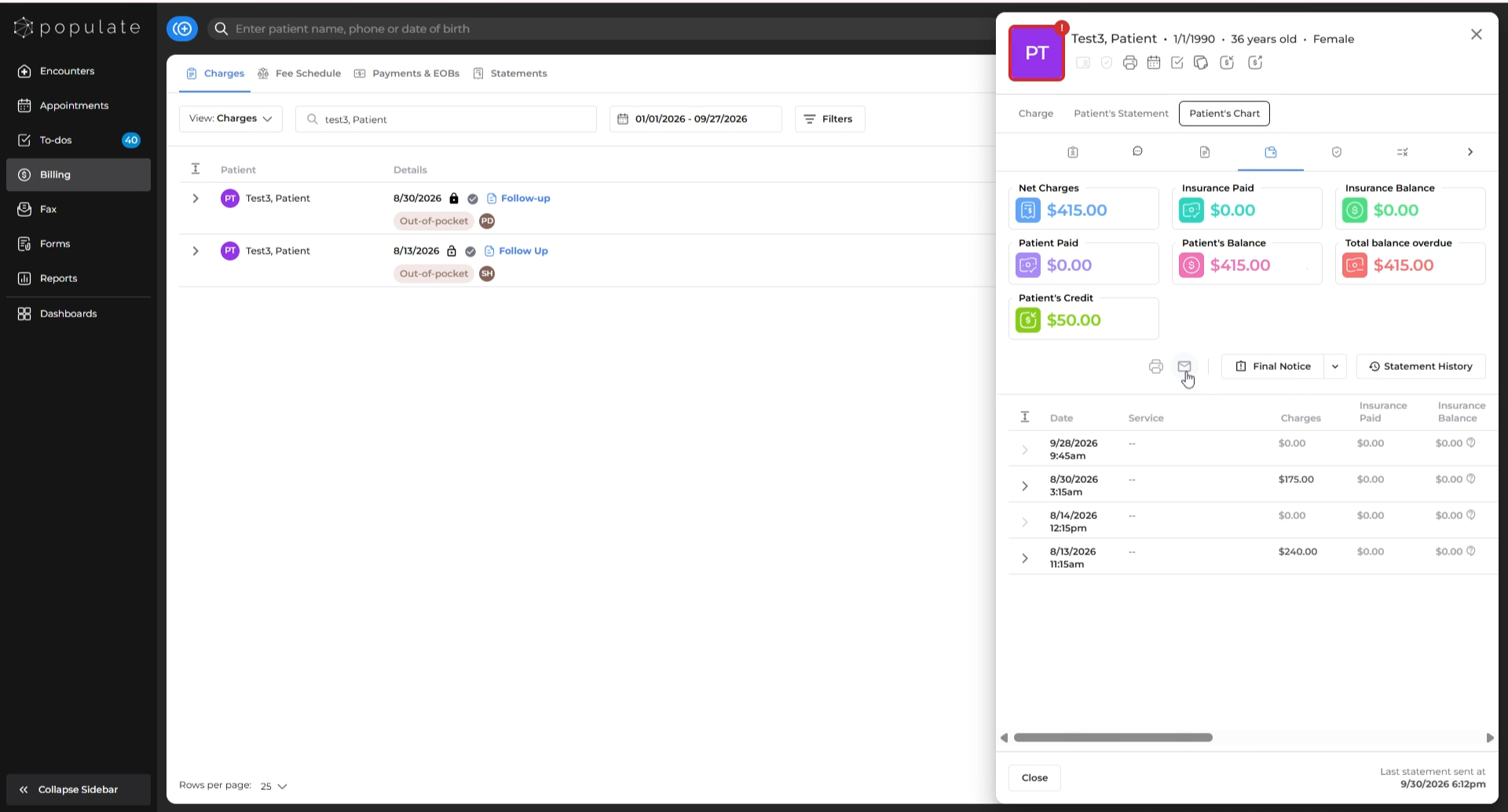
Click the Envelope icon, enter the email address (add a comment if needed), and click Send. This will send the patient a statement and payment link for their entire due balance across all encounters.
2. From Patient's Chart
Go to the patient’s chart, then open the Ledger tab. Click the Envelope icon, enter the intended email address (add a comment if needed), and click Send.
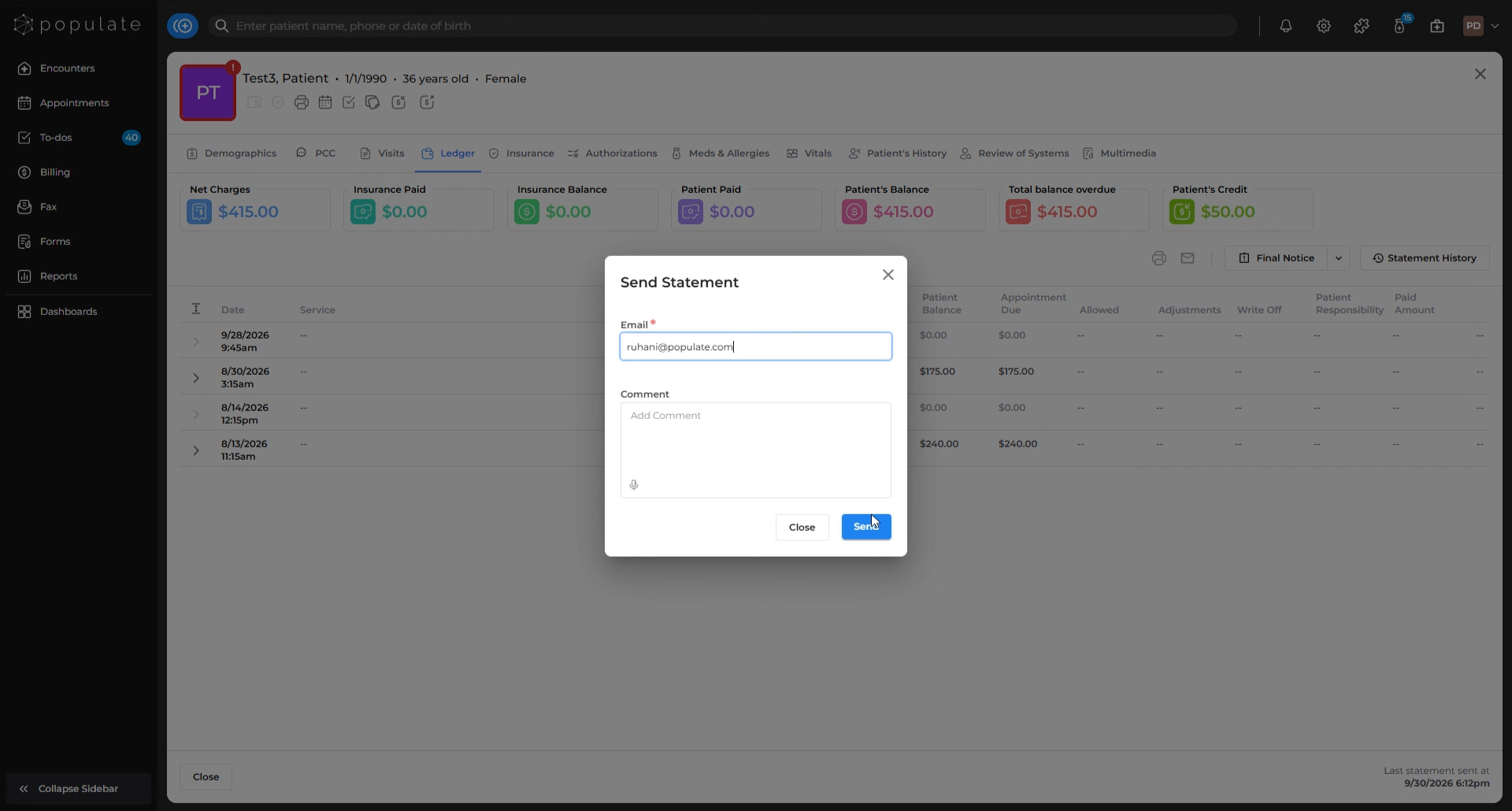
This action will send a statement along with a payment link for the total outstanding balance.
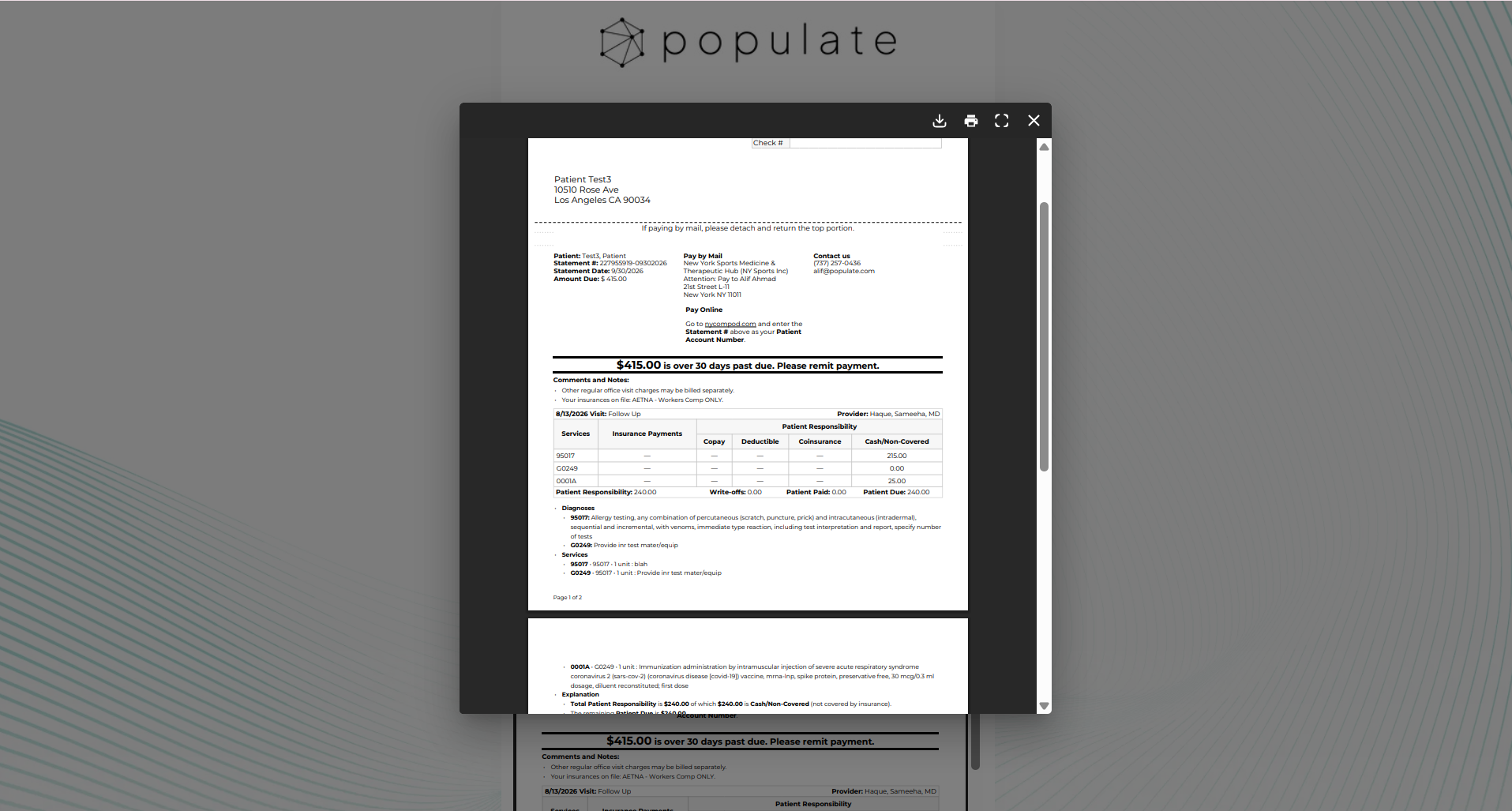
Sending Online Payment Link for a Custom Payment Amount
On the appointment details or charges side panel, click Collect. 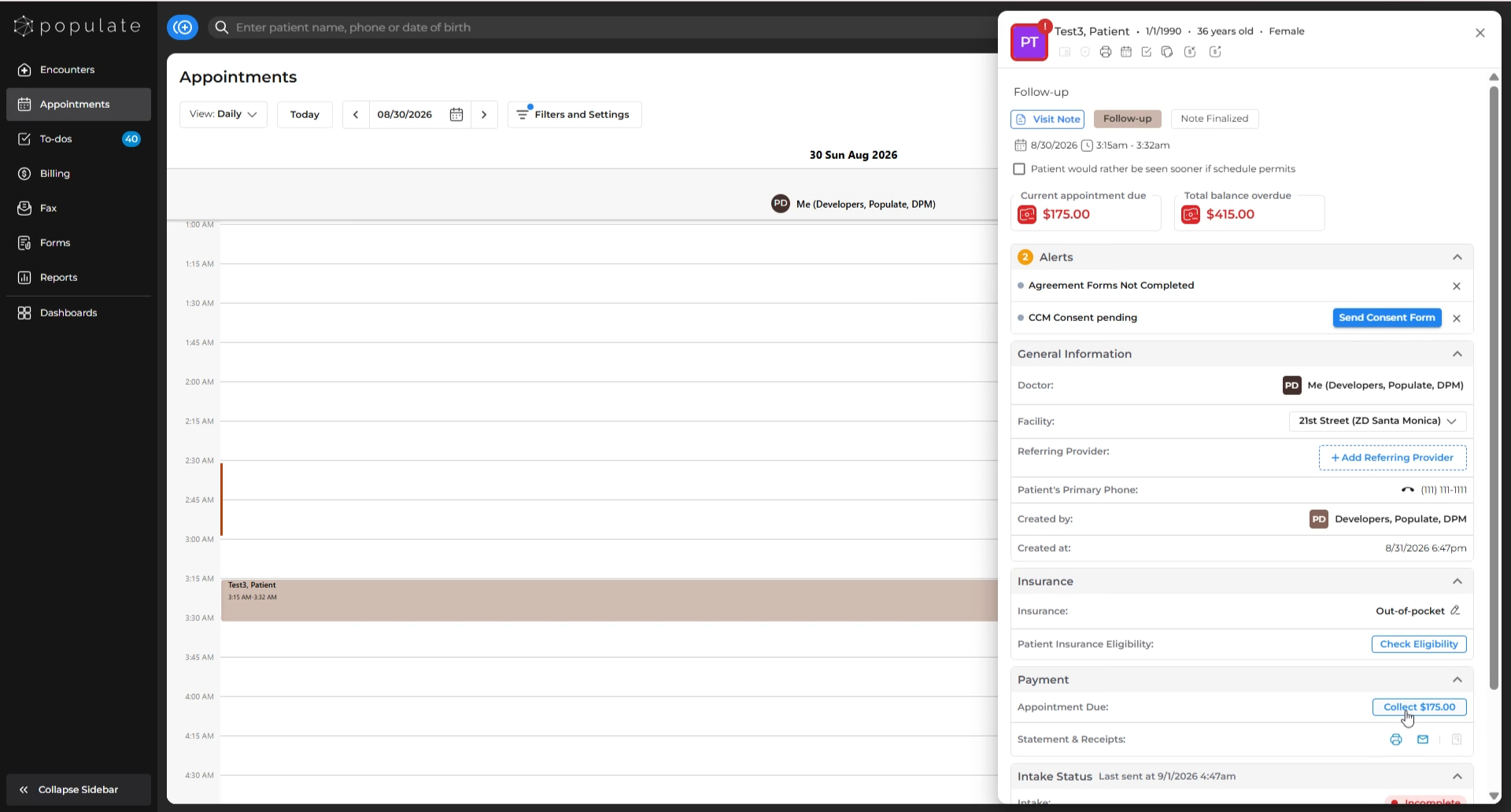
Once the dialog box appears, specify the custom amount you would like to collect. Select Online as the payment method. Insert the email address, and click Confirm.
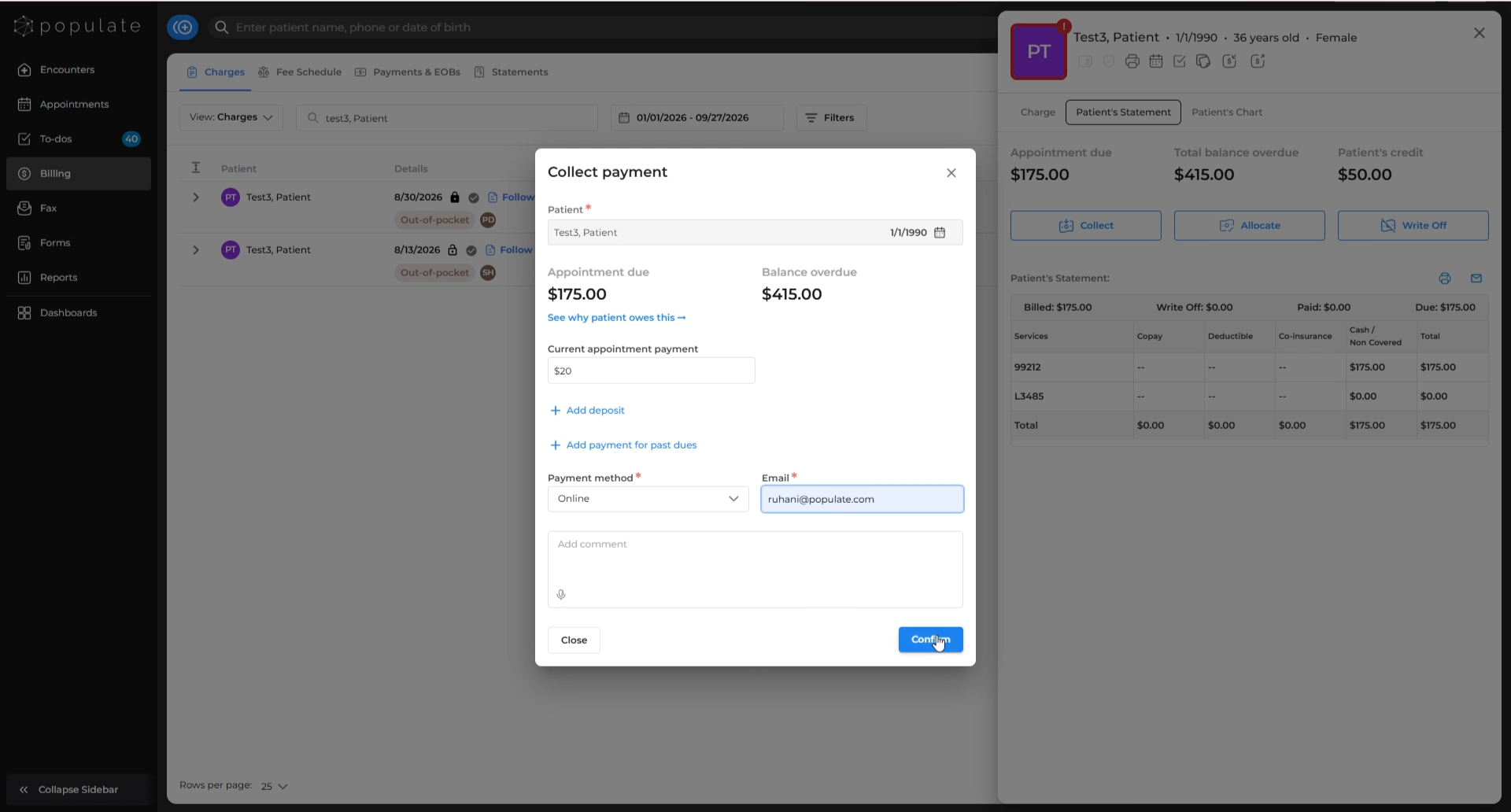
A patient statement with an online payment link for that exact amount will be generated.
Sending Online Payment Links in Bulk from Statements Tab
Go to the Statements tab under Billing and select the desired date range for which you want to send payment links to all the patients with due balances.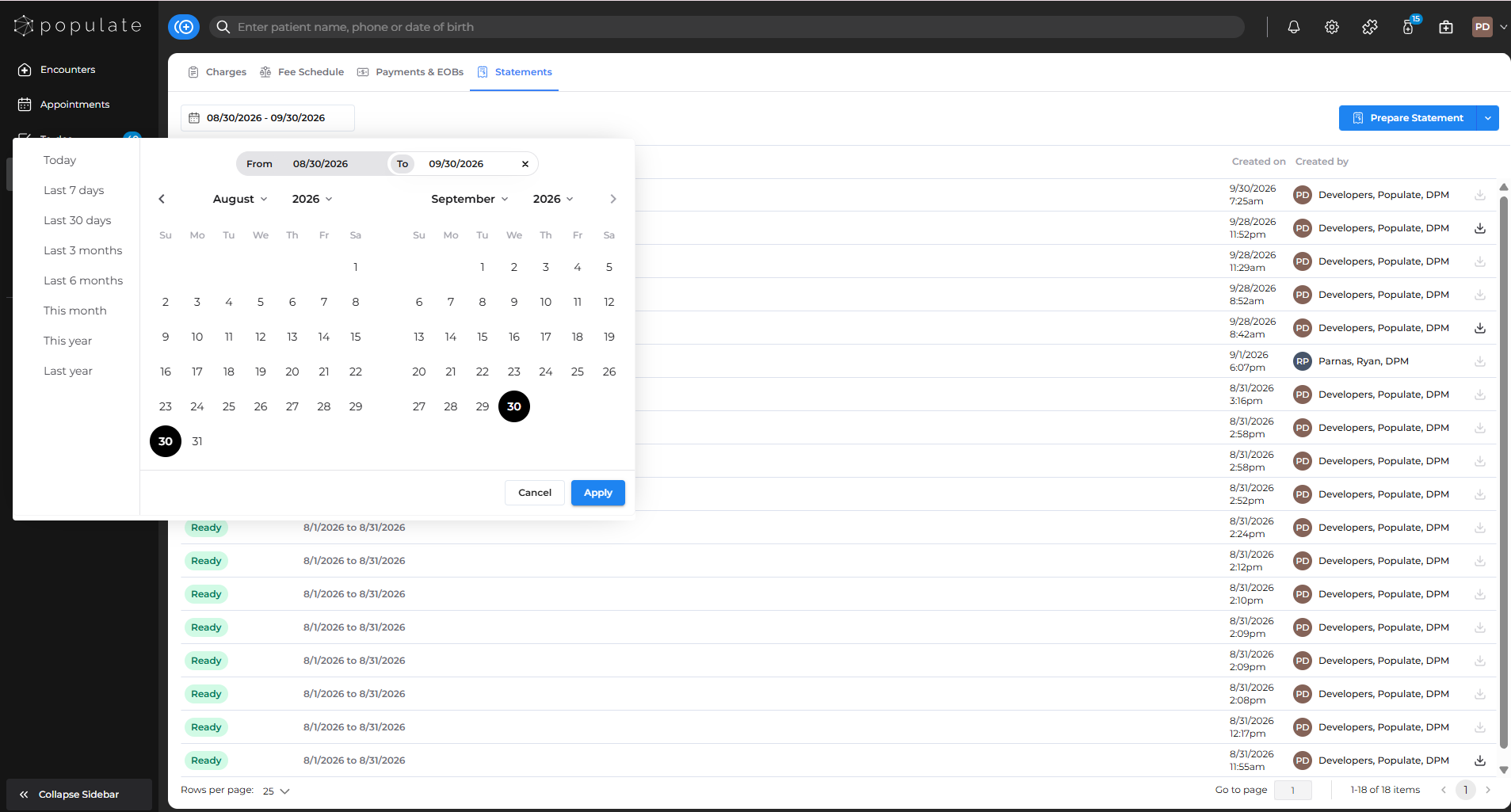
Click Print and Email to send payment links to all patients with due balances for that period. 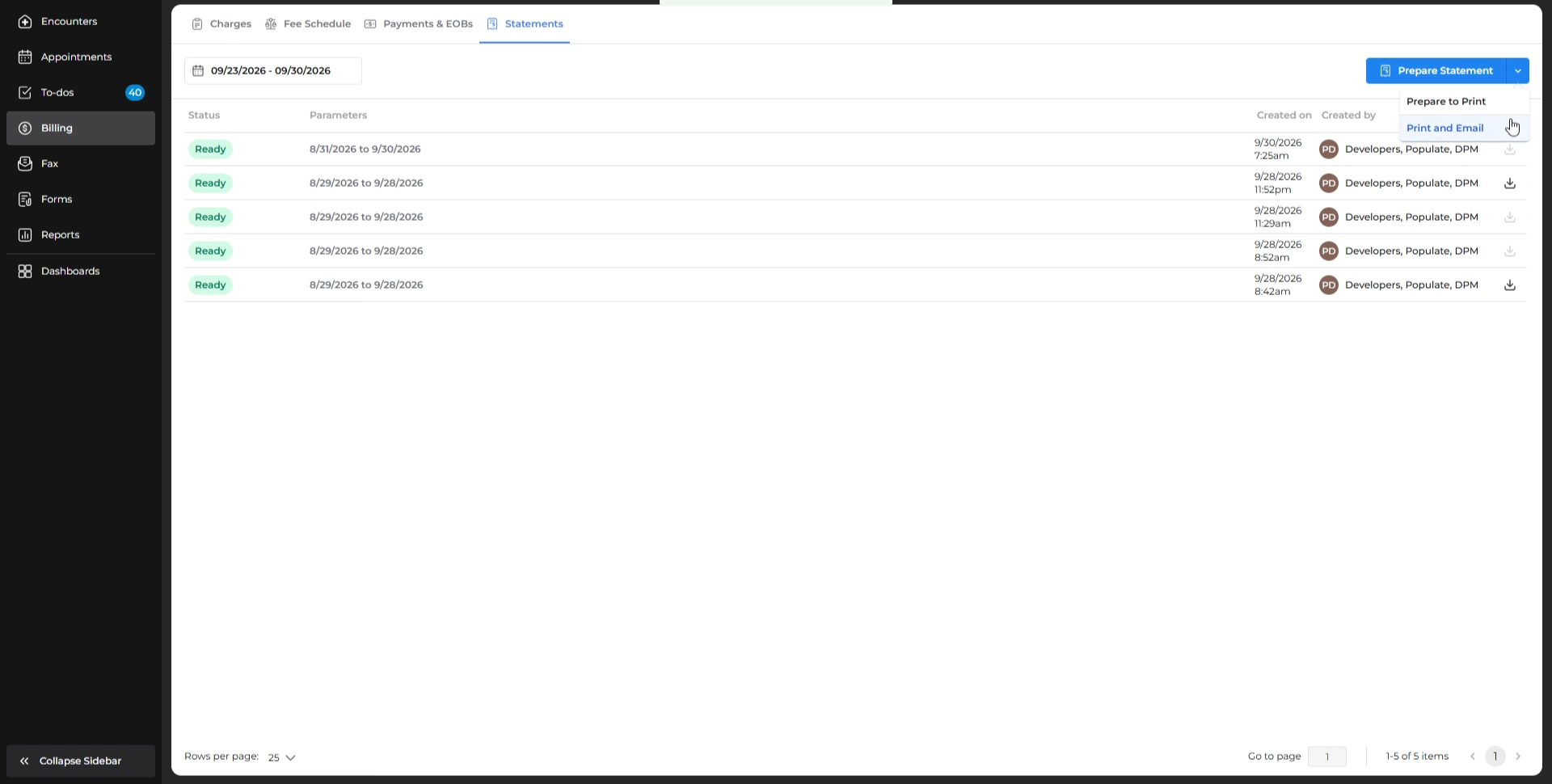
You can see delivery status in the bottom right corner of the statement footer.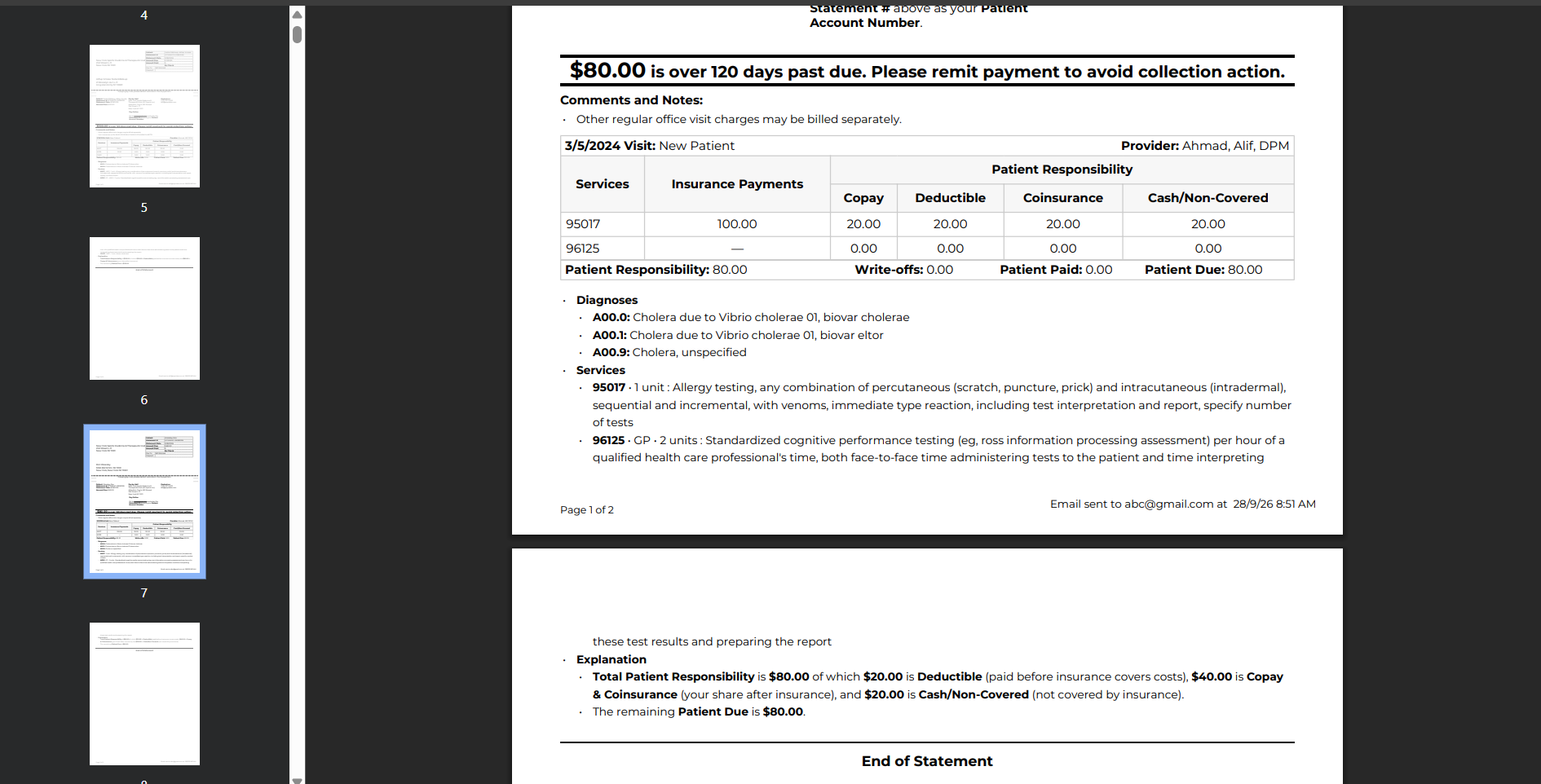
Note:
Sending a bulk statement to a patient will exclude them from future bulk mailings for the next 30 days. You can still send statements individually using the methods above, but be mindful as bulk statements enforce this waiting period.