
Navigate to Forms in settings from the EMR.
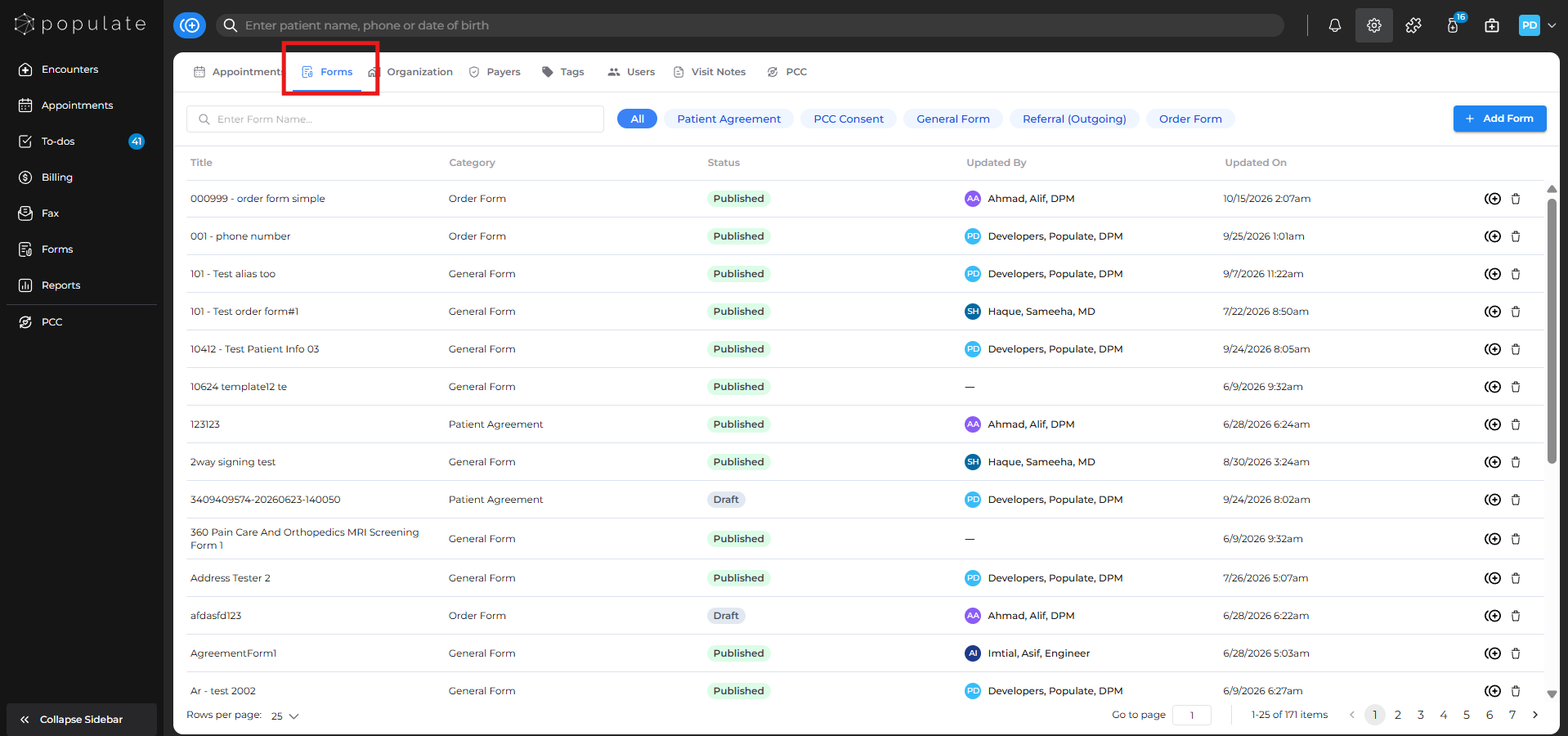
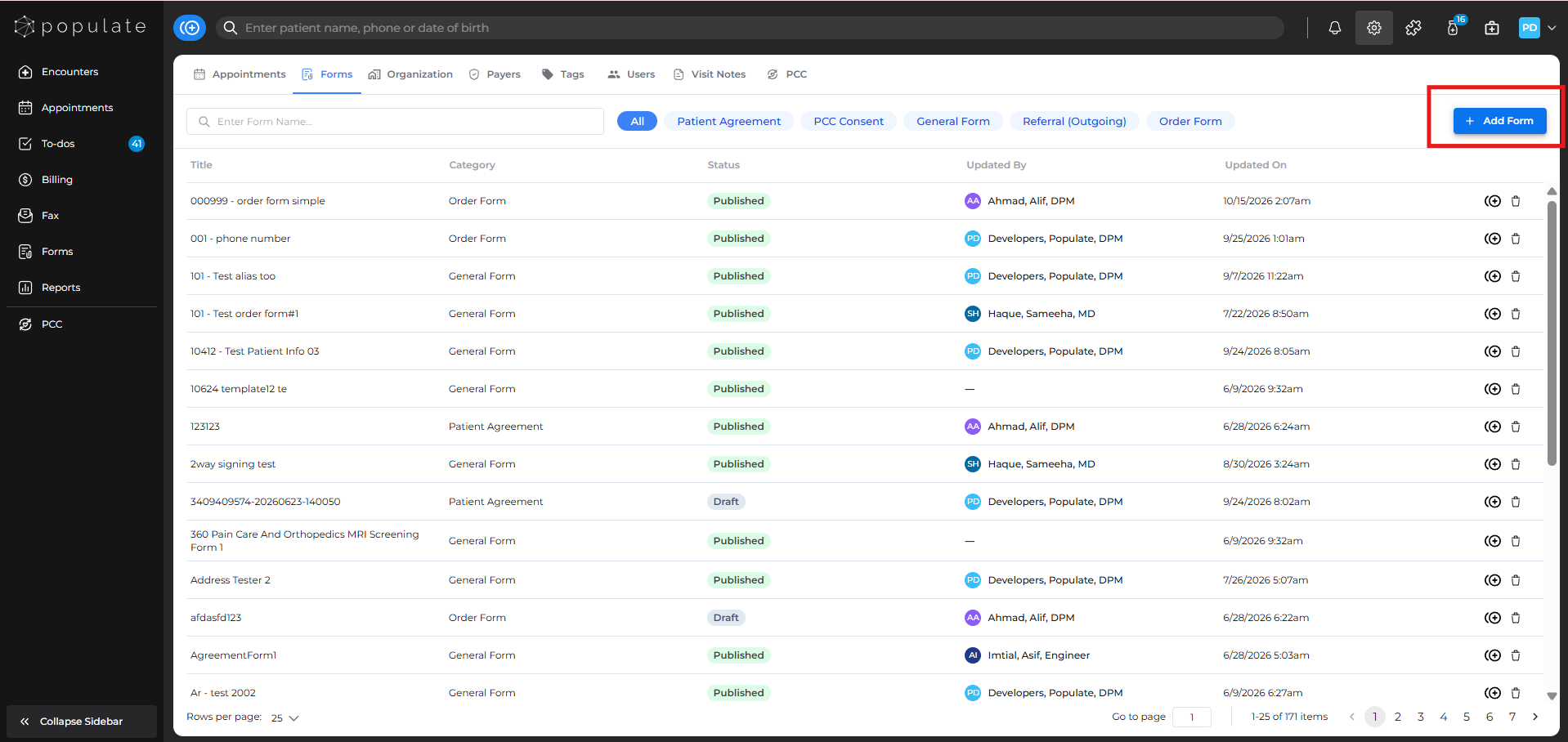
Within the Forms section, click on Add form button.
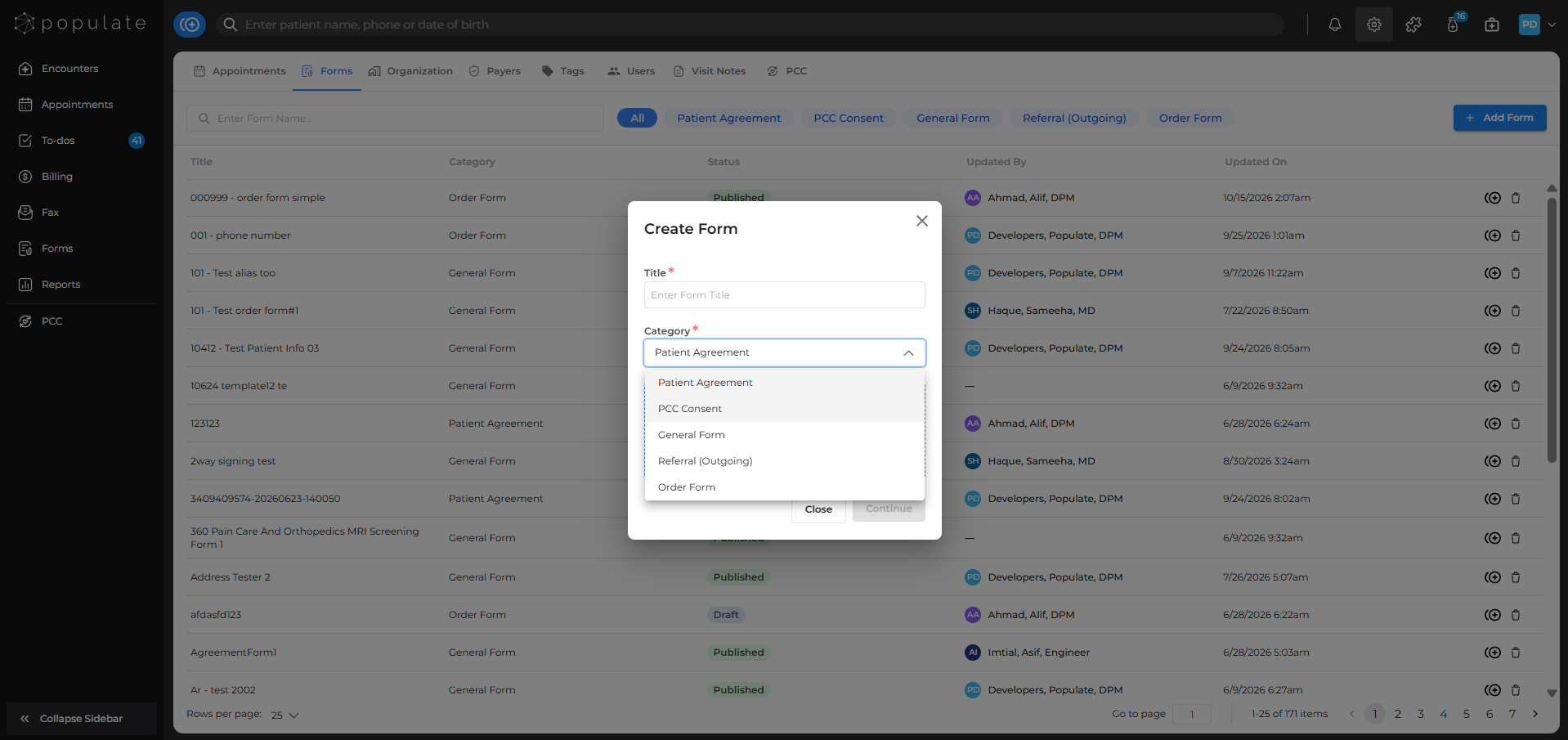
The process for building your form is the same as creating any other form in the system. Upload the form, add your fields, fill in the necessary details, and when you're ready, publish the form.
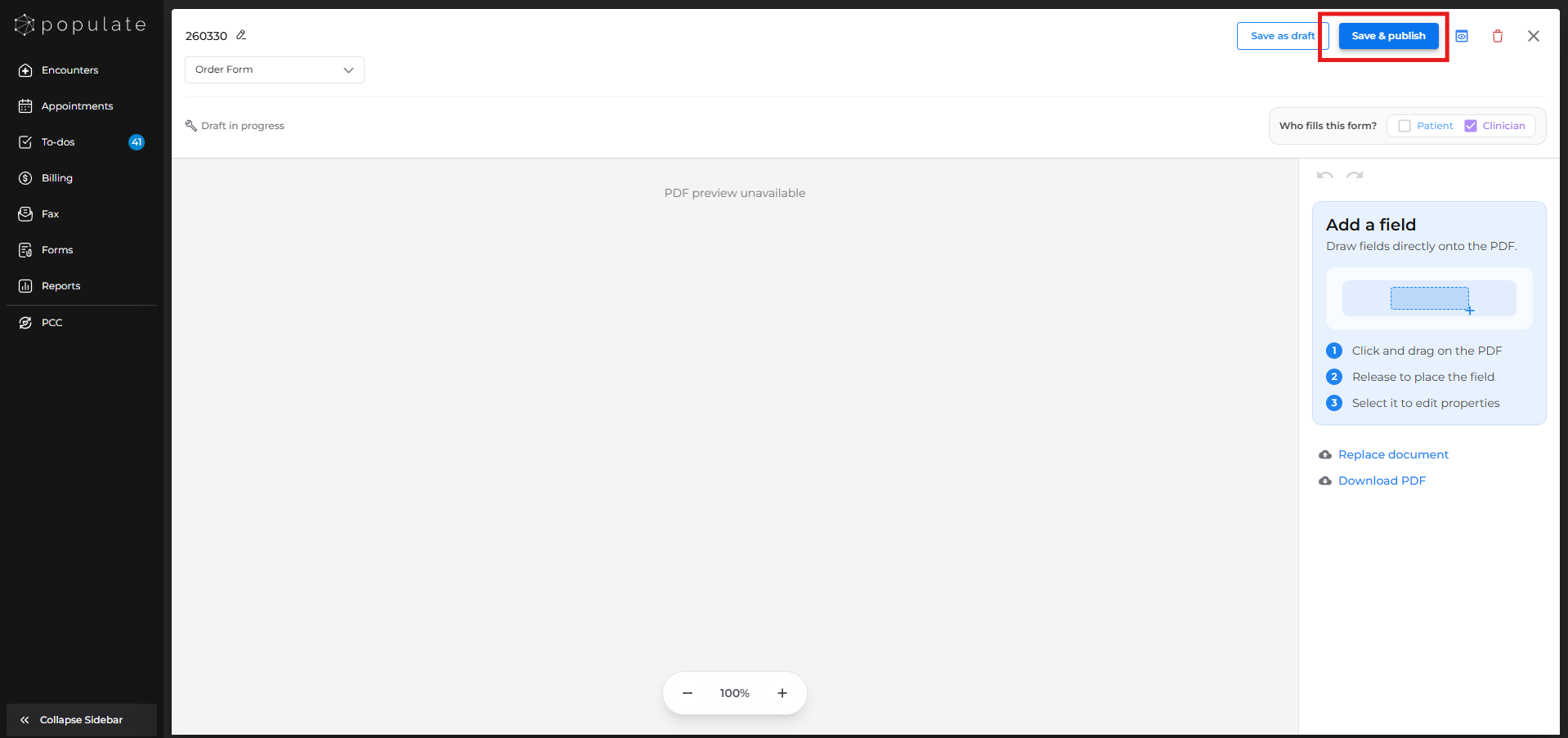
Once published, it will be available to use across any patient visit note.
This is a one-time setup. Once your forms are created, you won't need to return to settings unless you want to add or modify them. Now, let's look at how to use these forms during an actual patient encounter.
Now, open a visit note that has been filled out with the patients information.
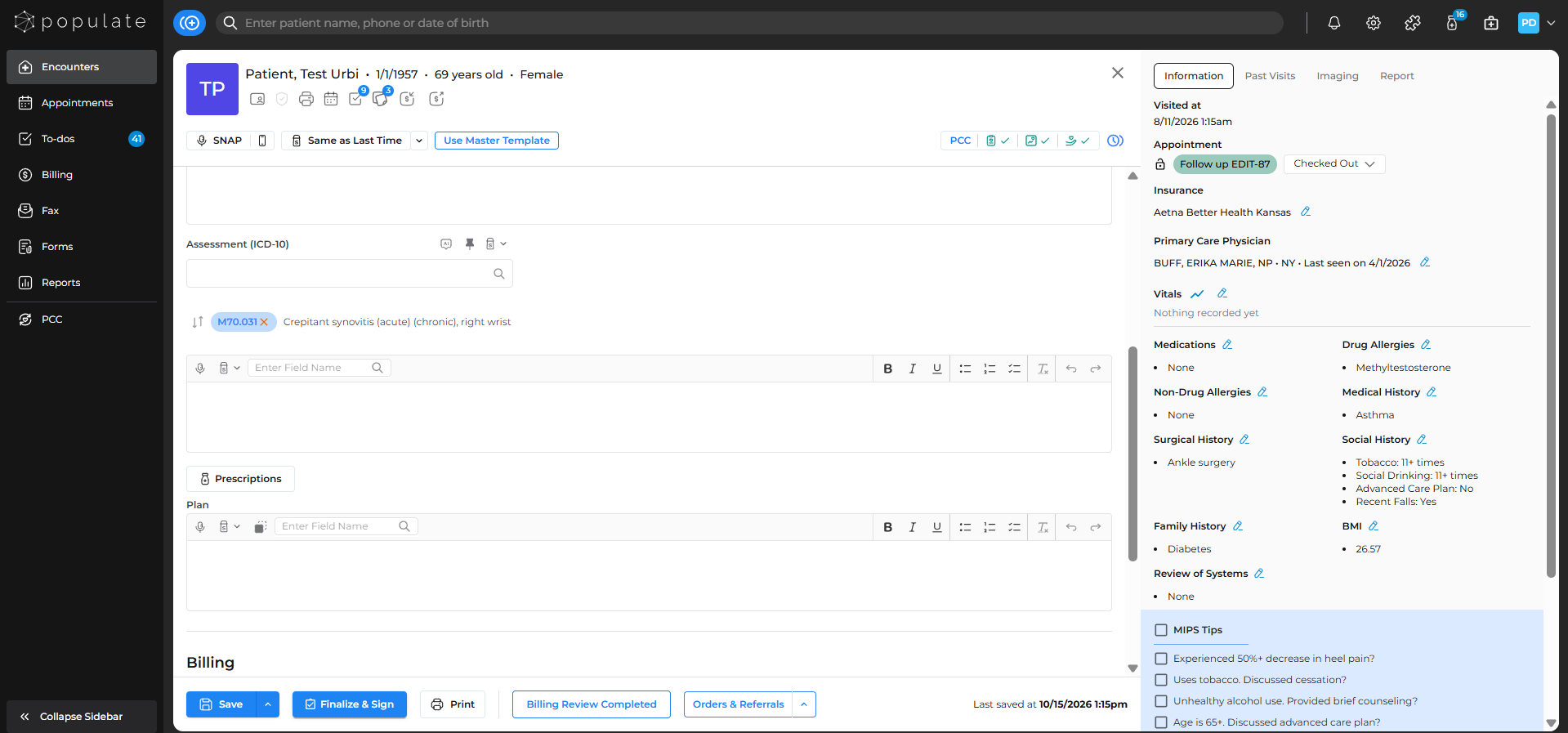
Once you finish documenting your plan, on the bottom navigation bar, you'll see an orders and referrals button. Hover over it to reveal two options, send order form and send referral.
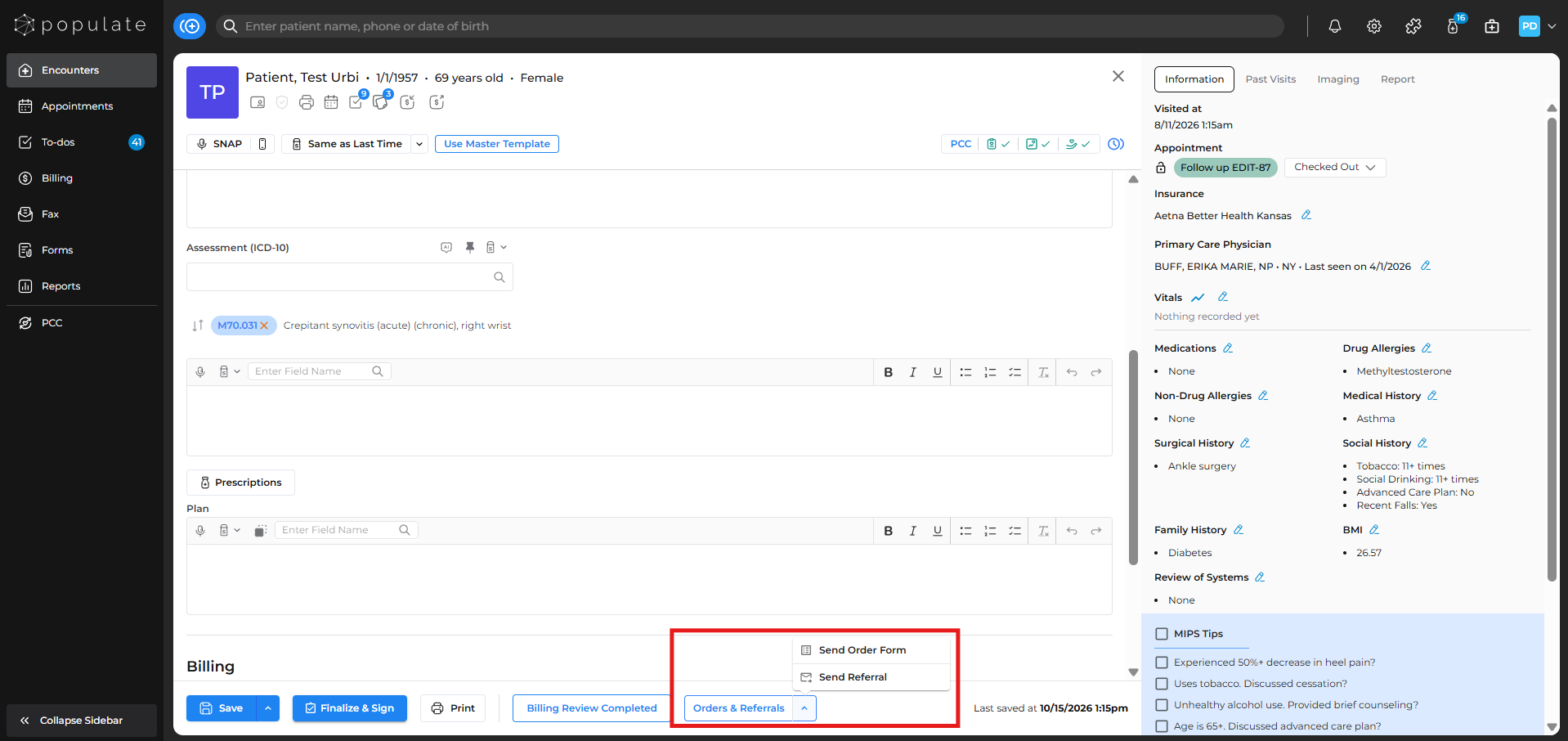
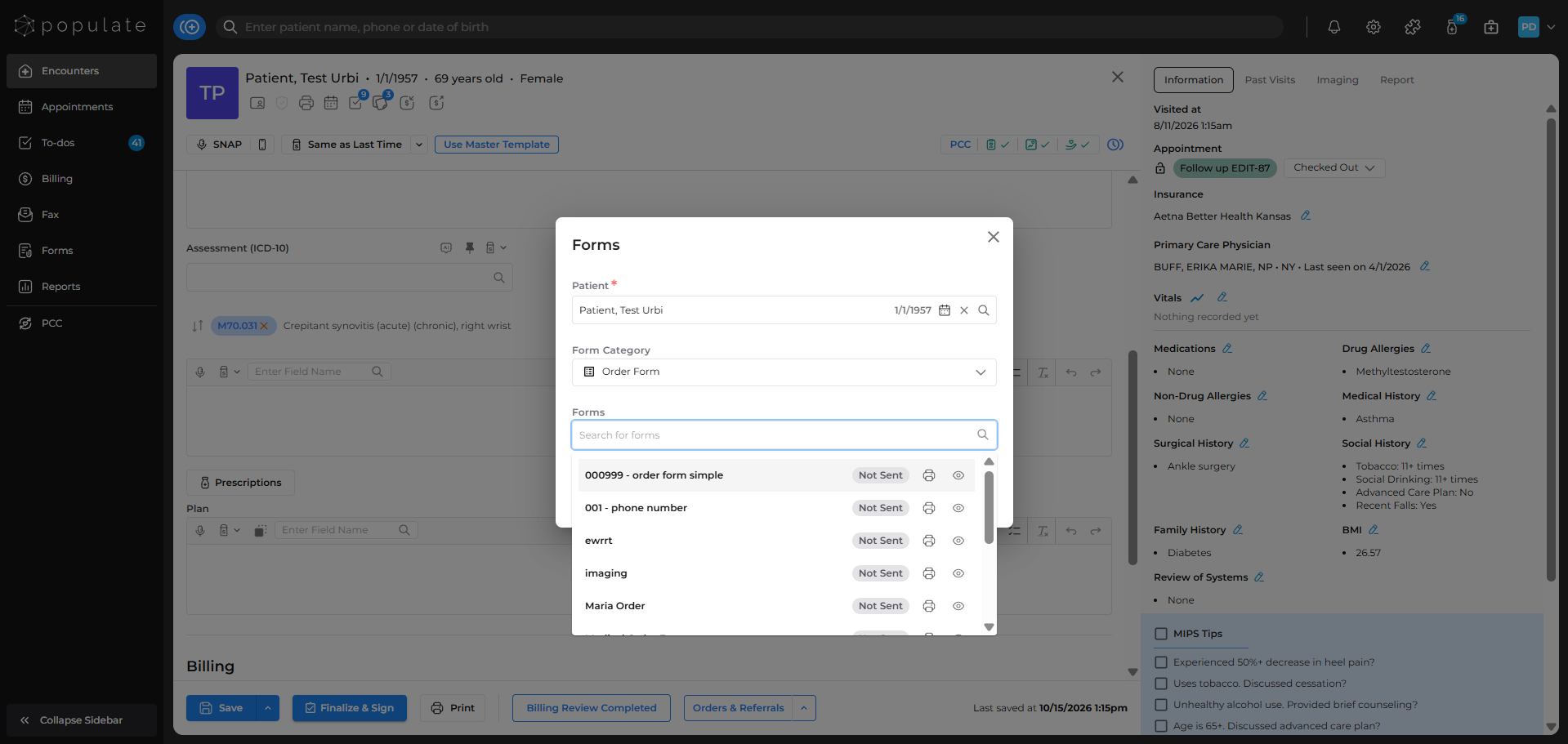
Select the one that applies to your current situation. You'll then see a list of the forms you created in settings.
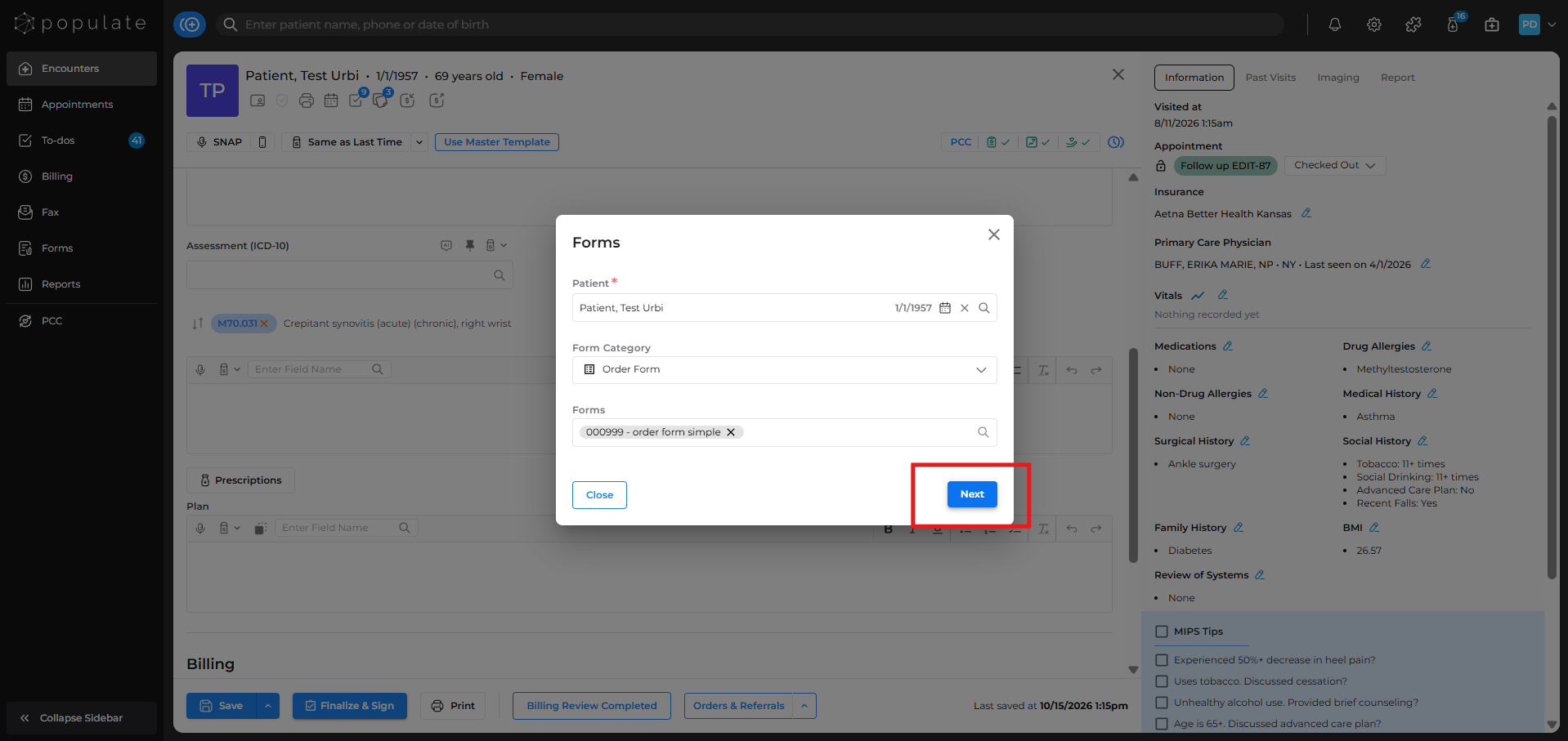
After selecting the correct form, click on Next.
Next, review the form by clicking on Start and fill in any additional information required before sending. At this point, you'll also see an option to include the visit note along with the form. Select this if you want to include the visit note with the order form.
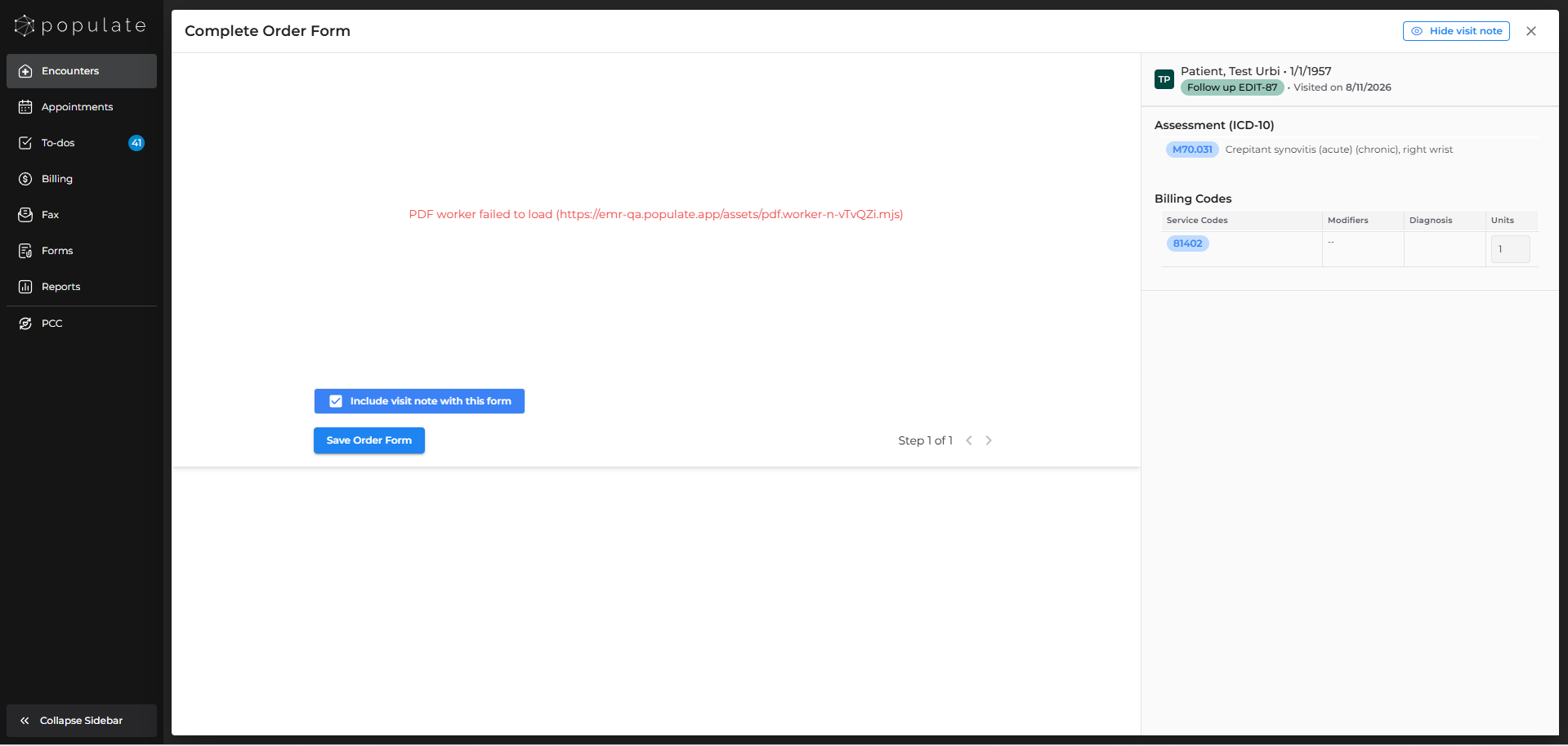
When everything looks good, save the form.

You can then send it via fax or print the form depending on what's needed.
You can close the dialogue if no further steps are required.
The same steps can be followed to send a referral letter. Select the send referral option to proceed. Once the forms are sent, they will be automatically added to the patient's chart under multimedia. And that's it.