To enable telemedicine for your account, you will have to reach out to Support.
When an appointment is scheduled as Telemedicine - Populate automatically creates a Zoom meeting link, sends it to the patient by SMS and email, and makes it available to the provider in the EMR. This is only available when the organization enables the video conferencing configuration.
Under Encounters, if an appointment type is set as Telemedicine, you will find the "Join Telehealth Visit" option in the right-sided split screen upon selecting the encounter from the list.
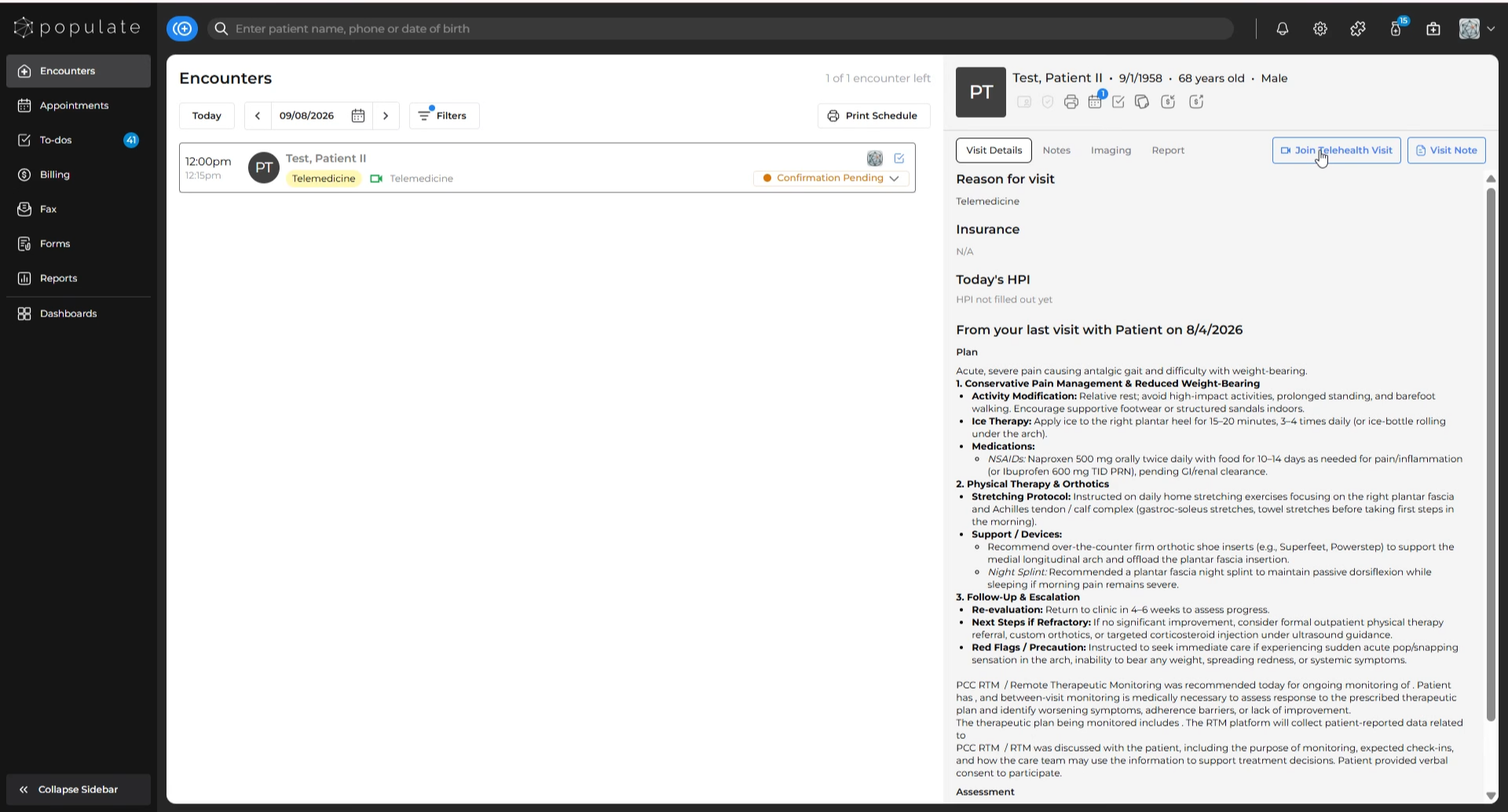
Click on "Join Telehealth Visit" to start the Zoom call, which is linked to the specific provider’s Zoom account. 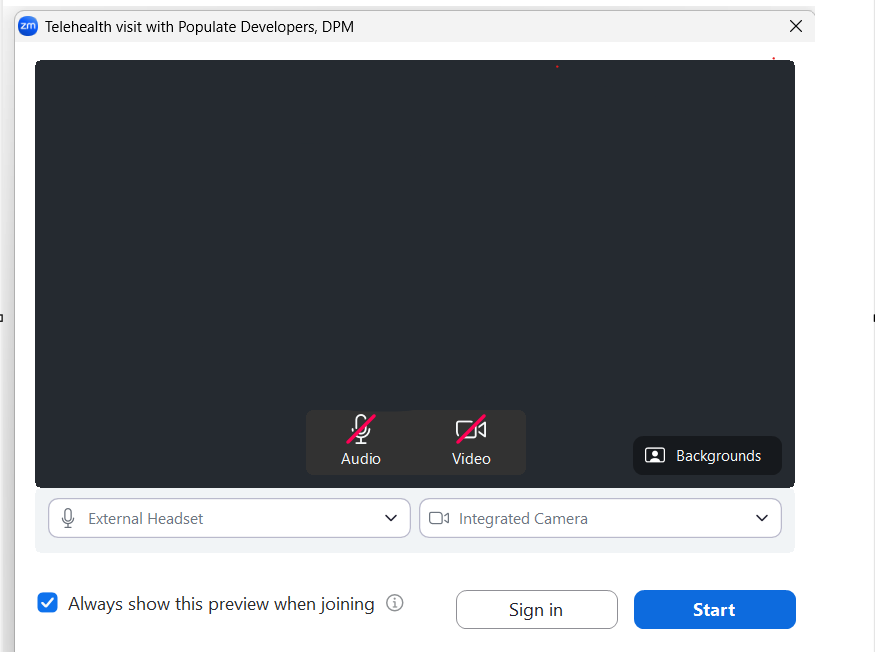
The patient can directly join by clicking the link on the SMS/Email. Once the patient joins, proceed with the visit as you normally would, and when the conversation is complete, simply end the Zoom meeting.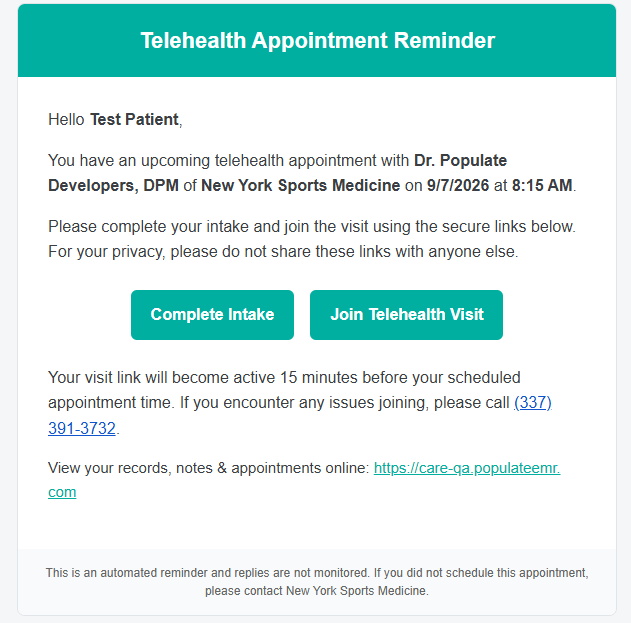
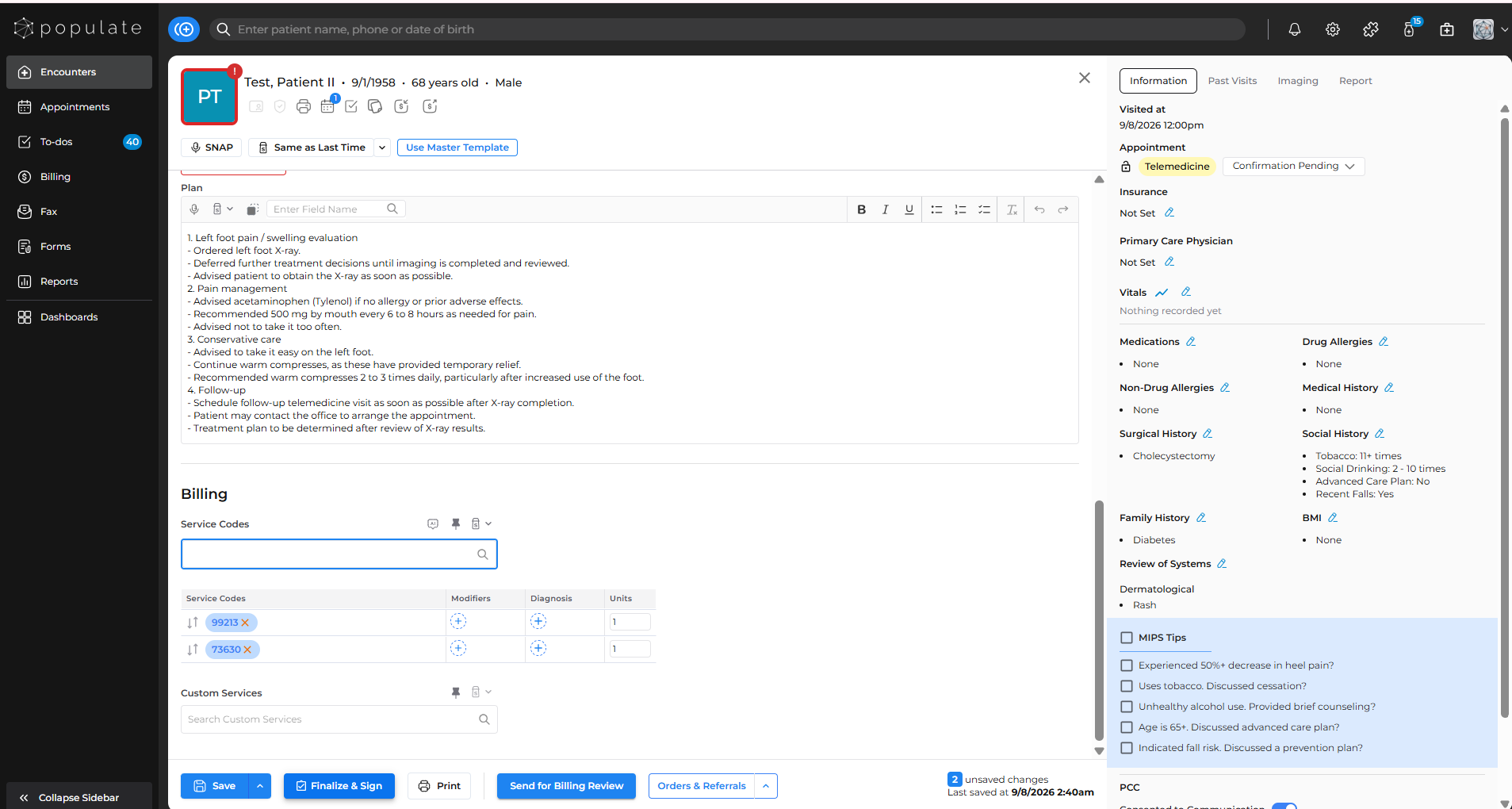
While you speak with the patient, SNAP transcribes the visit in the background. After the visit is over, navigate to the visit note and it will display the medically relevant content from your call, with non-medical small talk filtered out.
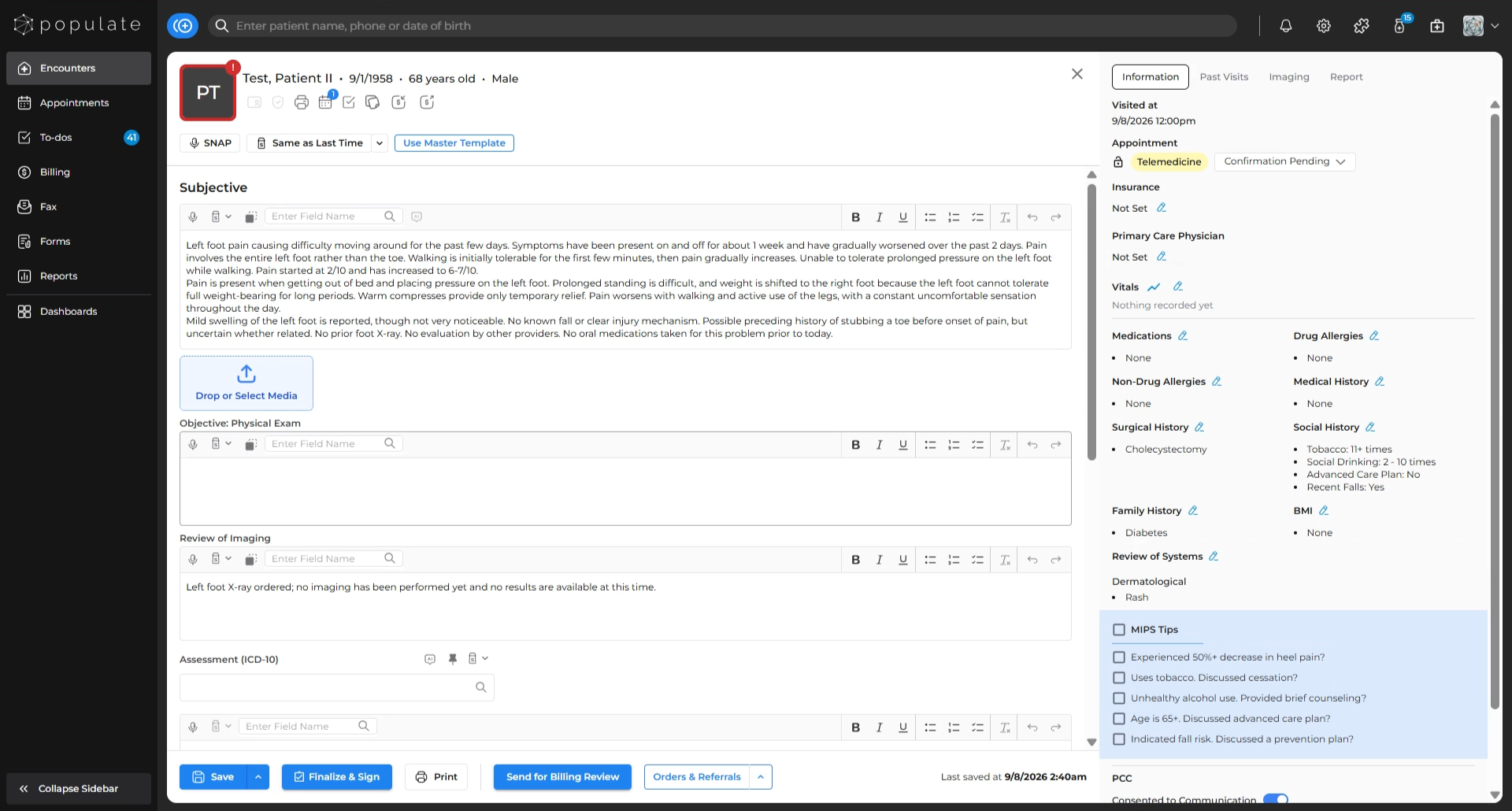
All the fields in the visit note are editable, so any changes you make will be instantly updated in the system. After reviewing the contents, you can add the appropriate ICD-10 codes and billing codes, then select "Finalize & Sign" to complete the note and generate a charge.